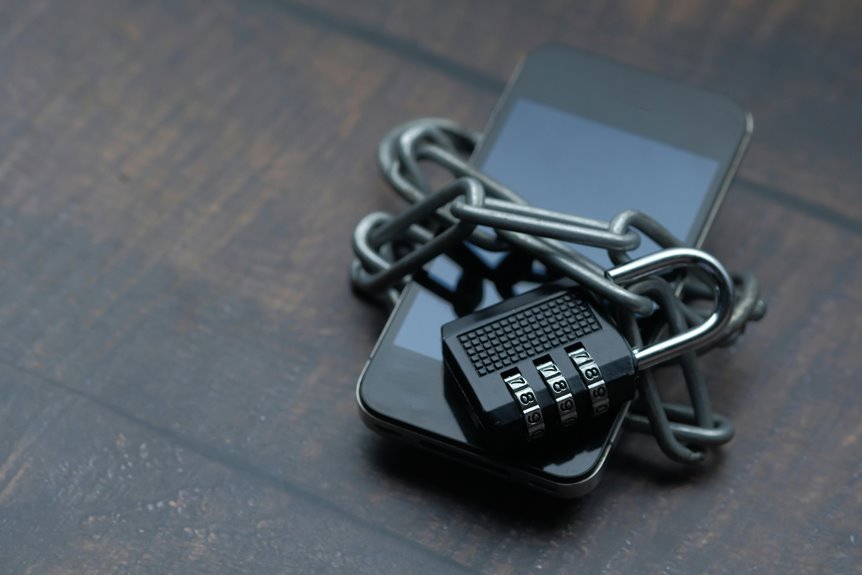
Your smartphone is a vault with a glass door, and you control the lock. You should set a unique six-digit PIN or password, enable biometrics, and keep auto-lock short. Review app permissions, update the OS from official sources, and keep encryption, tracking, and remote wipe active. A case, screen protector, and cautious Wi‑Fi habits reduce exposure, but the real weak points often hide in settings you haven’t checked yet.
Start With a Strong Lock Screen
Whenever you share devices within a trusted group, choose a unique PIN for each user to reduce confusion and unauthorized entry. Review device resale risks before selling, donating, or trading your phone, because residual access can expose data and account links. Keep emergency lockout plans ready, including recovery codes and account verification steps, so you won’t lose control whenever you need access fast.
Use Biometrics for Faster Security
You can use fingerprint unlock to reduce authentication time while maintaining strong access control.
Face ID adds similar convenience via verifying your identity quickly with minimal input.
Both biometrics streamline daily access without replacing the need for a strong PIN or password.
Fingerprint Unlock Speed
Fingerprint authentication often gives you faster access than typing a PIN while still adding a strong security layer to the device. You benefit most whenever touch responsiveness is high and scan latency stays low, because the sensor can validate your print without delaying workflow. In a well-tuned setup, you’ll join a group of users who open phones efficiently and securely.
- Place your registered finger flat on the sensor.
- Keep the sensor clean to preserve accuracy.
- Re-enroll prints whenever recognition slows.
You should still use a strong PIN as backup, since biometrics can fail in wet, dirty, or damaged conditions. Fast opening doesn’t weaken control; it reduces friction while preserving access discipline. Whenever the sensor responds instantly, you’re more likely to keep security enabled every time.
Face ID Convenience
Because Face ID can authenticate in a fraction of a second, it reduces friction without reducing security, letting you access the phone quickly while keeping strong access control in place.
You should complete Face ID setup in a controlled lighting environment, then test it from normal angles so the model learns your face accurately.
Strong facial recognition reliability depends on consistent positioning, but it also benefits from adaptive updates that improve performance over time.
Whenever you use biometrics, you join a security workflow that’s fast enough for daily use and strict enough for sensitive data.
Unless the camera can’t confirm your identity, the device should fall back to your passcode, preserving layered protection.
That balance gives you convenience without weakening trust, privacy, or your device’s comprehensive defense.
Review App Permissions and Privacy Settings
- Inspect each permission against actual use.
- Disable background access whenever it isn’t required.
- Remove unfamiliar apps that request broad data access.
You belong to a safer mobile environment whenever you verify which services can read data, track movement, or share identifiers.
Use precise, deliberate choices, and keep permissions narrow so only essential capabilities remain active.
Keep Your Smartphone Software Up to Date
Keeping your smartphone software up to date is one of the most effective ways to reduce exposure to known vulnerabilities.
You should install software updates as soon as they’re available, because vendors often release them to close exploitable flaws in the operating system and core services. Don’t postpone app store patches either; they correct security gaps in individual apps and reduce the chance that attackers can use an outdated component as an entry point. Enable automatic updates whenever possible, then verify that downloads complete successfully on trusted networks.
This routine helps you stay aligned with the rest of the community that treats security as a shared baseline, not an optional task. Consistent maintenance strengthens device integrity, improves stability, and keeps your protection posture current against developing threats.
Choose a Case and Screen Protector
You should choose a case made from durable materials such as polycarbonate, TPU, or reinforced silicone, since these polymers improve impact absorption and abrasion resistance.
Pair it with a tempered glass screen protector, which adds a high-hardness sacrificial layer that helps distribute point forces and reduce display fractures.
Together, these components lower the probability of damage from drops, surface contact, and repeated handling.
Durable Case Materials
A durable case and a quality screen protector reduce physical damage through absorbing impact, limiting abrasion, and preserving device usability after drops or contact with hard surfaces. You should prioritize materials with high impact resistance, such as polycarbonate shells and TPU edges, because they distribute force instead of concentrating it. For weather protection, sealed ports and raised bezels help limit ingress from dust, light rain, and incidental splashes. Choose a fit that keeps buttons responsive and doesn’t trap heat.
- Thick corners improve drop performance.
- Textured finishes reduce slip risk.
- Reinforced seams extend service life.
When you select a case built for your routine, you join users who treat protection as a technical standard, not an accessory. That choice keeps your phone reliable, longer.
Tempered Glass Protection
A precise fit preserves touch sensitivity and keeps edge peeling low. If you belong to a crew that values reliable gear, choose a protector with oleophobic coating and clean install tools; they cut smudges and bubbles. Replace it when chips, cracks, or delamination appear, because weakened glass won’t manage impacts consistently.
Reduce the Risk of Loss and Theft
To reduce the risk of loss and theft, keep your phone physically secure and make recovery or remote response possible. You should carry it in an inside pocket, use a wrist strap in crowded areas, and enable device tracking so you can locate it fast. If someone takes it, remote wipe limits exposure and protects your circle’s shared trust.
- Lock your screen with a strong PIN and biometric check.
- Turn on location services and theft alerts.
- Enable auto-lock and set a visible lock message.
You’ll reduce opportunistic grabs by keeping the device out of sight and never leaving it unattended on tables, benches, or charging stations.
If it disappears, report it quickly, freeze linked accounts, and use your recovery tools immediately. That response helps you stay connected, protected, and in control.
Back Up Your Data Regularly
You should automate cloud backup to reduce gaps between saves and keep versions current.
Encrypt backup archives if the service supports it, and verify that photos, documents, app data, and account records sync correctly.
Test restores on a schedule so you know your recovery planning works under real conditions, not just on paper.
Keep at least one offline copy on a trusted drive for added resilience.
When you change phones, update backups before migration to preserve continuity.
This habit helps you stay aligned with a prepared community of users who expect reliable access to their own information, even if devices fail unexpectedly.
Stay Safe on Public Wi-Fi and Texts
Whenever you’re on public Wi-Fi, assume the network is untrusted and avoid sending sensitive data unless the connection is encrypted and the app uses end-to-end protection. Public wi fi risks include traffic interception, rogue hotspots, and session hijacking, so you should disable auto-connect and verify the network name before joining. Use secure text messaging for private conversations, because standard SMS can expose content and metadata.
- Prefer HTTPS sites and apps with built-in encryption.
- Turn off file sharing and nearby discovery on open networks.
- Send passwords, codes, and account details only through protected channels.
You protect not just your device, but your group’s trust, too. Whenever treating every open network as hostile, you reduce exposure and keep your messages inside the intended circle.
Fix Common Phone Security Issues
A few common settings fixes can sharply reduce phone risk: use a strong PIN or password of at least six digits, enable fingerprint or facial recognition, and turn on 2FA so stolen devices and leaked credentials still can’t grant easy access.
Set auto-lock to five minutes, and erase data after repeated failed attempts to slow brute-force attacks.
Install operating system and app updates from official stores immediately; each patch closes known exploits.
Keep encryption and permission controls enabled, review unfamiliar apps, and remove anything you didn’t install.
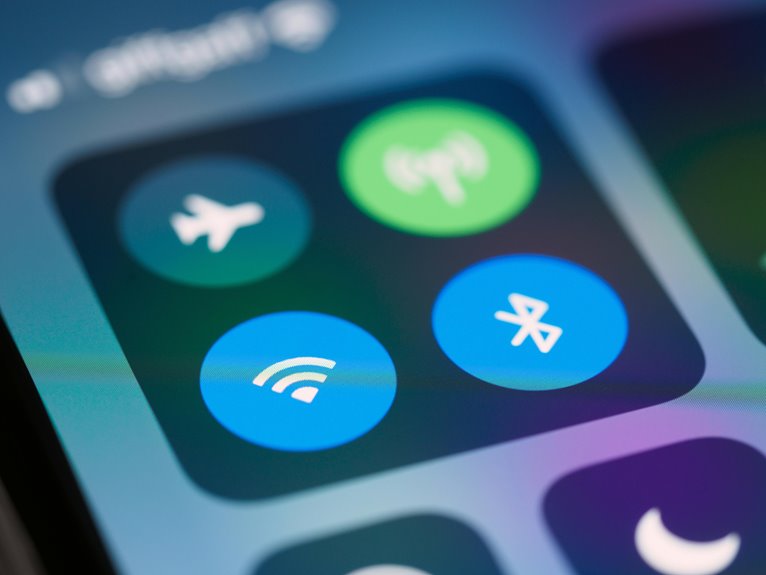
Turn off Bluetooth and Wi-Fi auto-connect once idle.
Should your phone’s lost, use remote wipe right away.
These steps protect your privacy, keep your group’s devices safer, and help everyone stay resilient against fast-moving threats.
Frequently Asked Questions
How Do I Know if My Phone Has Been Remotely Wiped?
You may see clear signs of a factory reset: your apps, accounts, and settings are gone, and the phone restarts at the setup screen. Check device management in the settings or use your carrier’s tools to see whether a remote wipe command was sent.
Can Public Charging Cables Steal Data From My Smartphone?
Yes, public charging can expose your phone if the cable or charger is tampered with. A rogue cable can access USB data lines and copy information. Use your own charger, a charge only cable, or a power bank instead.
What Should I Do if My Phone Starts Acting Suspiciously?
Isolate the phone, turn off Wi Fi and Bluetooth, check battery use and unexpected pop ups, remove unknown apps, update the operating system, change your passwords, turn on two factor authentication, then run a trusted security scan or reset the phone to factory settings.
How Can I Tell if an App Is Secretly Sharing My Location?
Check the app’s location permission settings and its background network activity. If battery use spikes or it keeps sending data to servers, it may be sharing your location. Review the permissions, remove location access, and inspect activity logs.
Should I Disable Bluetooth When I’M Not Using It?
Yes, turn off Bluetooth when you are not using it. This cuts Bluetooth battery drain, lowers the chance of Bluetooth security issues, and keeps your device more efficient and protected.