

Should you want your laptop to last, you need to focus on the parts that wear it down fastest: heat, battery stress, dust, and careless handling. You can slow that damage with a few habits, but some choices matter far more than others. Before you change settings or buy accessories, it helps to know which maintenance steps actually extend system life and which ones only look useful.
Identify the Biggest Lifespan Killers
The biggest laptop lifespan killers are heat, liquid damage, and battery abuse. You can protect your machine by avoiding liquid damage risks: keep drinks away, close the lid before moving it, and dry any spill immediately.
Physical drop damage also cuts lifespan fast, so use a padded sleeve, carry it with two hands, and secure it on crowded desks. Battery abuse shortens service life while you leave it plugged in nonstop or drain it to zero often. Keep charge cycles moderate, and unplug once you’re topped off.
You’re part of the group that treats hardware like a long-term tool, not a disposable device. Small habits now prevent costly failures later and keep your laptop dependable.
Keep Your Laptop Cool
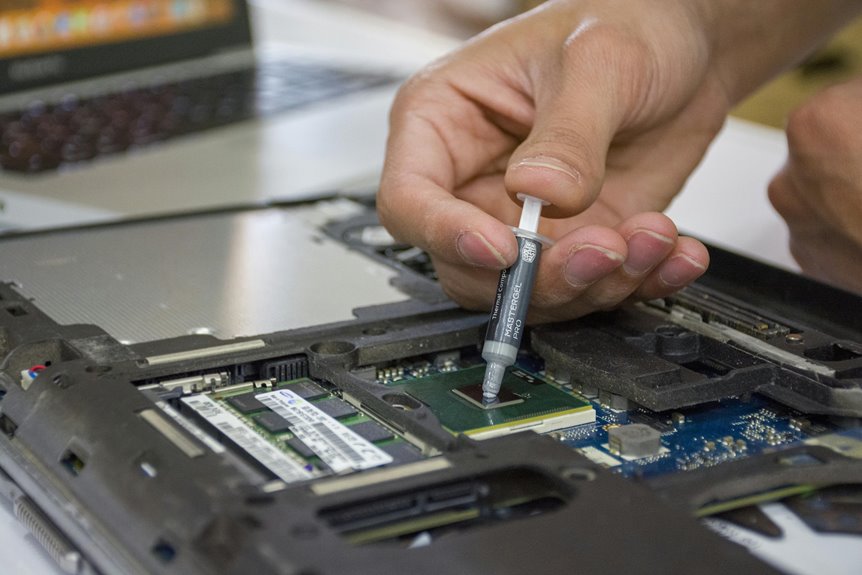
Heat is the next major factor to control, because sustained high temperatures can damage the battery, SSD, motherboard, and CPU/GPU over time. You can lower stress using cooling accessories and keeping vents unobstructed on hard, flat surfaces. If your laptop feels hot, reduce load, lower screen brightness, and let it rest. Thermal paste upkeep matters on aging systems, since dried paste raises chip temperatures and speeds wear.
| Action | Result |
|---|---|
| Use a cooling pad | Cooler chassis |
| Lift the rear edge | Better airflow |
| Limit heavy workloads | Less heat |
| Maintain thermal paste | Stable temps |
| Monitor temperatures | Fewer failures |
When you manage heat well, you join the group of owners who keep machines fast, quiet, and reliable for years.
Clean Dust and Debris Regularly
Dust out the vents and fan openings regularly so your laptop can breathe and stay cool.
Use vent dust cleaning as part of your monthly maintenance routine, especially in case you work in a dusty room or carry your machine often.
Power it off, unplug it, and hold the fan blades steady while you apply short bursts for safe compressed air use. That keeps debris from driving deeper into the chassis.
Wipe the keyboard, ports, and case with a dry microfiber cloth to remove grit that can migrate inside.
Avoid vacuum attachments and sharp tools; they can damage fins and connectors.
As long as you keep dust out, you help cooling stay efficient, reduce wear on internal parts, and stay in the group of users who get more years from their laptop.
Protect Laptop Battery Health
You should keep your battery between 40% and 80% to slow capacity loss and extend its service life.
Keep the laptop cool, since heat accelerates battery degradation and reduces total reliability.
Turn on battery saver mode and lower power settings whenever you don’t need full performance.
Charge Range Limits
Keeping your laptop battery between 40% and 80% helps slow capacity loss and extend its usable lifespan. You’ll get the best results when you treat these battery percentage thresholds as routine operating limits, not emergency rules. Staying in these ideal charging windows reduces stress on the cells and keeps your machine ready for daily work.
- Plug in before you dip below 40%.
- Unplug once you reach about 80%.
- Check battery reports to verify charge habits.
If your workflow keeps you near power, set alerts or use charge caps in your BIOS or vendor app. You’re not just preserving hardware—you’re joining a smarter maintenance habit that helps your team, classroom, or home setup stay reliable. Small limits now can prevent premature replacement later.
Avoid Heat Exposure
Heat is one of the fastest ways to wear down a laptop battery, since prolonged high temperatures accelerate capacity loss and can damage nearby components.
You should keep your laptop on hard, flat surfaces so airflow stays open and thermal stress stays low. Avoid beds, pillows, and laps that create ventilation hazards by blocking intake and exhaust paths. If the chassis feels hot, shut apps down and let the system cool before you keep working.
Don’t leave your laptop in a parked car, direct sun, or near radiators, because heat buildup shortens battery life and strains the motherboard. Regularly clear dust from vents so cooling works as designed. When you respect heat limits, you help your device stay reliable and stay in the circle of smooth daily use.
Use Battery Saving Modes
Battery saver mode trims background activity, dims the display, and reduces processor demand, so your laptop draws less power and the battery cycles less often. You get battery saver benefits upon you activate it before the charge drops low, especially during travel or long meetings. Use low power mode settings to cap screen brightness, pause sync tasks, and limit app refresh.
- Turn on battery saver at 30% to 40% charge.
- Disable Wi‑Fi and Bluetooth whenever you don’t need them.
- Close heavy apps and browser tabs to cut drain.
These controls help you stay productive while protecting battery health. Via managing power use consistently, you slow capacity loss and keep your laptop ready for the next work session with your team.
Charge Your Laptop the Right Way
To extend battery lifespan, keep your laptop’s charge between 40% and 80% instead of leaving it plugged in all the time. Build charging habits that avoid repeated 0% drains and long overnight sessions, because both stress cells and shorten runtime.
If your gauge seems inaccurate after many partial charges, do battery calibration by fully charging once, then discharging to a low level before charging again. Use the original charger or a certified replacement so voltage stays stable.
Unplug when you reach your target range, and recharge before the battery falls too low. You’ll fit in with smart users who treat power management like routine maintenance, not guesswork. This approach helps you keep dependable capacity, reduce heat, and protect long-term performance.
Update Software and Drivers
Keeping your laptop’s software current matters just as much as managing its battery. You keep your system reliable using installing OS, driver, and firmware updates as soon as they’re vetted by the manufacturer. That helps you preserve security, fix bugs, and support new apps without surprises. Check driver update compatibility before you click install, especially for graphics, Wi-Fi, and chipset packages. Respect firmware patch timing, since some updates should run on AC power and after a restart window.
- Turn on automatic update checks.
- Read release notes before approving patches.
- Reboot promptly so changes take effect.
When you stay current, you’re part of the crew that gets smoother performance, fewer errors, and a laptop that ages more gracefully.
Avoid Overloading Your Storage Drive
Keep at least 15–20% of your drive free so your SSD can manage writes efficiently and maintain performance.
Remove duplicate files, old downloads, and unused apps to reduce file bloat and reclaim space.
When your storage stays near capacity, you’ll see slower boot times, longer load times, and faster wear.
Free Drive Space
Free space is essential for a laptop’s storage performance and longevity. Keep at least 15–20% of your SSD empty so you preserve drive space buffers and reduce write stress. Whenever you build storage margin habits, your laptop can manage temporary files, updates, and caching without choking. That keeps the system responsive and helps the drive wear evenly.
- Check available space weekly.
- Move inactive data to external storage.
- Leave room before large installs.
If you let the drive fill up, performance drops and system tasks slow down. You’ll also force the controller to work harder, which can shorten lifespan. Stay disciplined, and your machine stays fast, stable, and ready for the team.
Reduce File Bloat
Unnecessary files and apps quickly bloat your drive, so trim them regularly to keep storage efficient and performance stable.
You’ll keep your laptop faster whenever you clear downloads, duplicate media, caches, and old installers before they pile up. Use startup trimming to stop background apps from loading at boot, which frees memory and shortens login time.
Practice app uninstalling for programs you don’t use; leaving them installed wastes space and can add update overhead. Review cloud-sync folders, browser data, and temp files monthly so your storage stays at least 15–20% free.
That buffer helps SSDs maintain speed and wear less. Whenever you manage file bloat together, your system stays lean, responsive, and ready for the work you share with your team.
Reduce Keyboard and Hinge Wear
To reduce keyboard and hinge wear, protect the laptop from dust, spills, and rough handling, since these parts typically degrade within 3–5 years.
Keep a stable desk setup so you’re not twisting the chassis while typing, and use spill prevention habits: keep drinks away and close lids before moving the machine. Press keys lightly and open the display from the center to avoid stressing the hinges.
- Clean keys and hinge gaps with compressed air.
- Use a microfiber cloth on keycaps and palm rests.
- Lift the lid slowly and support it with two hands.
These small controls help your team of one stay productive with a laptop that feels solid longer.
Consistent care reduces looseness, missed key presses, and cracked hinge mounts, so you get better reliability without extra effort.
Shutdown and Restart Properly
Shut down your laptop through the operating system, close apps initially, and wait for all activity lights to stop before powering off. This prevents file corruption and reduces wear from abrupt power loss.
Restart it regularly to clear temporary errors, refresh memory, and restore normal system performance.
Proper Shutdown Steps
When you’re done using your laptop, close your apps and save your work before choosing Restart or Shut down from the operating system menu. That secure shutdown sequence lets the OS finish writes, release memory, and park active tasks cleanly. Wait for the power off confirmation screen or LED change before you close the lid. You’ll help protect files, storage, and battery health via avoiding forced power loss.
- Save open documents first.
- Close syncing, backup, and update tools.
- Confirm the system has fully powered off.
If your team uses shared devices, follow the same steps every time so everyone gets reliable performance and fewer file errors. A consistent shutdown habit keeps your laptop ready for the next session.
Restart To Refresh System
A proper restart can clear temporary glitches, refresh memory, and restore normal system behavior after long use. You should use it as a quick system refresh when apps lag, Wi-Fi drops, or updates finish.
Save your work, close programs, then choose Restart instead of forcing power off. That protects files and lets services reload cleanly. For reboot timing, restart after major driver installs, OS updates, or before troubleshooting persistent errors.
If your laptop feels warm or sluggish, a restart often helps more than repeated sleep cycles. Keep the habit consistent with your team so everyone follows the same maintenance routine. A clean reboot supports stability, reduces background clutter, and helps you catch problems ahead of time before they grow.
Choose the Best Power Settings
To extend battery life and reduce heat, you should set your laptop’s power plan for balanced performance rather than maximum output. This choice keeps you in control without sacrificing daily speed, and it supports longer hardware life. Lower screen brightness when you’re on battery, and let processor performance scale dynamically instead of staying locked at peak.
- Enable battery saver when you’re away from a charger.
- Turn off unused wireless radios to cut idle drain.
- Review sleep and display timers so the system rests sooner.
Use manufacturer power utilities if they offer finer tuning, but avoid extreme throttling that makes the machine feel sluggish.
With a sensible profile, you’ll protect the battery, reduce heat stress, and keep your system responsive for the long haul.
Handle Cables and Ports Gently
Gently insert and remove cables to protect the charging port, USB sockets, and internal connectors from looseness and wear. You’ll reduce port stress by aligning each plug before contact, then pushing straight in and pulling it out via the connector body, not the cable. Don’t twist or yank cords, because side load accelerates connector wear and can crack solder joints.
Keep adapters and peripherals supported so hanging weight doesn’t pull on the chassis. Should you travel with your laptop, pack cables loosely and avoid sharp bends near the ends. Use the right port for the right device, and check fit before forcing anything. Small habits like these help your gear stay reliable, and they keep your setup feeling solid, trusted, and ready for daily work.
Watch for Early Failure Signs
Once you’ve protected the ports and cables, keep an eye on the signs that something else is starting to fail.
You’ll catch problems sooner when you track changes in heat, sound, and responsiveness. Small faults often show up before a full breakdown, and your crew can avoid downtime through acting fast.
- Watch for display anomalies like flicker, dead pixels, or color shifts.
- Listen for unexpected noises from the fan, drive, or hinges.
- Record battery drops, freezes, or sudden shutdowns during normal use.
Should you spot any of these, back up your data, run diagnostics, and clean the vents.
Don’t ignore repeated symptoms; they usually point to worn hardware, thermal stress, or a failing component that needs service soon.
Frequently Asked Questions
How Often Should I Replace Thermal Paste?
You’d usually replace thermal paste every 2 to 4 years, or earlier if temperatures start rising. Its lifespan depends on heat and workload, so it is time to repaste when fan noise increases, throttling begins, or cooling performance drops.
Can a Laptop Survive Long-Term Storage Without Use?
Yes, a laptop can be stored for the long term if you shut it down fully, keep it in a cool, dry place, and leave the battery at about 40 to 60 percent charge. You should still power it on occasionally to check that it works and top up the battery when needed.
Does Using a Surge Protector Really Matter?
Yes, it really does. A surge protector helps shield your laptop from voltage spikes, lowers the risk of outlet damage, and keeps power flow steadier. That means less strain on internal parts, fewer unexpected shutdowns, and a better chance of avoiding expensive repairs.
What Humidity Level Is Safest for Laptop Storage?
Store your laptop in 40 to 60 percent relative humidity. This range helps reduce moisture buildup and condensation, which can harm internal components, while keeping the storage area from becoming too dry.
Are Extended Warranties Worth Buying for Laptops?
Sometimes. An extended warranty can make sense if repair bills are likely to be steep and the coverage costs less than those repairs. It is especially useful if it includes accidental damage or battery replacement and you need to avoid downtime or an unexpected replacement cost.




