

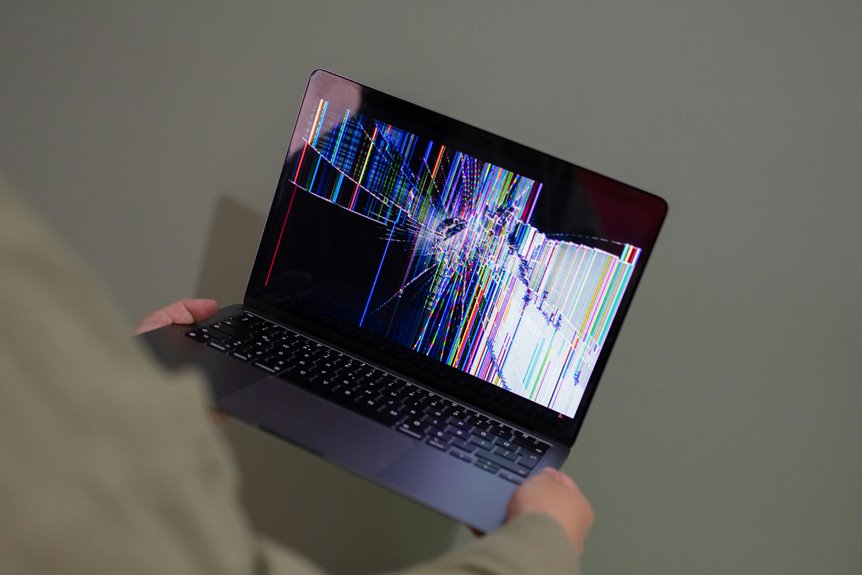
Is your laptop slowing to a crawl, or is it warning you in other ways? You can usually trace the issue to one of ten common faults: heavy startup loads, overheating, weak batteries, low storage, Wi-Fi drops, startup failure, display errors, keyboard or touchpad faults, noisy fans, or deeper hardware problems. Some you can fix quickly, but others point to damage that won’t wait.
Why Is My Laptop So Slow?
Your laptop is often slow because it’s running out of available system resources. You feel the lag whenever startup bloat loads too many apps, leaving less RAM and CPU for the tasks you need. Check Task Manager, identify heavy processes, and disable nonessential startup entries so your system can breathe.
Should malware cleanup hasn’t been done, run a trusted scanner; infections often consume cycles and create concealed background activity.
You should also close unused apps and browser tabs, because each one adds pressure. A nearly full drive can slow file access, so keep free space available.
Once you manage these limits, you join a healthier performance baseline and get a laptop that responds like it should.
How Overheating Slows and Damages Laptops
When a laptop overheats, it often slows down initially because the CPU and GPU throttle to reduce heat output and protect internal components. You’ll see stutter, delayed launches, and reduced frame rates as thermal throttling limits clock speeds. Dust in vents or fans blocks airflow, so heat lingers around the processor, memory, and battery.
Whenever you keep pushing heavy workloads, the system runs hotter for longer, which increases component wear and can shorten the life of solder joints, fans, and the battery. You belong with users who treat heat as a warning, not a nuisance. Check for hot surfaces, loud fans, and repeated shutdowns.
Cleaning blocked vents promptly helps prevent permanent damage and keeps your laptop stable, responsive, and safer over time.
How to Fix Wi-Fi and Network Drops
Heat-related instability can also show up as Wi-Fi drops, because a stressed laptop may throttle network components, reset adapters, or lose power to internal radios.
You should initially move closer to the router and check for signal interference from walls, Bluetooth gear, microwaves, or crowded channels. Then restart your laptop and router, and confirm router compatibility with your wireless card’s standards, bands, and security settings. Update the Wi-Fi driver from your laptop maker or adapter vendor, since outdated firmware can cause random disconnects. In Device Manager, disable power-saving options for the adapter if Windows keeps suspending it. Should drops continue, test another network to isolate the problem, then reseat or replace the adapter.
Once you troubleshoot methodically, you’ll fit right in with users who solve connection issues fast.
Why Is My Laptop Battery Draining So Fast?
Your laptop battery can drain fast while power-hungry apps push the CPU and GPU hard, especially during heavy multitasking.
Background processes and startup programs can keep drawing power even while you’re not actively using them.
Battery health also matters, since age and degradation reduce how much charge your battery can hold.
Power-Hungry Apps
You’ll notice faster discharge while games, video editors, and virtual machines push high app resource usage.
Check Task Manager or Activity Monitor to identify which apps consume the most power, then close or replace the worst offenders.
Update those programs, lower resolution, and disable extra effects to improve app performance optimization.
You can also switch to balanced power settings, reduce screen brightness, and unplug peripherals that add load.
Unless a trusted app still drains too much, it might need a lighter alternative.
Through managing demand, you keep your system efficient and stay part of a smarter, battery-conscious workflow.
Background Processes
Even when you close demanding apps, concealed background processes can keep draining your battery via using CPU time, memory, and disk activity. You can spot them with process monitoring in Task Manager or Activity Monitor, where sync tools, launch agents, and updaters often stay active. These tasks wake the system, prevent deep idle states, and shorten runtime.
Use startup optimization to disable nonessential items that you don’t need at boot, especially cloud clients, chat tools, and vendor utilities. Keep only the services that support your workflow. Should you’re part of a team of power users, compare remarks on which background jobs are safe to pause, then test battery life again. Small changes here usually deliver immediate gains without changing how you work.
Battery Health
Battery health often explains rapid drain because an aging cell can’t hold as much charge as it once did. You’ll notice shorter runtimes after many charging cycles, since each cycle slowly reduces battery lifespan. Heat, constant full charges, and deep discharges speed that wear.
To check your pack, review system battery reports and compare design capacity with full-charge capacity. If the gap is large, the battery’s degrading.
You can improve results through lowering screen brightness, closing power-hungry apps, and using the OEM charger. Also, keep vents clear so heat doesn’t stress the cell.
Whenever the battery drains unusually fast even after optimization, you’re likely seeing normal aging, not a software fault, and replacement can be the practical fix.
What to Do When Your Laptop Won’t Turn On
Initially, check the power source: confirm the outlet works, the charger is connected securely, and the cable shows no damage.
Then inspect the battery for wear, swelling, or failure, since a depleted or faulty battery can block startup.
Should the laptop still won’t power on, test with a known-good charger to isolate the issue.
Check Power Source
Before you assume a major hardware failure, check the power source: confirm the charger is firmly connected, inspect the adapter and cable for damage, and test the laptop with an alternative charger when possible.
Use power outlet checks to verify the wall socket delivers power; try another outlet or surge strip. For charger compatibility testing, match voltage, connector type, and wattage before swapping adapters.
| Check | Action | Result |
|---|---|---|
| Outlet | Test another socket | Confirms mains power |
| Adapter | Inspect cable and brick | Finds visible damage |
| Charger | Try a compatible unit | Isolates power delivery |
When the laptop powers on with a different charger, your original adapter likely fails. When not, keep troubleshooting the input path. You’re not alone in this step; it’s the fastest, most technical way to narrow the fault.
Inspect Battery Health
Next, inspect the battery itself for signs of failure. If your laptop won’t turn on with AC power attached, remove the battery, then reconnect it firmly and test again. Check for swelling, heat damage, corrosion, or a loose fit in the bay. Use battery diagnostics in your system BIOS or vendor app to read health status, voltage, and capacity.
Compare the results with charge cycle analysis data; a heavily worn pack may no longer hold enough power to start the machine. If the battery’s health is poor, charge it fully, then retest. Try another compatible battery if you have one.
When the laptop powers on without the battery, you’ve isolated the fault and can plan the next fix with confidence.
Screen Problems: Flicker, Blackouts, Cracks
Screen flickering, sudden blackouts, and visible cracks usually point to either a driver fault or direct hardware damage. You can initially lower screen brightness, then check whether the issue changes, which helps you separate software from panel cracks. Whenever the display blanks at startup, update the graphics driver and restart. Whenever you see distortion or dead zones, the panel likely needs replacement.
| Symptom | Likely cause |
|---|---|
| Flicker | Driver fault |
| Black screen | Signal failure |
| Cracks | Physical impact |
| Colors distort | Panel damage |
You’re not alone whenever this happens; many users face the same display faults. Test an external monitor to confirm the laptop’s output path. Should the external screen work, your built-in display probably has hardware damage, and you’ll need service rather than repeated restarts.
Fixing Keyboard and Touchpad Issues
Whenever your keyboard or touchpad stops responding, start with checking for simple input-blocking issues such as debris, disabled function keys, or frozen background processes. You can then restart the system and test each device in Safe Mode to confirm whether software is causing the fault. Update the keyboard and touchpad drivers, and run keyboard calibration whenever keys feel inconsistent or delayed.
In touchpad settings, verify that touchpad gestures are enabled and that pointer sensitivity matches your workflow. Unless the problem continues, disconnect external peripherals, since they can sometimes override built-in input. You’re not alone whenever these controls fail; methodical checks usually restore normal input fast. Unless keys still miss presses or the cursor skips, inspect the device manager for errors and reinstall the affected drivers.
Fixing Noisy or Overheating Laptop Fans
After checking input issues, move on to the cooling system should your laptop’s fan be loud, buzzing, or pushing out unusually hot air. You can usually fix this with fan cleaning. Power off the laptop, unplug it, and clear vents with compressed air or a soft brush. Keep the nozzle short to avoid driving dust deeper.
Should airflow stays weak, inspect the fan blades for obstruction and verify that the vents aren’t blocked by fabric or debris. A grinding or rattling sound often points to worn bearings, so bearing replacement may be needed. Were the fan still runs hot after cleaning, service the unit promptly.
Regular maintenance keeps temperatures stable and helps you stay confident during heavy use with your device.
How Low Storage Space Slows Your Laptop
If your drive is nearly full, your laptop has less room for temporary files, updates, and virtual memory, so basic tasks can slow down. You may notice longer boot times, app launches that stall, and file saves that lag.
When Windows or macOS can’t cache data efficiently, the system leans harder on the drive, and you feel the delay.
Run disk cleanup to remove cached files, old installers, and recycle bin items.
Then apply storage optimization by moving large media, archiving documents, and deleting apps you don’t use.
Keep at least 15% free space so your laptop can work smoothly. That gives you a faster, more responsive system and helps you stay in control of your day.
When It’s Time to Get Your Laptop Repaired
You should get your laptop repaired whenever hardware faults persist, such as startup beeps, failed components, or recurring overheating that cleaning doesn’t fix.
Whenever it keeps crashing, freezing, or restarting after you’ve ruled out software conflicts, you’re likely contending with a deeper system issue.
Unusual battery behavior, including rapid discharge, failure to charge, or sudden shutdowns, also signals a need for professional diagnostics.
Persistent Hardware Failures
You should power down, unplug the laptop, and try RAM reseating to clear loose contacts. If the alerts continue, run motherboard diagnostics to verify whether the board is failing or a slot is damaged.
Dust in the memory bay can also block connections, so clean it carefully with compressed air. Once the beeps persist after reseating and cleaning, you’re likely handling an internal component fault that needs professional repair.
That’s the safest path for keeping your device reliable and helping your setup stay solid with your team.
Frequent System Crashes
Check whether crashes happen in Safe Mode; in the event that they stop there, a conflict is likely. Run system scans, review recent updates, and remove problematic apps or drivers.
In the event that crashes continue during normal use, you’re likely grappling with deeper file corruption or failing hardware. Don’t ignore repeated error codes, blue screens, or sudden shutdowns.
At that point, your laptop needs professional diagnostics, not guesswork. Getting timely repair keeps your system reliable and helps you stay connected with the tools your group depends on.
Unusual Battery Behavior
Whenever should unusual battery behavior push you toward repair? If your laptop dies at 40%, swells, or won’t charge, stop guessing and test the basics. Battery calibration can correct a false charge reading, but repeated drops after calibration point to wear. Also check power adapter issues; a damaged charger or loose port can mimic battery failure.
| Symptom | Likely cause | Action |
|---|---|---|
| Sudden shutdowns | Degraded cell | Schedule repair |
| No charge | Adapter or port fault | Test another charger |
| Fast drain | Aging battery | Run calibration |
If the laptop heats up, restarts, or only runs on AC power, you’re likely past routine troubleshooting. You deserve a stable machine, and a technician can confirm whether you need battery replacement, port repair, or circuit diagnostics.
Frequently Asked Questions
Why Does My Laptop Keep Restarting by Itself?
Your laptop may keep restarting because of overheating, damaged system files, malware, or incorrect power settings that cause the system to shut down and start again. Check the temperature, update your drivers, run a malware scan, and review your startup and sleep settings.
What Causes Beeping Sounds When I Turn on My Laptop?
Beeping sounds often point to BIOS beep codes or startup error alerts that indicate problems with the RAM, motherboard, or another hardware component. Think of them as a warning from your laptop that helps you identify the issue before it gets worse.
Why Won’T My External Monitor Connect to My Laptop?
Your external monitor may not connect because the port on your laptop does not match the monitor input, or the cable is damaged or loose. Check that the display drivers are up to date, unplug and reconnect the cable, try a different port, and verify that both devices support the same resolution and signal standard.
How Do I Know if My Laptop Charger Is Broken?
You can tell your charger is broken if your laptop does not power on, charges only sometimes, or shows no charging light. Check the adapter for damage, test the charger diagnostics if available, and try a different adapter to confirm the problem.
Can Malware Make My Laptop Freeze or Crash Often?
Yes, malware can cause your laptop to freeze or crash often by using too much memory, CPU, or disk activity, or by damaging system files. Run a full malware scan, remove any threats found, update your antivirus software, and check task manager for unusual activity to help restore stability.




