

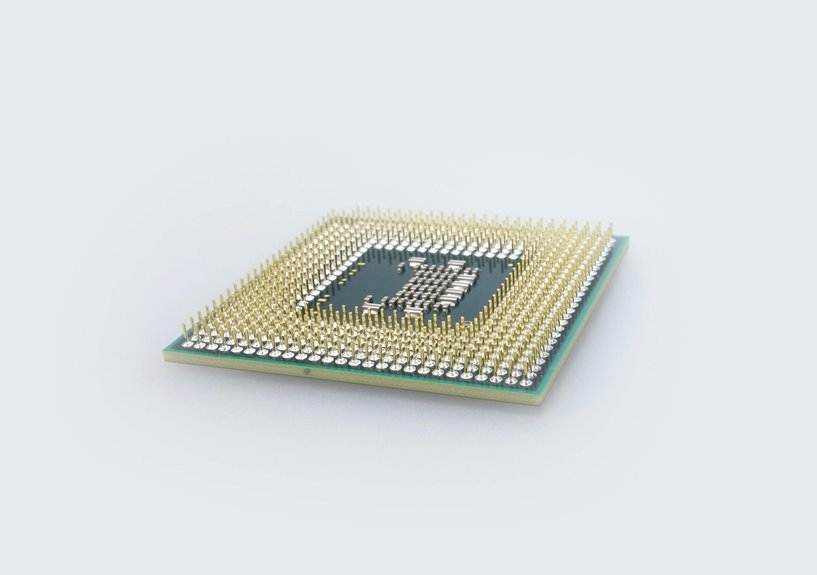
Does your laptop CPU really determine how fast the whole system feels? You can trace most responsiveness back to how the processor fetches instructions, manages threads, and balances single-core speed against multicore throughput. GHz, core count, and thermal limits all shape real performance, but the numbers alone don’t tell the full story. Should you want to know why one laptop stays snappy while another bogs down under load, the next factor matters even more.
What Does a Laptop CPU Actually Do?
A laptop CPU, or processor, acts as the system’s central controller: it fetches instructions, executes calculations, and coordinates data flow between memory, storage, graphics, and connected devices. You rely on it to manage system processes, prioritize tasks, and maintain orderly instruction handling so your apps respond predictably.
It interprets software commands, performs arithmetic and logic operations, and routes results to the right components without your intervention. In a well-balanced laptop, the CPU also works with other hardware to keep multitasking efficient and stable.
Whenever you understand this role, you can choose a machine that fits your workflow and feel confident in your setup. In short, the CPU doesn’t just run programs; it orchestrates the core operations that let your laptop function as a coherent whole.
How CPU Speed Affects Laptop Responsiveness
You’ll measure CPU speed in gigahertz, which tells you how many clock cycles your laptop’s processor can execute each second. A higher clock speed lets your system complete single tasks faster, so apps open, load, and respond with less delay.
While you multitask, speed still matters, but the CPU’s core count also shapes how smoothly your laptop handles concurrent workloads.
Clock Speed Basics
How fast should a laptop feel in daily use? You judge that via clock speed, the processor’s frequency in gigahertz. In frequency measurement basics, 1 GHz equals one billion cycles per second, so a 3.0 GHz CPU can complete 3 billion clock cycle timing events each second.
That doesn’t guarantee instant results, but it does raise the pace at which instructions move through the processor. Whenever you choose a laptop, you’re joining users who match speed to workload: 1.6-2.5 GHz suits browsing and documents, while 3.5 GHz and above helps demanding tasks. Clock speed matters because your system’s responsiveness depends on how quickly each instruction gets processed, not just on brand labels or marketing claims.
Multitasking Response Time
Even although a laptop’s clock speed looks adequate on paper, multitasking response time depends on how quickly the CPU can juggle competing threads, cores, and background tasks. You’ll feel responsiveness whenever your CPU keeps foreground work moving while avoiding stalls.
| Signal | Effect |
|---|---|
| More cores | Less contention |
| Higher GHz | Faster bursts |
| Efficient scheduling | Smoother switching |
| Background app latency | Fewer pauses |
| Browser tab switching | Quicker reactions |
If you run office apps, chat, and media together, a stronger CPU trims delay and helps you stay in flow with your team. In contrast, weak single-thread performance lets minor tasks queue up, raising background app latency and making browser tab switching feel sticky. Choose a processor that balances clock speed and core count, and your laptop will respond like it belongs in your workflow.
Laptop CPU Cores, Threads, and Clocks
You should treat CPU cores as separate execution units, because more cores let your laptop handle more simultaneous workloads.
Threads increase multitasking efficiency by allowing the processor to schedule more work across those cores, while clock speed still determines how fast each cycle runs.
For balanced performance, you’ll need to evaluate core count, thread count, and GHz together, not in isolation.
Core Count Basics
Laptop CPU performance isn’t determined via clock speed alone; core count and thread count shape how effectively the processor handles parallel workloads and multitasking. You should treat core count importance as a workload-sizing metric: more cores let your laptop split heavy tasks across more execution units. That’s where processor core scaling matters.
| Core count | Practical effect |
|---|---|
| 2 | Basic productivity |
| 4 | Balanced everyday use |
| 6 | Strong mainstream performance |
| 8 | Demanding creator tasks |
| 12+ | High-end parallel workloads |
You’ll usually feel the biggest gains in compiled code, renders, and large file operations. For your team, the right count depends on software efficiency, power limits, and thermal headroom. Pick capacity that matches your workflows, and you’ll stay in the performance class you belong in.
Threading And Multitasking
When a CPU has more threads, it can keep more tasks moving at once, which improves multitasking efficiency and reduces stalls during parallel workloads. You benefit as your laptop splits work across logical processors, so apps stay responsive while background jobs run. Threads don’t replace cores; they let you use each core more effectively through parallel processing.
- More threads help you switch between apps with less delay.
- Better thread synchronization lowers conflicts while software shares data.
- Multithreaded workloads, like rendering or compression, scale better on capable CPUs.
You’ll see the strongest gains as software is designed for concurrency. Should your workload include browsing, office tools, or content creation, higher thread counts can make your system feel smoother and more capable, helping you stay in control.
Clock Speed Impact
Clock speed, measured in gigahertz (GHz), determines how many CPU cycles your laptop can execute each second, so a 3.0 GHz processor handles roughly 3 billion cycles per second. In this clock frequency explanation, higher GHz measurement meaning more instructions can finish sooner, which can improve responsiveness in single-threaded tasks, launches, and light editing.
You’ll feel the difference most whenever your workload depends on one core’s pace rather than many cores’ parallelism. But clock speed doesn’t act alone; it works with core count, cache, and power limits. A fast chip with poor thermal headroom can throttle, reducing sustained performance. For gaming and productivity, you want balanced frequency, not just peak numbers, so your laptop fits your needs and you belong in the right performance tier.
Single-Core vs Multicore Performance
Single-core performance measures how fast one CPU core can complete a task, while multicore performance shows how well several cores handle workloads at the same time. You’ll judge both via how your laptop fits your workflow and your team’s standards for efficiency. Lower single core latency improves responsiveness in serial workloads, while strong multicore scaling increases parallel throughput.
- Use single-core strength in case software can’t split work efficiently.
- Use multicore strength in case apps distribute threads across cores.
- Compare both metrics, not just GHz, before you choose.
Modern CPUs blend performance and efficiency cores, so your best option depends on thread count and scheduling behavior. Upon you understand this balance, you’ll pick hardware that aligns with your needs and your community of power users.
How CPU Performance Affects Daily Tasks
Once you’ve compared single-core and multicore behavior, the next question is how those specs affect everyday work.
You’ll feel CPU performance initially in browser efficiency: faster cores open tabs, render scripts, and recover from page spikes with less lag. In office apps, a capable processor keeps typing, formatting, and spreadsheet recalculation responsive, so you stay in flow with your team.
Multicore headroom matters whenever background app load stacks up, because syncing, updates, and antivirus scans won’t crowd out your active task. Whenever your CPU runs at modest clock speeds but handles threads well, you still get smooth multitasking for email, documents, and media playback.
Choose a balanced laptop CPU, and you’ll keep common workloads fast, consistent, and predictable.
How CPU Performance Helps in Gaming
In gaming, CPU performance shapes how quickly your laptop handles game logic, physics, AI, and draw-call processing, which directly affects frame pacing and responsiveness. You’ll notice that higher clock speed and stronger multi-core throughput help you meet game CPU demands without stutter, especially in crowded scenes. Once the CPU keeps up, your GPU can stay fed, and frame rate stability improves.
- Faster single-thread execution reduces input lag.
- More cores help manage background threads and multiplayer workloads.
- Better thermal headroom sustains performance during long sessions.
For you, that means smoother aiming, cleaner animation timing, and fewer hitching spikes.
In your squad, this consistency matters because it keeps every match feeling predictable, competitive, and connected.
How CPU Performance Affects Photo and Video Editing
While gaming rewards high clock speed and strong multi-core throughput, photo and video editing push the CPU in a different way, with sustained compute load, file processing, preview generation, and export work dominating performance.
You’ll notice faster scrubbing in photo editing timelines whenever your CPU keeps operations responsive, especially with layered adjustments and large RAW files. For video export rendering, more cores and stronger sustained clocks cut waiting time through accelerating decoding, effects, and final encoding.
In your workflow, a mid-range chip can handle basic edits, but a top-tier Intel Core i9 or AMD Ryzen 9 class processor gives you headroom for complex projects. That means you can stay focused with your creative team and spend less time watching progress bars, which directly improves productivity and consistency.
How Multitasking Impacts Heat and Responsiveness
When you run several CPU-intensive tasks at once, your laptop’s cores work harder, and heat build-up rises as power draw increases.
Under sustained load, responsiveness can drop because thermal limits and core contention reduce available processing headroom. You’ll often notice task-switching lag when the CPU prioritizes active threads and queues background work.
Multitasking Heat Build-Up
As you run multiple apps at once, the CPU’s cores and threads stay busier for longer, which raises power draw and heat output and can reduce responsiveness when cooling can’t keep up. In your workflow, even modest background load adds sustained activity that compounds thermal stress and tests thermal management. You’ll see the pattern clearly:
- More tabs, sync tools, and media apps keep threads active.
- Heat builds faster when cores keep switching between tasks.
- Better cooling helps your system stay stable under sustained load.
If you’re part of a busy creator or gamer setup, this matters because consistent thermals support dependable performance. Choose a laptop with enough headroom, and you’ll keep your machine in the comfort zone during long sessions.
Responsiveness Under Load
Heat from multitasking doesn’t just affect temperature; it also affects responsiveness.
When you push your laptop with browser tabs, editing tools, and background sync, you force the CPU to distribute cycles across competing demands.
Strong load handling lets the processor sustain higher throughput, so you’ll see fewer performance dips during active work.
Provided the chip has enough cores and efficient thermal design, it can keep clocks steadier under pressure, which helps you stay in control of your workflow.
You’ll notice the difference in app launches, file operations, and sustained calculations.
A balanced CPU doesn’t just feel faster; it stays predictably responsive as demand rises.
That consistency matters whenever you want your machine to keep up with you, not slow the team down.
Task Switching Lag
Task switching lag shows up whenever your laptop’s CPU must rapidly move between active apps, background services, and short bursts of processing demand. You notice it as window switching delays, stalled cursor movement, or app freeze interruptions when threads compete for cycles and cache. Multicore chips help, but provided thermals rise, the CPU can throttle and stretch response times. That’s why your system may feel sharp for one task yet sluggish when you juggle tabs, chat, and streaming.
- More cores reduce contention.
- Higher GHz speeds shorten circumstance shifts.
- Better cooling preserves responsiveness under load.
Provided you want a laptop that keeps up with your workflow, look for balanced clock speed, core count, and TDP so your multitasking stays smooth and your machine stays cooler.
How CPU Performance Affects Battery Life
CPU performance affects battery life through a direct tradeoff between processing speed, core count, and power draw: higher-clocked, multi-core processors complete work faster but usually consume more energy and generate more heat while doing it.
You’ll notice battery drain patterns shift with workload intensity; bursts of rendering or compilation spike consumption, while light browsing stays closer to idle.
Whenever you choose performance modes, you’re making power mode tradeoffs: peak responsiveness shortens runtime, but capped settings preserve charge and reduce thermals.
Faster CPUs can finish tasks sooner, so total energy use may still be efficient for brief jobs.
For sustained work, however, lower sustained power often gives you the best balance.
Should you want a laptop that fits your team’s pace, align CPU capacity with actual workload, not marketing labels.
Intel vs AMD vs Apple Laptop Chips
Choosing between Intel, AMD, and Apple laptop chips comes down to how each platform balances clock speed, core count, power efficiency, and integrated graphics for your workload. You’ll fit best when you match design to the apps you run and the community you work with.
- Intel gives you broad intel amd ecosystems support, strong single-thread speed, and tiered Core options.
- AMD often delivers high core counts and excellent multitasking value, especially in Ryzen systems.
- Apple stresses apple silicon integration, unified memory, and efficient performance in macOS workflows.
Should you game, render, or switch between many apps, compare benchmarks and core totals. Should you want battery-friendly productivity and a polished software stack, Apple can feel seamless. Intel and AMD keep you in the widest Windows-compatible crowd.
What Thermal Throttling Does to CPU Performance
As a laptop CPU runs hotter than its cooling system can handle, thermal throttling reduces clock speed and sometimes voltage to keep temperatures within safe limits. You’ll see performance drop initial in sustained workloads, where the chip can’t hold peak boost longer than its thermal limits allow. That reduction lowers instruction throughput, lengthens render times, and can make frame pacing less consistent in games.
Your system’s cooling behavior matters here: fan curves, heatsink capacity, and airflow determine how quickly heat leaves the package. Should cooling stays marginal, the CPU might bounce between boost and throttle states, creating uneven responsiveness.
You’re not alone should this feels frustrating; it’s a normal protection mechanism, not a fault. The goal is stable operation, even where that means less speed.
How to Read Laptop CPU Specs Before Buying
To judge a laptop processor spec sheet, you need to read clock speed, core count, benchmark scores, and TDP as separate but related indicators of real-world performance.
Ignore spec sheet jargon until you translate it into workload behavior. A 3.0 GHz CPU can execute 3 billion cycles per second, but cores and power limits shape sustained output. Use benchmark score interpretation to compare models across Cinebench or PassMark, not to worship a single number.
- Clock speed tells you burst responsiveness.
- Core count shows multitasking capacity.
- TDP hints at heat, battery life, and throttling risk.
When you read specs this way, you join informed buyers who match silicon to measured performance, not marketing claims.
Which CPU Performance Level Fits Your Needs?
You should match CPU class to workload intensity: light everyday use runs well on entry-level chips, while browsing, email, and media playback need only modest clock speed and core counts.
For a balanced midrange laptop, you’ll get better responsiveness from an Intel Core i5 or AMD Ryzen 5 class processor, which handles office work, multitasking, and moderate creative tasks efficiently.
Should you edit video, compile code, or game heavily, you’ll need a high-end CPU with more cores, higher sustained clocks, and stronger thermal headroom.
Light Everyday Use
For light everyday use—such as web browsing, word processing, email, and media playback—a CPU in the 1.6–2.5 GHz range is usually sufficient, since these tasks don’t demand sustained multi-core throughput or high clock speeds.
You’ll get responsive operation without paying for excess silicon you won’t use, and that keeps your laptop aligned with your workflow.
- battery friendly browsing benefits from lower clock demands and reduced heat
- low power email tasks stay smooth even on entry-level processors
- media playback and document editing rarely stress modern CPUs
If you want to belong to a practical, efficiency-minded user group, choose a processor that prioritizes stability, thermals, and battery life over peak performance. That way, you’re optimizing the system for your daily routine, not for benchmarks.
Balanced Midrange Performance
Once your workload goes beyond basic browsing and document editing, balanced midrange performance becomes the right target, since it gives you more headroom without jumping into high-power territory. You’ll usually find this tier in Intel Core i5, Core Ultra 7, or Ryzen 5 and Ryzen 7 models, where clock speed, core count, and TDP stay in practical balance.
This is where balanced performance tradeoffs matter: you gain smoother multitasking, faster app launches, and steadier responsiveness without excessive heat or battery drain.
Midrange efficiency tuning helps you stay mobile longer while still handling office suites, media work, and light creative tasks.
Should you want a laptop that fits into a capable, shared performance class, this segment usually delivers the most sensible value.
High-End Workloads
At your workload shifts into high-end territory, CPU choice becomes less about basic responsiveness and more about sustained throughput, core count, and thermal headroom. You’ll want a processor that can hold turbo clocks under load, because workstation rendering and scientific simulations punish weak cooling and limited threads. In this tier, you’re joining users who need every core to stay active, not just fast.
- Favor 12+ cores for parallel tasks and long renders.
- Check TDP and chassis cooling so performance doesn’t throttle.
- Compare benchmark data, like Cinebench and PassMark, for real workload fit.
Intel Core i9, Ryzen 9, and Apple M5 Max-class chips suit you if you need repeatable results, strong multitasking, and professional-grade efficiency.
Signs Your Laptop CPU Is Holding You Back
If your laptop feels sluggish during everyday tasks, your CPU might be the bottleneck. You’ll notice upgrade warning signs whenever apps open slowly, browser tabs stutter, or video calls freeze while background processes run.
Those bottleneck symptoms usually show up as high CPU usage, long render times, and lag in multitasking, even with enough RAM and SSD speed. Whenever your processor sits near 100% during simple work, it’s struggling to keep pace.
You could also hear the fan ramp up constantly, which signals thermal stress from sustained load. For gaming, frame drops and inconsistent minimums often point to weak single-thread performance.
In editing or coding, repeated waits between actions mean your CPU can’t match your workflow’s demands.
Frequently Asked Questions
What Does GHZ Actually Measure in a Laptop Processor?
GHz measures your processor’s clock speed, meaning how many cycles it completes each second. In CPU timing, gigahertz is used to compare how quickly a laptop processor can run its operations.
How Do Benchmark Scores Compare Across Different CPU Models?
Intel Core Ultra 9 285HX tops the chart with 2303 Cinebench 2024 points, so CPU comparisons rely on benchmark aggregation and cross generation score analysis. The key is to read relative performance across workloads, not just raw numbers.
Why Do Some CPUS With Lower Clock Speeds Still Perform Better?
They can outperform faster chips when each clock cycle carries more instructions and the cache hierarchy reduces delays. Extra cores, improved thread handling, and adaptive power controls can also help in heavy workloads.
How Does TDP Affect CPU Performance and Efficiency?
TDP defines the CPU’s power ceiling and expected heat output, which determines how much thermal headroom it has. With stronger cooling, the CPU can hold higher boost clocks for longer. With weaker cooling, it reaches thermal limits sooner, lowering performance while often reducing power use.
Which CPU Brands Offer the Best Value for Different Workloads?
Intel and AMD deliver strong value across most workloads. Intel often fits balanced efficiency needs, AMD is a good pick for heavier multitasking, and Apple suits creative software well. Choose the brand that best matches your workload, performance goals, and budget.




