

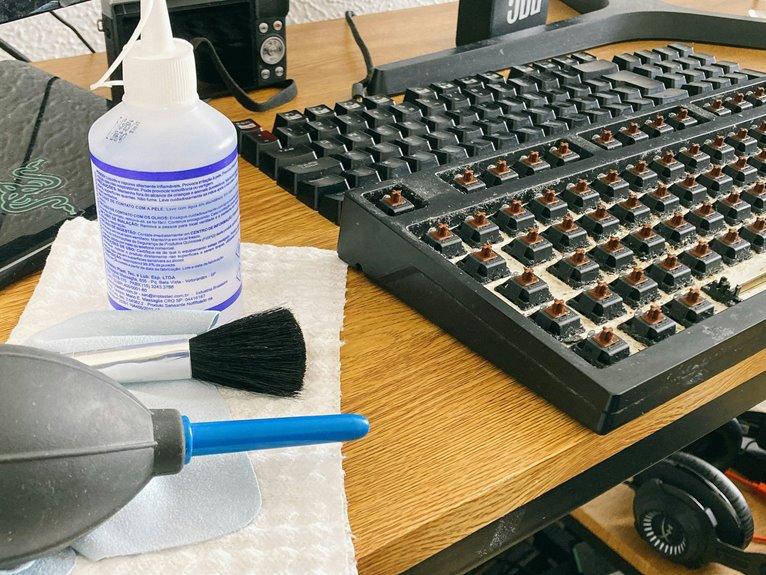
You notice crumbs under your space bar after lunch, and then a key starts sticking. You can fix that before it turns into missed keystrokes or grime buildup. A clean laptop keyboard isn’t just about looks; it helps hygiene, comfort, and long-term performance. With the right prep and a few simple tools, you can clean it safely, handle stubborn spots, and avoid damage you could not expect.
Why Cleaning Your Laptop Keyboard Matters
Cleaning your laptop keyboard matters because dust, crumbs, and moisture can build up under and around the keys, causing sticky switches, missed keystrokes, and long-term wear.
Whenever you keep it clean, you protect typing hygiene and support office cleanliness, so your workspace feels cared for and reliable.
You also reduce the risk of debris grinding into the mechanism, which can make everyday typing feel rough or inconsistent.
A clean keyboard helps you stay comfortable, focused, and confident during work or study, and it shows that you value the shared standards of your team or home setup.
Small, regular care keeps your device responsive, your hands cleaner, and your whole setup looking like you belong there.
What You Need to Clean a Laptop Keyboard
To clean your laptop keyboard safely and well, gather a few simple tools before you start. Your keyboard cleaning tools should be ready together so you can act with confidence, not guesswork. The essential supplies are easy to find:
| Tool | Use | Feeling |
|---|---|---|
| Compressed air | Loosen crumbs | Relief |
| Microfiber cloth | Lift grime | Trust |
| Cotton swabs | Reach gaps | Control |
Keep isopropyl alcohol, a soft brush, and a dry towel nearby. These items help you clean keys, edges, and tight spaces without fuss. When you have the right essentials, you feel prepared, included, and in control of the task. Choose gentle tools, and avoid anything rough or soaking wet. That way, you’ll protect your keyboard and keep it looking cared for.
Power Off and Prep Your Laptop
Before you touch the keyboard, shut down your laptop completely and disconnect any USB keyboard or turn off the wireless one. This helps you power down safely and keeps stray input from interrupting the process.
Next, disconnect peripherals like a mouse, flash drive, or headset, so nothing pulls on the laptop while you work. Close your apps, save your files, and wait for the screen to go dark before you move on.
Then unplug the charger if you can, and place the laptop on a clean, stable surface with good light. Join the careful crowd that treats prep as part of hygiene maintenance. A few quiet minutes now make the rest of your cleaning faster, safer, and more confident.
How to Clean a Laptop Keyboard Safely
With the laptop powered down and unplugged, you can clean the keyboard safely and avoid damage to the internal components. Start by turning it upside down and giving it a gentle shake over a trash can. Then use compressed air in short bursts to clear crumbs. For keyboard sanitizing, lightly dampen a microfiber cloth with isopropyl alcohol and wipe the key tops. Use a cotton swab for narrow gaps, but don’t let liquid drip. Should you need spill residue cleanup, blot the area gently and dry it fast. | Step | Tool | Tip |
| — | — | — |
|---|---|---|
| Shake | Hands | Keep it over trash |
| Blow | Compressed air | Use short bursts |
| Wipe | Cloth | Stay slightly damp |
| Detail | Cotton swab | Clean gaps carefully |
| Finish | Dry cloth | Remove any moisture |
How to Clean Sticky Keys and Stubborn Grime
Whenever sticky keys or stubborn grime won’t budge with a quick wipe, focus on the problem areas with a little more precision.
Initially, shut down your laptop, then use compressed air to clear loose debris. Next, lightly moisten a cotton swab with 70% isopropyl alcohol and work around each sticky key for targeted residue removal.
For tougher spots, press a microfiber cloth against the keytops and let the alcohol do the grime lifting. Don’t flood the surface; a little moisture goes a long way.
Should buildup sits between keys, slide the swab in gently and repeat with fresh sides. Complete by drying the area with a clean cloth so your keyboard feels crisp, responsive, and ready to use again.
Daily Habits to Keep Your Keyboard Clean
Daily, a few small habits can keep your keyboard much cleaner and reduce the need for deep cleaning. You’ll stay ahead through building a simple surface wipe routine and crumb prevention habits into your day.
| Habit | Benefit |
|---|---|
| Wash hands before typing | Less oil and dirt |
| Keep snacks away | Fewer crumbs between keys |
| Use a quick cloth wipe | Removes fresh buildup |
| Close your laptop after use | Cuts dust exposure |
| Check keys at day’s end | Catches mess early |
You belong to the group that stays ready, not rushed. Spend 30 seconds after work to brush off debris, wipe the keytops, and clear your desk. Whenever you eat nearby, pause and clean right after. These small steps add up, helping your keyboard feel fresher, look better, and last longer without much effort.
Avoid Damage to Keys, Screens, and Ports
Good habits help, but cleaning safely matters just as much. You can protect your keys, screen, and ports by working gently and staying patient. Power down the laptop, then hold it steady so you don’t press on the keys or flex the hinge.
Use compressed air in short bursts, not a long blast, and keep the can upright. For screen safety, spray cleaner onto a microfiber cloth first, then wipe lightly; never spray directly. Keep liquid away from openings, which supports port protection and helps you avoid internal damage.
If you use swabs, moisten them slightly, not heavily. Finish by letting everything dry fully before you close the lid or reconnect accessories.
Frequently Asked Questions
Can I Use Disinfecting Wipes on a Laptop Keyboard?
Yes, but treat the keyboard carefully. Use wipes that are safe for electronics, keep moisture low, and check that they are suitable for the screen if they may touch it. Do not spray. Wipe gently, then let it dry.
How Often Should I Deep Clean My Keyboard?
Deep clean your keyboard about once a month. If you eat at your desk or see crumbs and grime building up, clean it more often.
What Should I Do if Liquid Spills Between the Keys?
Power off the laptop at once, unplug it, and flip it so the keyboard faces down. Blot the spill with a microfiber cloth, then leave it to dry completely. Wait until every trace of moisture is gone before powering it back on.
Are Keyboard Cleaning Gels Safe for Laptop Keys?
Yes, you can use keyboard cleaning gels on laptop keys with care, but test a small area first. Some gels can leave residue or transfer sticky material, so use only a little and avoid pressing too hard.
Can I Remove Laptop Keycaps Without Damaging Them?
You can remove some laptop keycaps, but do not pry them off blindly because many use a delicate scissor mechanism. Check your model’s service guide, lift gently, and stop if you feel strong resistance.




