

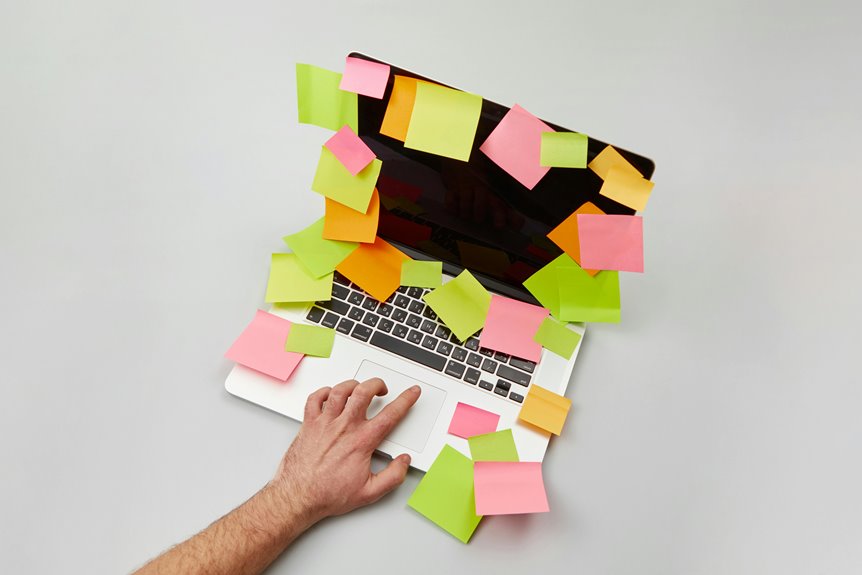
You open your laptop to answer one email, and somehow three more tasks appear at once. That’s multitasking on a laptop, and its limits depend on your CPU, RAM, storage, and what’s running in the background. Provided that your system starts lagging, the cause is usually hiding in plain sight, and the fix might be simpler than you imagine.
What Laptop Multitasking Actually Means
Laptop multitasking means your system can keep several apps, browser tabs, files, and background processes running smoothly at the same time.
You’re not just opening more windows; you’re managing task switching without slowdowns, so you can move from email to spreadsheets to chats with less friction.
That matters whenever you rely on simultaneous workflows, like joining a call while editing a document and syncing files in the background.
Good multitasking feels steady, not crowded, because your laptop keeps pace with your day.
It helps you stay connected, productive, and in control, whether you’re handling office work, study sessions, or creative projects.
In short, multitasking is about keeping your tools ready, responsive, and working together.
Check Your Laptop’s Multitasking Limits
To judge your laptop’s multitasking limits, start with the core hardware: CPU, RAM, and storage. Then watch how your machine behaves during real use, not just on specs. Performance monitoring shows whether it stays responsive when you keep apps, tabs, and files open. Workload profiling helps you map your everyday routine, so you can see where slowdowns begin and whether your setup fits your team’s pace.
- Open your usual work apps together and observe lag.
- Switch between browser tabs, documents, and meetings.
- Watch temperatures, fan noise, and battery drain.
Whenever your laptop feels steady, you’re in good shape. Whenever it stumbles, you’ve found its ceiling and can plan smarter upgrades or lighter workflows with confidence.
How RAM and CPU Affect Multitasking
Whenever you multitask, your RAM sets how many apps and tabs you can keep open without slowdowns. Your CPU’s core count and speed decide how smoothly your laptop switches between tasks and handles background work.
If you run out of RAM or use a weak processor, you’ll feel lag fast.
RAM Capacity Limits
For most multitasking work, 16 GB of RAM is the practical minimum, while 32 GB or more gives you more headroom provided you keep many apps, browser tabs, and large files open at once. Your memory ceiling decides how far your app stack can stretch before swapping slows you down.
- With 16 GB, you can juggle email, documents, chat, and a few tabs.
- With 32 GB, you’ll handle heavier files and more background tools with less strain.
- Should you see freezes during switching windows, you’ve likely outgrown your current limit.
You’ll feel the difference most during your workspace stays open all day.
More RAM doesn’t replace a fast CPU, but it helps your system keep pace with you and your team.
CPU Core Performance
A strong CPU keeps your multitasking flow smooth via handling app switches, background jobs, and browser tabs without slowing down. You’ll feel the difference once core count scaling lets each task get room instead of fighting for attention.
More cores help whenever you keep email, spreadsheets, video calls, and cloud tools open at once. Higher clock speeds still matter, because they let active apps respond fast during sudden switches.
Provided you’re choosing a modern laptop, look for hybrid thread balance in Intel chips or strong multi-core Ryzen options, since they share work efficiently. Pair that CPU with enough RAM, and you’ll stay part of a workflow that feels quick, stable, and ready for busy days.
Close Apps That Slow Laptop Multitasking
You should identify which apps use the most CPU, memory, or storage so you can spot the ones slowing your laptop down.
Close any program you’re not actively using, and shut down background tasks that keep running after they’re no longer needed.
This frees up system resources and helps your other apps switch and load more smoothly.
Identify Resource-Heavy Apps
Which apps are slowing your laptop down? Check Task Manager or Activity Monitor to spot the biggest memory and CPU users. You’ll often find cloud apps syncing files, design software rendering graphics, or a browser packed with tabs. Whenever one program hogs resources, your whole workflow feels it, and you might feel less in control.
- Look for high CPU, memory, or disk use
- Watch for apps that spike during saves or uploads
- Notice tools that stay heavy even while idle
Once you identify the offenders, you can decide what belongs in your active workspace and what doesn’t. That helps your laptop keep pace with you, so multitasking feels smoother and more shared, like your setup finally fits the way you work.
Close Unused Background Tasks
Background apps can quietly eat into your laptop’s CPU, memory, and battery, so close anything you don’t need before starting heavier multitasking. You’ll feel the difference once background processes stop competing with your active work. Open Task Manager or Activity Monitor, spot what’s unnecessary, and end it. A quick startup cleanup also helps keep apps from returning each time you boot.
| Action | Why it helps |
|---|---|
| Close chat sync tools | Frees RAM |
| Stop auto-updaters | Reduces CPU spikes |
| Trim startup items | Speeds sign-in |
Once you keep only the essentials, your laptop stays responsive, and you fit right in with users who work smoothly, switch faster, and avoid lag. That simple habit protects battery life too, especially during long office sessions.
Use Task Manager to Find Bottlenecks
When your laptop starts lagging during heavy multitasking, Task Manager can quickly show what’s slowing it down. Open it and check CPU, memory, and disk use to spot the heaviest load. With task manager analytics, you can compare apps side by side and see which one keeps spiking. This performance bottleneck mapping helps you decide whether a browser, spreadsheet, or sync tool needs attention.
- High CPU while switching tabs
- Memory near capacity with many apps open
- Disk activity that stays pinned during file work
When you see one resource maxing out, you’ve found your bottleneck. That gives you a simple next step: close, pause, or replace the demanding app so your system feels smoother and you stay in control together.
Keep Tabs and Files Organized
Keeping your tabs and files organized helps your laptop multitask more smoothly because you spend less time hunting for what you need and more time working.
Keep related browser tabs together, close ones you’re done with, and pin the pages you visit often. Use clear file naming so you can spot the right document at a glance, even whenever several projects overlap. Build a simple folder hierarchy that matches how you perceive: one main folder per project, then subfolders for drafts, references, and final versions.
Whenever you save files in the same place every time, you create a routine your team can rely on. That consistency cuts confusion, reduces errors, and makes switching between tasks feel natural, calm, and under control.
Tweak Settings for Smoother Multitasking
Tuning a few laptop settings can make multitasking feel much smoother. You can start with choosing balanced power settings so your laptop stays responsive without wasting energy. Then trim visual effects to reduce the strain on your system and keep apps switching quickly.
Whenever you’re part of a busy workday crowd, these small changes help your laptop keep up with you.
- Set power settings to prioritize performance during active work
- Turn off extra visual effects like animations and shadows
- Keep notifications and startup apps lean so distractions stay low
You’ll notice fewer pauses whenever you move between documents, browser tabs, and chat windows. These tweaks won’t replace good habits, but they do help your machine feel calmer, faster, and more ready for the pace you share with your team.
Choose a Laptop for Heavy Multitasking
Whenever you’re choosing a laptop for heavy multitasking, focus initially on the core parts that keep it responsive under pressure: a modern multi-core processor, at least 16 GB of RAM, and fast SSD storage. You’ll feel the difference whenever apps stay open together and switching stays smooth.
| Priority | What to seek | Why it matters |
|---|---|---|
| CPU | Core i5/i7 or Ryzen 5/7 | Handles many tasks at once |
| RAM | 16 GB minimum, 32 GB better | Keeps programs active |
| Storage | 512 GB–1 TB SSD | Speeds loading and saves time |
Pick a display size that gives you room for side-by-side windows, and check battery endurance assuming you work away from an outlet. A balanced laptop helps you fit in with a productive workflow.
Fix Common Multitasking Slowdowns
If your laptop starts to lag during multitasking, you can usually fix it via targeting the usual bottlenecks: too little RAM, too many background apps, slow storage, or poor cooling. You’ll feel the difference fast whenever you close unused tabs, trim startup optimization, and run disk cleanup to clear clutter.
Whenever you’re still juggling apps, upgrade to 16 GB RAM or more, and use an SSD so files open smoothly. Keep vents clear, use a hard surface, and let the fan breathe. You’re not alone; these fixes help most busy users keep pace.
- Close launchers you don’t need
- Delete temporary files
- Move work to SSD storage
Frequently Asked Questions
Which CPU Core Type Improves Multitasking Most?
Performance cores improve multitasking the most because they keep demanding apps responsive while handling background activity. They also boost single core burst speed, so app switching feels quicker and delays are reduced.
Is 16 GB RAM Enough for Heavy Office Work?
Yes, 16 GB RAM is enough for demanding office work if you keep browser tabs under control. It gives you enough memory for most office applications, while 32 GB offers more breathing room for large files and faster app switching.
Does SSD Speed Affect App Switching Performance?
Yes, SSD speed affects app switching. Faster drives reduce launch delays and make storage swap feel more responsive. Apps reopen sooner, window changes feel snappier, and daily multitasking stays less disruptive.
How Does Laptop Cooling Impact Sustained Multitasking?
Effective cooling supports smooth multitasking by moving heat away efficiently and reducing thermal throttling. Your apps stay responsive, performance holds steady during long sessions, and the laptop is less likely to slow down as demands increase.
Does Battery Life Drop Faster During Multitasking?
Yes, battery life often falls faster during multitasking because several apps draw power at the same time. Background activity, screen use, and active syncing can all increase drain, so lower brightness, close unused apps, and keep a charger handy for long sessions.




