

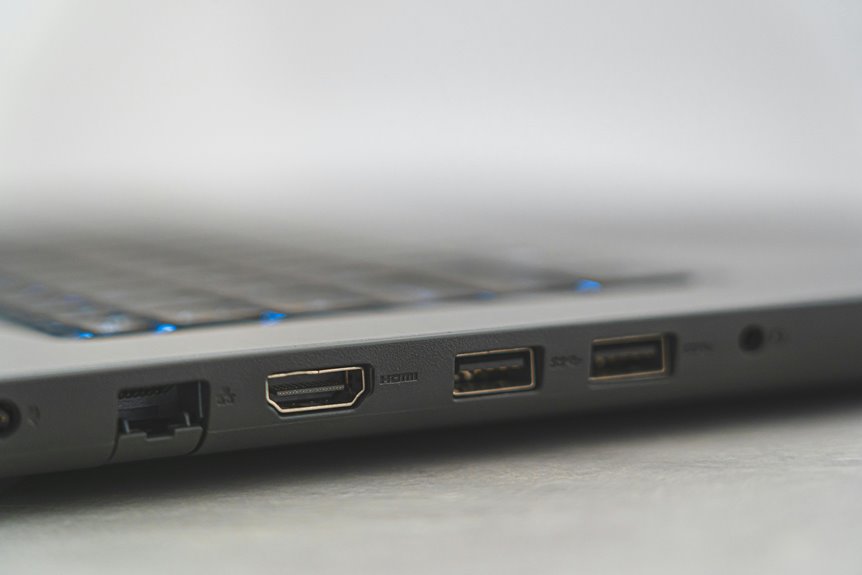
You may not notice it at first, but the ports on your laptop determine how much that machine can actually do. You can charge, move data, drive displays, and connect peripherals through a small set of interfaces, yet each port has limits that matter. USB-C, Thunderbolt, HDMI, USB-A, and audio jacks don’t behave the same, and choosing wrong can slow you down or block a device entirely.
How Laptop Ports Work
Laptop ports work via providing physical interfaces that let you send power, data, video, and audio between the computer and external devices through standardized connectors. You identify each port using shape, labeling, and sometimes color, then match it to the right cable for reliable operation. Port identification helps you avoid mismatches that can interrupt charging or data transfer.
Connector compatibility matters because each interface follows specific electrical and mechanical rules, so you can’t assume every plug fits every socket. When you connect peripherals, the port negotiates signal roles and power levels, then routes traffic through the system controller. That process lets you join the same trusted workspace as other users who depend on stable, predictable device connections.
USB-C and Thunderbolt Basics
USB-C and Thunderbolt ports often look similar because Thunderbolt 3 and Thunderbolt 4 use the USB-C connector, but they don’t always deliver the same capabilities.
You can treat USB-C as the physical interface and Thunderbolt as a higher-performance standard layered on top. For usb c cable compatibility, you need to verify both the cable rating and the port’s supported features, since not every USB-C cable carries the same data rates or display support.
In the thunderbolt device ecosystem, you gain access to faster peripherals, docks, and high-bandwidth accessories, but only provided your laptop and device both support Thunderbolt. Check the logo, read the specs, and match your gear carefully. That way, you stay aligned with your setup and avoid mismatched expectations.
Charging Through USB-C Ports
Whenever you charge through a USB-C port, you rely on USB Power Delivery to negotiate voltage and current between the laptop and charger.
You can get substantially faster charging than with basic USB standards, but the actual rate depends on the port’s power profile, cable rating, and device limits.
You should also expect hard limits, since a USB-C port can’t exceed the laptop’s designed charging threshold.
USB-C Power Delivery
Power delivery over a USB-C port lets you charge a laptop and transfer data through the same connector, but the charging rate depends on the port’s USB and Thunderbolt implementation. You benefit whenever your device and adapter agree on power negotiation, because the controller sets safe voltage and current for battery charging. That shared standard helps you fit into a modern setup with fewer cables and clearer roles.
Consider:
- one cable for power and data;
- one port that can support docks and displays;
- one negotiated profile that protects your battery;
- one consistent workflow across compatible devices.
You’ll still need to verify the laptop’s supported wattage, but USB-C Power Delivery gives you a precise, interoperable foundation that feels dependable and professional.
Fast Charging Limits
How quickly can a USB-C port charge your laptop? You’ll see the answer depend on charging thresholds and power adapter limits.
Whether your laptop accepts 65W, a 45W charger won’t hit full speed, and you’ll feel slower recovery under load.
USB-C Power Delivery negotiates voltage and current, so the port doesn’t force maximum input; your device sets the ceiling.
Whenever you use a higher-wattage adapter, you don’t always get faster charging, because the laptop’s controller may cap intake to protect the battery and manage heat.
For best results, match the adapter rating to your model’s specification, then confirm the cable supports the same power level.
That way, you stay within the same performance class as other users.
USB-A, HDMI, and Audio Jacks
You’ll still use USB-A for legacy peripherals such as keyboards, mice, printers, and external drives, even as USB-C becomes more common.
HDMI gives you a direct digital output path for external monitors and TVs, carrying video and audio over one cable.
Audio jacks remain useful whenever you need a simple analog connection for headphones, speakers, or a headset mic without relying on USB audio support.
USB-A Legacy Support
Even as laptops keep shrinking and shifting toward USB-C, USB-A remains the primary legacy port for keyboards, mice, printers, webcams, and external drives. You keep your workflow stable when you preserve support for legacy usb devices, and you avoid needless replacement costs. Provided your system drops native ports, usb a adapters restore access fast.
- You connect trusted peripherals without reconfiguration.
- You maintain compatibility with older storage and office gear.
- You reduce downtime when mixed hardware meets.
- You stay aligned with a practical, experienced user community.
USB-A’s rectangular shell also gives you predictable insertion and broad driver support.
For you, that means continuity: familiar tools, fewer surprises, and a setup that still fits the devices you rely on every day.
HDMI Display Output
Once legacy peripherals are covered, display connectivity becomes the next practical concern. You’ll find HDMI on many laptops because it carries digital video and audio over one cable, simplifying external display setups. When you connect to a monitor or TV, you should verify monitor compatibility and match supported video signal standards, especially for resolution, refresh rate, and HDR.
HDMI’s fixed connector means you can’t swap it with USB-A or audio jacks without the right adapter. If your laptop also includes a 3.5 mm jack, that port handles analog audio only, so it won’t replace HDMI output. For shared workstations, you can pair HDMI with USB-A peripherals to build a clean, reliable desk environment that fits your team’s workflow.
External Displays and Video Output
For external displays, HDMI is the most common wired output on laptops because it carries digital video and audio over a single cable and connects directly to monitors or TVs. You can trust this standard whenever you want a clean, shared workspace that feels compatible and reliable. Whenever your laptop lacks HDMI, external display adapters let you bridge USB-C or Thunderbolt ports to older screens.
- Pick the native port for the most stable signal.
- Match resolution and refresh rate to your display.
- Use wireless video casting whenever you need cable-free flexibility.
- Verify adapter support before you present.
You’ll get predictable output, lower setup friction, and a setup that helps you belong in any meeting, classroom, or home office.
Data Transfer Speeds That Matter
At the time you compare USB generations, you’ll see major jumps in throughput from USB 2.0 to USB 3.x, which directly affect file copy times and peripheral performance.
Thunderbolt pushes bandwidth much higher, but you still need to account for controller limits, cable quality, and device support before you assume peak speeds.
For SSDs, you’ll only get the transfer rates your drive, enclosure, and port can sustain together.
USB Generation Speeds
- USB 2.0: dependable, but slow.
- USB 3.0: a clear leap for everyday transfers.
- USB 3.1/3.2: better for large projects and fast storage.
- USB-C: modern and familiar, yet speed still depends on the foundational generation.
When you choose the right port, you’ll feel aligned with a faster, more capable setup.
Thunderbolt Bandwidth Limits
Speed labels matter even more once you move from USB generation numbers to Thunderbolt bandwidth limits, because Thunderbolt bundles data, display, and power into one link. You need to read the lane budget, not just the headline number, since Thunderbolt shares capacity across devices, monitors, and accessories.
With pci express tunneling, you can move expansion traffic through the cable with low overhead, but total throughput still caps what each attached device can use. That’s why thunderbolt daisy chaining works best when you plan the chain carefully and leave headroom for displays.
If you belong to a setup that mixes docks, storage, and peripherals, you’ll get steadier performance by matching bandwidth to workload rather than assuming every Thunderbolt port delivers the same real-world speed.
SSD Transfer Performance
- Feel faster boot times.
- Reduce wait states.
- Preserve throughput on large files.
- Keep your workflow in sync.
USB-C and Thunderbolt can expose full PCIe lanes, but enclosure quality matters. When thermal control slips, performance drops, and your gains vanish.
Measure sustained throughput, not just peak numbers, and you’ll make a smarter, technically grounded choice.
Ethernet, SD Cards, and Legacy Ports
Ethernet ports give you a direct RJ-45 connection to a router or modem, so you can get faster and more stable wired internet than Wi‑Fi in many setups. You’ll usually see up to 1 Gbps on modern systems, which keeps file transfers and video calls consistent.
Should your laptop lacks native Ethernet, a USB-to-Ethernet adapter or docking station restores that link cleanly. SD card slots help you move photos and project files without extra readers, but check SD card compatibility with SD, SDHC, and SDXC formats before you rely on it.
For older peripherals, legacy port adapters let you connect serial, parallel, or FireWire gear while preserving workflow continuity. That flexibility helps you stay aligned with a capable, shared setup.
Why Thin Laptops Have Fewer Ports
As laptop designs get thinner, you usually lose ports because there’s less internal space for full-size connectors, cabling, and the supporting controller hardware. You’re seeing deliberate design tradeoffs: engineers must reserve volume for batteries, speakers, antennas, and thermal constraints, so they compress I/O without compromising core performance. That choice can feel restrictive, but it also reflects a shared engineering priority—mobility with reliability.
- Fewer openings reduce chassis thickness.
- Shorter traces simplify signal routing.
- Heat spreaders gain more room.
- Port modules become harder to fit.
When you understand this, you’re part of the group that reads a slim profile as an optimization, not a loss. The machine stays rigid, cool, and portable, while connectivity shifts to multifunction interfaces and external expansion.
Which Laptop Ports You Actually Need?
So, which laptop ports do you actually need? Start with port prioritization: list the devices you use daily, then match them to essential connectivity.
Should you plug in keyboards, mice, and flash drives, you need at least one USB-A port, but USB-C is increasingly essential for faster data, charging, and display support.
Should you connect an external monitor, HDMI gives you straightforward video and audio output.
Should you rely on stable networking, an Ethernet port delivers wired performance that Wi-Fi can’t always match.
Thunderbolt matters whenever you want high-speed expansion on a premium machine.
You don’t need every interface; you need the right mix for your workflow.
That’s the clearest way to stay efficient, compatible, and connected within your own setup.
When a Docking Station Makes Sense
Where you need a laptop to behave like a full desktop replacement, a docking station makes the most sense. You gain port expansion options through one USB-C or Thunderbolt link, then connect displays, peripherals, storage, and Ethernet with disciplined efficiency. That setup fits you where you work at a fixed desk, share gear, or want workspace cable cleanup without sacrificing function.
- You dock once and stay ready.
- You cut setup time to seconds.
- You keep your desk organized and calm.
- You belong in a system that feels intentional.
Choose a dock where your laptop’s built-in ports can’t support your routine. Whenever you move between meetings or home office days, the same connector restores your environment fast, and you’ll feel in control.
Common Laptop Port Problems and Fixes
Even a well-chosen docking setup can run into port issues, and you’ll usually notice them as missing devices, unstable connections, or slow charging.
Firstly, inspect for dust, bent pins, or port damage issues on USB-A, USB-C, HDMI, and Ethernet sockets; power down before cleaning with compressed air.
When a cable works elsewhere but fails here, test another cable and confirm the device supports the port’s data, video, or power mode.
For loose connector repair, avoid forcing plugs; a worn jack often needs professional service or a replacement daughterboard.
Update firmware and drivers, especially for Thunderbolt docks, then reboot and retest.
When your laptop uses a single USB-C port, verify the dock supplies enough wattage and that adapters match the interface exactly.
Frequently Asked Questions
Can USB-C Charge Every Laptop Equally Fast?
No, USB-C does not charge every laptop at the same speed. Charging speed depends on wattage limits and Power Delivery support. The laptop, cable, and adapter all need to be compatible, or charging will be slower than the device can handle.
Do HDMI Cables Carry Both Video and Audio?
Yes, HDMI cables transmit both video and audio through a single connection. To use HDMI audio, both devices need to support audio over HDMI.
Is Thunderbolt Always Compatible With Regular USB-C Devices?
No, Thunderbolt is not always compatible with standard USB C devices. The connector may look identical, but the features are not the same. Thunderbolt performance and device support depend on the port controller, certification, and the protocols it can handle.
Why Do Some Laptops Still Include Ethernet Ports?
You’ll still find Ethernet ports because they deliver steadier connections, faster response times, and safer access in business networks. They let you plug straight into a router or switch, keep connections dependable under heavy use, and sidestep Wi Fi congestion in offices, studios, and labs.
Can Docking Stations Replace All Laptop Ports?
No, docking stations cannot replace every laptop port. Compatibility, charging output, and data speed still differ, so some connections remain limited. Docking alternatives can turn USB C into HDMI, Ethernet, and USB A, but certain specialized ports are still important.




