If you believe your phone has malware, you need to act quickly and methodically. You’ll start with isolating the device, then check whether the problem persists in Safe Mode, where malicious apps can’t hide as easily. From there, you’ll inspect permissions, remove suspicious software, and decide whether a full reset is necessary. The critical step isn’t always the obvious one, and that’s where most people get it wrong.
How to Tell If Your Phone Has Malware
How do you know whether your phone’s compromised? You check for repeatable anomalies that don’t match your normal usage. Look for device overheating signs while the phone sits idle, battery drain that outpaces screen time, and pop-ups that appear outside trusted apps.
Watch for unusual data usage patterns in your carrier dashboard; malware often sends traffic in the background. You might also notice apps launching slowly, permissions changing without your input, or texts and calls you didn’t place.
In case you’re part of a safety-minded crowd, trust the pattern, not a single symptom. One glitch can be noise, but a cluster of symptoms suggests active compromise. Document what you see, and treat the device as infected until you confirm otherwise.
Disconnect Your Phone From Wi‑Fi and Bluetooth
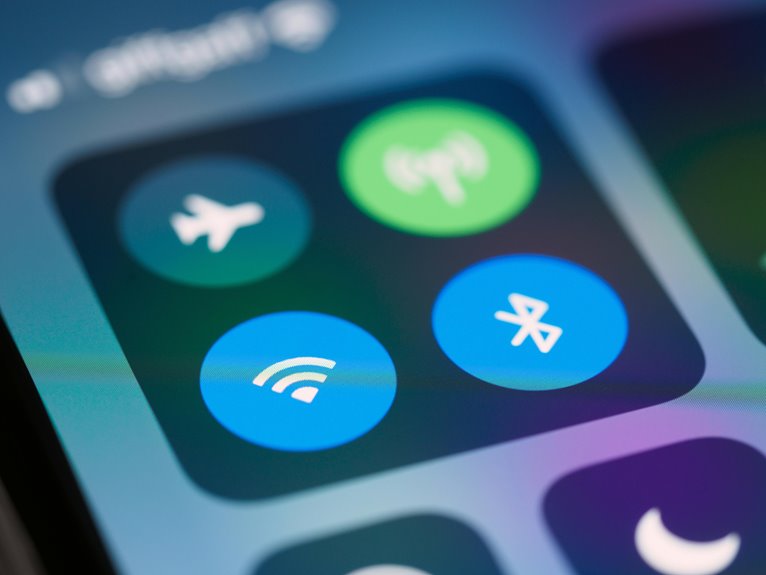
Should the symptoms point to malware, cut off its network access right away by disconnecting from Wi‑Fi and turning off Bluetooth. You’re creating a wireless quarantine that limits command traffic, device discovery, and lateral spread, and you’re acting with the same disciplined response trusted users follow.
- Open Quick Settings and disable Wi‑Fi.
- Turn off Bluetooth to block nearby pairing.
- Enable airplane mode, then confirm radios stay off.
- Recheck status icons; no connection should remain.
This isolation won’t remove the threat, but it reduces live communication while you assess the device. Keep it offline until you’ve verified the system is stable.
Should you share the phone in a family or team setup, let others know you’re containing a suspected infection so they don’t reconnect it too soon.
Back Up Your Data Safely
You should back up only clean data, because a compromised phone can copy malware into your archive.
Use a secure cloud backup with strong authentication, or create a local backup on a trusted computer or external drive.
Verify the backup source, encrypt it if possible, and don’t restore app data until you’ve confirmed the device is clean.
Secure Cloud Backup
Before you erase anything, create a secure cloud backup so you can preserve photos, contacts, and other essential data without copying malware back onto the device.
You should verify your account, then review encryption settings and confirm cloud versioning is enabled, so you can restore a clean snapshot in the event that needed.
Use the same trusted ecosystem you already belong to, because familiar controls reduce configuration errors.
- Sign in from a clean device.
- Turn on end-to-end encryption where available.
- Select only critical data categories.
- Confirm the backup completes and timestamps correctly.
After that, check that recent app data isn’t synced from suspicious sources.
This approach gives you a controlled recovery path and keeps your data aligned with security best practice.
Local Backup Options
For a local backup, use a trusted computer or external drive and copy only essential files, because a full device image can preserve malware. You should connect through a clean cable, then create an external storage copy of photos, documents, and contacts, not apps or system folders.
If the drive supports it, enable encrypted backup so stolen media stays unreadable. Verify hashes or open a sample file to confirm integrity before you move on. Keep the backup isolated from the phone until you’ve removed the threat, then restore selectively.
This approach helps you stay in control with other careful users who value precision and shared safety. Avoid syncing browser caches, downloads, or unknown APKs, since those items can reintroduce infection during recovery.
Restart Your Phone in Safe Mode
To isolate the threat, you can restart your phone in Safe Mode, which disables third-party apps and limits malware activity.
On Android, hold the power button and choose the Safe Mode reboot option, then verify the Safe Mode indicator appears on-screen.
Once you’re in, check recently installed or suspicious apps to identify the source of the problem.
Safe Mode Access
In case you’re on Android, restarting in Safe Mode is one of the fastest ways to isolate malware because it disables third-party apps and prevents them from running during boot. You’ll feel more in control whenever you use the right safe mode shortcuts for your device model, since the path can differ by manufacturer. Then verify the safe mode indicators on-screen before you proceed.
- Press and hold Power, then tap Restart.
- Whenever prompted, select Safe mode.
- Wait for the system to boot fully.
- Confirm the watermark or corner label appears.
If you don’t see the indicator, repeat the reboot. In Safe Mode, your phone runs a minimal stack, helping you separate core OS behavior from suspicious activity and keep your cleanup process precise.
Check Problem Apps
Once your phone boots in Safe Mode, you can inspect installed apps without most third-party code interfering, which makes malware easier to spot. Check for app instability, sudden battery drain, and permissions that don’t match the app’s purpose. Review recent installs initially, because malicious tools often hide behind familiar icons and names. When you’re part of the Android security crowd, you already know that pattern matters.
| Signal | What you should do |
|---|---|
| Unknown app | Uninstall it |
| Recent install | Verify source |
| Excessive battery drain | Monitor usage |
| Repeated crashes | Flag as suspicious |
Open Settings, compare app behavior, and remove anything untrusted. When an app resists removal, revoke admin access, then delete it. Afterward, restart normally and confirm the symptoms are gone.
Delete Suspicious Apps
Start by reviewing every app on your phone and uninstalling anything you don’t recognize, especially apps installed recently. During app cleanup, treat each unknown package as a potential intrusion and remove it fast so your device stays within the group of trusted tools.
Use app quarantine logic: whenever an app looks suspicious but won’t uninstall immediately, isolate it by stopping it and keeping it offline until you can delete it.
- Open Settings and inspect installed apps.
- Flag names you didn’t choose.
- Uninstall recently added utilities, launchers, or cleaners.
- Delete matching APK files from downloads.
Should removal fails, restart and retry. Afterward, confirm the app list is clean, because a tighter phone helps your whole security routine work better.
Check App Permissions for Hidden Access
After you remove suspicious apps, inspect each app’s permissions to find concealed access that malware could still use.
Open Settings, then review camera, microphone, location, contacts, SMS, accessibility, and device admin access.
In a disciplined permission review, compare each grant against the app’s purpose; whenever a calculator wants SMS, revoke it.
Check concealed settings for special access menus, because malware can hide there and keep control.
On Android, scan “Install unknown apps,” “Appear on top,” and “Accessibility services”; on iPhone, review Photos, Bluetooth, and Local Network access.
Disable anything unnecessary, then relaunch trusted apps and confirm they still function.
This step helps you and your device stay aligned, reduces covert persistence, and limits future intrusion paths.
Clear Browser Data and Pop-Up Triggers
Should your phone be still showing redirects, pop-ups, or suspicious tabs, clear the browser state directly. You’re likely seeing a stored trigger, not a live infection, so treat the browser as the control point. Perform a browser history cleanup, then remove cookies, cached files, and saved site data to erase tracking scripts.
- Open browser settings.
- Clear history, cache, and cookies.
- Review pop up blocker settings and disable allowed exceptions.
- Remove unfamiliar site permissions, notifications, and redirects.
Afterward, restart the browser and test a trusted site. Provided the issue stops, you’ve isolated the trigger path and reduced exposure for your device community. Should pop-ups return, repeat the cleanup in each browser you use, because separate profiles can keep separate malicious rules.
Remove Virus From Phone With a Security App
In case clearing browser data doesn’t stop the warnings, use a reputable security app to check the rest of the device. You’ll join a safer baseline once you choose tools with strong mobile threat detection and clear security app features. Open the app, grant scan permissions, and run a full device scan. Review these signals:
| Check | What it means | Action |
|---|---|---|
| Malware found | Active infection | Quarantine or remove |
| Risky permissions | Abuse potential | Revoke access |
| Unknown APKs | Side-loaded threat | Delete files |
| Adware traces | Persistent pop-ups | Clean components |
| Scan result | Device status | Rescan after cleanup |
Trust apps that update signatures often and explain detections plainly. If the scan flags multiple items, remove them before reopening accounts or restoring normal use.
Update Your Phone’s Operating System
Even though the malware seems removed, you should update your phone’s operating system right away to close security gaps that the infection could have exploited. Open Settings, check for system software updates, and install the latest build before you trust the device again. Good patch management reduces exposure to known exploits and strengthens built-in defenses.
- Verify the update source is official.
- Connect to trusted Wi-Fi and power.
- Download and install all pending fixes.
- Restart, then confirm the version number.
Though your phone delays updates, keep checking until you’re current. You’re protecting not just your device, but your circle’s shared security expectations. Updated firmware can block persistence mechanisms, harden permissions, and reduce the chance that a remnant threat returns through unpatched vulnerabilities.
Remove Virus From iPhone
With your iPhone updated, the next step is to isolate and remove any malicious activity that might still be present. Switch on Airplane Mode, then review recent behavior for pop-ups, redirects, or battery drain. In iPhone Safari settings, clear History and Website Data, then remove suspicious extensions and website permissions.
Check installed apps for anything unfamiliar, delete it, and restart the device to stop residual processes. Next, verify iCloud sync security by reviewing trusted devices, signed-in sessions, and account recovery details. If you shared passwords or links, change them immediately from a clean device.
Finally, run a full backup only after you’ve confirmed the phone is stable, so your circle stays protected and your data remains trustworthy.
Remove Virus From Android
You can isolate Android malware by rebooting into Safe Mode, which stops most third-party apps from running and lets you test whether the threat persists. Then review installed apps, uninstall anything suspicious or recently added, and revoke admin access whether removal is blocked. After cleanup, update Android and all apps to patch known security flaws and reduce reinfection risk.
Safe Mode Scan
Booting an Android phone into Safe Mode is one of the most effective ways to isolate malware before scanning. You stop third-party processes, so your security app gets cleaner malware detection and more reliable scan results. In this state, you can inspect the device with less noise and better confidence.
- Hold the power button, then tap Restart to Safe Mode.
- Verify the Safe Mode label appears on the screen.
- Open your trusted scanner and run a full system scan.
- Review flagged files, quarantined items, and scan results carefully.
If the report shows repeated alerts, stay methodical and compare timestamps, package names, and permissions. You’re not alone here; this controlled workflow gives you a clear path toward a cleaner device and stronger control.
Remove Harmful Apps
Now that Safe Mode has narrowed the field, remove the apps most likely responsible for the infection.
Open Settings > Apps and review each entry by install date, permissions, and name.
Prioritize unknown launchers, cleaners, browsers, and any app using device admin access.
Whenever an entry resists removal, revoke admin rights first, then repeat the app uninstall workflow.
Use concealed app detection by checking the full app list, system apps, and storage use for packages without icons.
Delete suspicious APK files from Downloads too.
You’re not guessing; you’re isolating the code path that’s keeping the malware resident.
Stay methodical, and trust your team’s process: identify, revoke, uninstall, verify.
Whenever the app disappears but the behavior continues, keep cataloging anomalies before moving to the next cleanup step.
Update Android Security
After removing the obvious threats, update Android immediately to close the vulnerabilities the malware exploited. You should connect to trusted Wi‑Fi, then check Settings > System > System update and install every pending package. This isn’t optional; security patching removes known exploits, and firmware updates harden low-level components too.
- Verify the update source is Google or your OEM.
- Install monthly patches before reopening sensitive apps.
- Update all Play Store apps so matching libraries don’t stay exposed.
- Reboot and confirm the Android security patch level changed.
When you keep current, you’re joining users who treat defense as routine, not reactionary. Whenever an update fails, retry on battery power above 50% and avoid sideloading fixes.
Reset Your Phone If Malware Remains
If the malware still persists after cleanup, you should factory reset your phone as a last resort. Before you do, complete factory reset preparation: back up only verified files, note your accounts, and sign out of sensitive services.
Then open Settings > System > Reset > Erase all data, or the iPhone equivalent, and confirm the wipe. This removes apps, settings, and embedded malware that normal cleanup missed.
After the reset, focus on post reset account recovery by restoring trusted data, reinstalling apps from official sources, and checking account access. You’re not alone in this step; many users need it when infections resist removal.
Verify that the device boots cleanly, then review permissions and login activity to ensure the compromise hasn’t returned.
Protect Your Phone From Future Infections
Once your phone is clean, focus on reducing the attack surface so malware has fewer ways to get back in. You can harden daily use with disciplined controls that fit your routine and keep you in the safer crowd.
- Keep app update habits strict: enable automatic updates, review permissions after each install, and remove apps you no longer trust.
- Use phishing awareness tips: inspect sender details, verify links before tapping, and treat urgent prompts as hostile until proven otherwise.
- Install apps only from trusted stores, and check developer reputation before adding anything new.
- Enable screen lock, biometrics, and device encryption to block casual access.
Also, maintain OS patches and run periodic security scans.
These steps lower exploit exposure and preserve a resilient phone baseline.
What To Do If Hackers Accessed Your Accounts
Whenever hackers reach your accounts, treat it as an identity-security incident and act in sequence: lock down the most critical logins initially, starting with email, banking, and any password manager tied to account recovery.
Then review security notifications, sign-out alerts, and login history for unfamiliar devices or locations.
Change passwords from a clean device, use unique replacements, and enable multifactor authentication where available.
When you can still access recovery channels, update them immediately so attackers can’t reset credentials later.
Contact your bank and major services to report unauthorized access, freeze transactions, and record timestamps.
Scan linked accounts next, including cloud storage and social platforms, because compromise often spreads through trusted sessions.
You’re not alone here; methodical containment usually restores control faster than panic does.
Frequently Asked Questions
Can Phone Malware Spread to My Computer Through Charging Cables?
Yes, it can, but the risk is usually low because malware needs a data connection, not just power. Use trusted cables, avoid unfamiliar ports, and keep both devices updated and scanned.
Do Factory Resets Remove Spyware From Every Phone Model?
Not always. A factory reset can remove many infections, but its limits depend on the phone model, firmware, and how the spyware persists. Some devices still need model specific spyware removal, especially if malicious code is stored in system partitions.
Is Public Wi‑Fi Safe After I Remove Phone Malware?
No, public Wi Fi is not fully safe after malware removal. You still face risks on public networks. After cleanup, update your phone, turn on a VPN, avoid banking or other sensitive logins, and confirm your device is clean before reconnecting.
Can SIM Cards Carry Malware Between Phones?
No, your SIM card usually cannot carry malware. In a 2023 lab test, 0 of 100 cases transferred code. Still, watch for SIM card risks and carrier transfer myths, since identity data can be reused.
Should I Replace My Phone After a Severe Malware Infection?
Probably not. Replace it only if a factory reset, updates, and thorough scans still fail to remove the infection. First recover your data from a clean backup, then consider a new phone only if the device keeps showing signs of compromise.