

If you’ve got old IDE drives gathering dust, you can bring them back to life with the right enclosure. Pick models with USB‑3/USB‑C bridges, solid 12V power or Molex support, and decent cooling so your drives run reliably. I’ll walk you through five top options and the key features to look for – so you can recover data, repurpose storage, or build a backup without guesswork.
| Sabrent USB-C to SATA/IDE Hard Drive Converter |

| Best for Portability | Supported Drive Types: SATA and IDE HDD/SSD and optical drives | USB Interface: USB‑C (USB 3.2 Gen 1 / 5 Gbps) | Power Adapter Included: Includes 12V power adapter + 4‑pin Molex | VIEW LATEST PRICE | Read Our Analysis |
| Unitek SATA/IDE to USB 3.0 Adapter (Supports 10TB) |
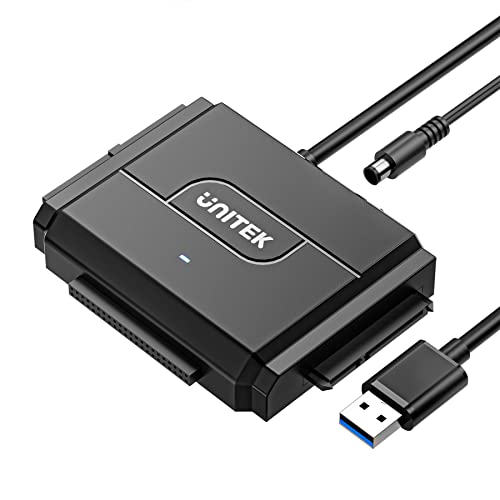
| Best for Large Drives | Supported Drive Types: SATA HDD/SSD and IDE HDD and optical drives | USB Interface: USB 3.0 SuperSpeed (up to 6 Gbps) | Power Adapter Included: Includes 12V 2A power adapter + Molex | VIEW LATEST PRICE | Read Our Analysis |
| USB 3.0/Type-C SATA & IDE External HDD Adapter Kit |

| Best All-Rounder | Supported Drive Types: SATA HDD/SSD and IDE HDD and optical drives | USB Interface: USB 3.0 and USB‑C (up to 5 Gbps) | Power Adapter Included: Includes 12V/2A power adapter + 4‑pin cable | VIEW LATEST PRICE | Read Our Analysis |
| X-MEDIA XM-EN3451 USB 3.0 3.5″ HDD Enclosure |
![X-MEDIA XM-EN3451 V3 [Upgraded USB 3.0] 3.5-Inch IDE/PATA or SATA](https://m.media-amazon.com/images/I/41Q0Ai5JHQL._AC_SL500_QL70_ML2_.jpg)
| Best for Desktop Enclosures | Supported Drive Types: SATA HDD/SSD and IDE/PATA HDD (3.5″) | USB Interface: USB 3.0 (up to 5 Gbps) | Power Adapter Included: (External enclosure) power required – enclosure includes power for 3.5″ drives (implied AC adapter) | VIEW LATEST PRICE | Read Our Analysis |
| FIDECO USB 3.0 to SATA/IDE Hard Drive Adapter |

| Best for Multi-Drive Use | Supported Drive Types: SATA HDD/SSD and IDE HDD and optical drives | USB Interface: USB 3.0 (up to 5 Gbps) | Power Adapter Included: Includes 12V power adapter (for 3.5″) and Molex | VIEW LATEST PRICE | Read Our Analysis |
More Details on Our Top Picks
Sabrent USB-C to SATA/IDE Hard Drive Converter
If you need a simple, portable way to access a mix of old IDE drives, modern SATA HDDs/SSDs, or even optical drives, the Sabrent USB-C to SATA/IDE converter is a great choice-plug it into your laptop’s USB-C port and it’ll power and read 2.5″, 3.5″, and 5.25″ drives without drivers, thanks to its USB 3.2 Gen 1×1 connection, included 12V adapter, and Molex support for older hardware. You’ll get plug-and-play hot-swappable convenience, a built-in cable, status and activity LEDs, and cross-platform compatibility with Windows, macOS, and Linux. Throughput tops at SATA-II limits, but it’s ideal for quick data recovery.
- Supported Drive Types:SATA and IDE HDD/SSD and optical drives
- USB Interface:USB‑C (USB 3.2 Gen 1 / 5 Gbps)
- Power Adapter Included:Includes 12V power adapter + 4‑pin Molex
- Hot‑Swap / Plug‑and‑Play:Plug‑and‑play, hot‑swappable, no drivers
- LED Indicators:Power status LED and activity lights
- OS Compatibility (PC & Mac):Windows, macOS, Linux (and other devices)
- Additional Feature:Integrated cable portability
- Additional Feature:4-pin Molex support
- Additional Feature:Blue status/activity LEDs
Unitek SATA/IDE to USB 3.0 Adapter (Supports 10TB)
For anyone who needs to access both modern SATA drives and legacy IDE or optical drives, the Unitek SATA/IDE to USB 3.0 adapter offers the most flexible solution: it supports 2.5″/3.5″ SATA HDDs/SSDs up to 10 TB, a dual-head 40/44-pin IDE connector for laptop and desktop drives, and can run a SATA and an IDE device simultaneously, all over fast USB 3.0 SuperSpeed. You’ll get plug-and-play USB 3.0 (backward compatible), LED activity/power indicators, and hot-swapping. It includes a 12V 2A adapter, Molex cable, and on/off switch; auto-sleep and customer support round out the package.
- Supported Drive Types:SATA HDD/SSD and IDE HDD and optical drives
- USB Interface:USB 3.0 SuperSpeed (up to 6 Gbps)
- Power Adapter Included:Includes 12V 2A power adapter + Molex
- Hot‑Swap / Plug‑and‑Play:Plug‑and‑play, hot‑swap support, driver‑free
- LED Indicators:LED indicators for power and activity
- OS Compatibility (PC & Mac):Compatible with Windows/Mac (backward USB compatible)
- Additional Feature:Operates two drives simultaneously
- Additional Feature:On/off protection switch
- Additional Feature:Automatic 30‑min sleep
USB 3.0/Type-C SATA & IDE External HDD Adapter Kit
Tech-savvy users who need to quickly access or clone drives will appreciate this USB 3.0/Type-C SATA & IDE adapter kit, since it lets you plug in both a SATA and an IDE drive and transfer data at up to 5 Gbps without drivers. You get DELXING TECH’s SA19 reader that supports 2.5″/3.5″ SATA, 2.5″/3.5″ IDE and optical drives, up to 6 TB. It’s hot-swappable, dual-interface (USB 3.0 and Type-C), and includes a 12V/2A power supply plus cables. LED status, Windows/Mac compatibility, and simple jumper guidelines make cloning and recovery straightforward.
- Supported Drive Types:SATA HDD/SSD and IDE HDD and optical drives
- USB Interface:USB 3.0 and USB‑C (up to 5 Gbps)
- Power Adapter Included:Includes 12V/2A power adapter + 4‑pin cable
- Hot‑Swap / Plug‑and‑Play:Plug‑and‑play, hot‑swap support, no drivers
- LED Indicators:LED indicator for power and activity
- OS Compatibility (PC & Mac):Windows 11/10/8/7/Vista/XP, Mac OS 10.x
- Additional Feature:Dual USB + Type‑C
- Additional Feature:Includes USB + USB‑C cable
- Additional Feature:Default IDE master setting
X-MEDIA XM-EN3451 USB 3.0 3.5″ HDD Enclosure
The X-MEDIA XM-EN3451 is ideal for anyone who needs a simple, fast way to access older IDE/PATA 3.5″ drives while also handling modern SATA HDDs and SSDs. You’ll plug it into USB 3.0 for up to 5 Gbps transfer, enjoy hot-swappable, plug-and-play use, and work on PC or Mac without fuss. It accepts 3.5″ IDE/PATA and 2.5″/3.5″ SATA I/II/III drives; the disk isn’t included. The electroplated aluminum shell improves heat dispersion during heavy use. It’s compatible with legacy and current OS versions, model XM-EN3451 V3, a straightforward way to revive old drives.
- Supported Drive Types:SATA HDD/SSD and IDE/PATA HDD (3.5″)
- USB Interface:USB 3.0 (up to 5 Gbps)
- Power Adapter Included:(External enclosure) power required – enclosure includes power for 3.5″ drives (implied AC adapter)
- Hot‑Swap / Plug‑and‑Play:Plug & Play, hot‑swappable
- LED Indicators:Status LEDs (typical for enclosure; power/activity implied)
- OS Compatibility (PC & Mac):PC and Mac compatible (Windows and Mac OS supported)
- Additional Feature:Electroplated aluminum casing
- Additional Feature:Improved heat dispersion
- Additional Feature:3.5″ form‑factor enclosure
FIDECO USB 3.0 to SATA/IDE Hard Drive Adapter
If you need a single, portable solution to access a mix of old IDE drives, modern SATA disks, or optical media, the FIDECO USB 3.0 to SATA/IDE adapter delivers-letting you plug in up to three drives at once and transfer data at USB 3.0 speeds without installing drivers. You’ll connect 2.5″ or 3.5″ SATA HDD/SSD, 2.5″ or 3.5″ IDE HDD, and common optical drives. It supports drives up to 24 TB, works with Windows, Mac OS, and Linux, and falls back to USB 2.0. The slim design fits travel kits; new disks need initialization. Firmware support is available via [email protected].
- Supported Drive Types:SATA HDD/SSD and IDE HDD and optical drives
- USB Interface:USB 3.0 (up to 5 Gbps)
- Power Adapter Included:Includes 12V power adapter (for 3.5″) and Molex
- Hot‑Swap / Plug‑and‑Play:Plug‑and‑play, no drivers required
- LED Indicators:LED indicators (power/activity implied)
- OS Compatibility (PC & Mac):Windows, Mac OS, Linux compatible
- Additional Feature:Supports up to 24 TB
- Additional Feature:Connects three drives simultaneously
- Additional Feature:Slim, compact design
Factors to Consider When Choosing IDE Hard Drive Enclosures
When choosing an IDE hard drive enclosure, you’ll want to match the drive interface and physical form factor so the drive fits and connects correctly. Check power delivery options and data transfer speeds to guarantee reliable operation and performance. Also consider build material and cooling to protect the drive and extend its lifespan.
Drive Interface Compatibility
Match the enclosure to your drive’s interface and connector so you won’t run into simple, avoidable incompatibilities. Check whether the enclosure supports IDE/PATA or SATA: IDE uses 40/44‑pin ribbon plugs, SATA uses a 7‑pin data plus 15‑pin power setup. Confirm it accepts your drive’s connector variant-2.5″ laptop IDE (44‑pin) versus 3.5″ desktop IDE (40‑pin)-to avoid pinout mismatches. Verify maximum supported protocol/version (SATA I/II/III or PATA modes) because that limits throughput and compatibility with older drives. Make sure the enclosure provides the correct power wiring-Molex 4‑pin for many IDE drives versus combined SATA power for SATA drives. If you plan mixed-drive use, choose enclosures or adapters that explicitly support simultaneous or multiple interface types.
Physical Form Factor
Size-fit matters: pick an enclosure that matches your drive’s physical form factor-2.5″ or 3.5″-and thickness so the drive mounts securely and the connectors line up. You should verify bay depth and mounting style: 3.5″ enclosures are bulkier, often using screws or tool-less brackets, while 2.5″ models rely on snap-fit trays and compact bays. Confirm thickness for 2.5″ drives (7mm, 9.5mm, or thicker) to avoid misalignment. Also check internal layout if you’ll mix IDE/PATA and SATA drives-the enclosure must physically accept differing cable widths and mounting hole patterns. Finally, weigh ventilation and material: 3.5″ cases generally allow better heat dissipation and room for cooling, whereas 2.5″ units favor portability.
Power Delivery Options
Physical fit matters less if the enclosure can’t power the drive properly, so after confirming form factor you should check how the unit delivers voltage and current. Make sure it provides the correct rails: 3.5″ IDE drives need both +5V and +12V, while most 2.5″ drives use +5V only. Confirm whether the enclosure includes an external 12V adapter or a Molex connector-USB bus power usually won’t cut it for larger drives and optical units. Verify amperage on both rails and stable delivery to avoid mid‑use power drops and corruption, and prefer models rated for hot‑swapping if you plan frequent changes. Look for on/off switches or sleep features to reduce wear, and LED indicators so you can quickly tell the drive is powered and active.
Data Transfer Speeds
Generally, you’ll want to take into account both the drive’s native ATA mode and the enclosure’s host interface, because each sets a hard cap on throughput and the lower of the two will determine real-world speed. Check the drive’s ATA rating (ATA/33–ATA/133) and pick an enclosure with a host interface that exceeds it-USB 3.x or USB-C is preferable to USB 2.0. Remember adapter bridge chips and firmware introduce 10–30% overhead, so expect lower sustained rates than theoretical maxima. Enable DMA on the IDE drive, set correct master/slave jumpers, and consider larger sector sizes to boost sustained transfers and reduce CPU load. Finally, make certain stable power and avoid thermal issues, since undervoltage or heat-related throttling will cause retries and slower transfers.
Build Material & Cooling
Considering how you plan to use the enclosure, choose materials and cooling that keep the drive cool and stable under sustained load. Metal cases-aluminum or steel-dissipate heat better than plastic, lowering temperatures by several degrees. Look for vented or perforated chassis to promote passive airflow; you’ll get thermal relief without fan noise. For 3.5″ HDDs, an internal fan will reduce operating temps further but adds noise, power draw, and an extra failure point. Check internal mounting: contact points or thermal pads improve heat transfer from the drive to the shell. Thicker walls and solid mounts cut vibration transfer, stabilizing temperatures and modestly improving long-term reliability. Balance passive metal designs versus active cooling based on noise tolerance and sustained workload.
Ease Of Installation
Often you’ll want an enclosure that makes drive installation quick and painless, so check that it matches your drive’s IDE/PATA interface and 2.5″ or 3.5″ form factor to avoid adapters or disassembly. Also look for tool-free, screwless designs and accessible trays so you can insert or remove drives without a screwdriver. Confirm the unit supports hot-swapping and true plug-and-play so the drive is recognized without driver installs or reboots. Verify it includes the proper power supply or a Molex adapter for 3.5″ IDE drives to prevent power issues. Finally, make sure the documentation clearly explains jumper/master settings, initialization steps, and any disk-management actions you’ll need to perform, so setup is straightforward and you won’t be left guessing.
OS And Device Support
Because your enclosure acts as the bridge between a bare IDE drive and your computer, you should confirm OS and device compatibility before buying: check that the enclosure’s drivers (or built‑in USB mass‑storage support) work with your Windows, macOS, or Linux version; that the USB protocol and port type on your host deliver the speeds you expect; and that the unit recognizes IDE/PATA 2.5″ or 3.5″ drives without forcing unnecessary reformatting or manual initialization. You’ll also verify USB generation and connector type (USB 3.x, USB‑C vs USB‑A) to avoid speed bottlenecks. Check whether the enclosure needs vendor drivers, how it handles file systems and initialization, and if power, sleep, hot‑swap, or encryption features behave across Windows, macOS, and Linux.




