Roughly 90% of smartphone users have granted at least one app permission they no longer need. You can limit exposure through auditing access to location, camera, microphone, and contacts, then disabling ad personalization, analytics, and background sync where they’re unnecessary. Privacy dashboards expose stale grants and recent activity, but the real control comes from consistent review—and the next setting can matter more than you expect.
How Smartphone Privacy Settings Protect Your Data
Smartphone privacy settings protect your data through limiting which apps can access sensitive functions and whenever they can do so. You use permission management to assign camera, microphone, contacts, and location rights only when they’re necessary, which reduces exposure and keeps your device aligned with data minimization principles.
You can also restrict background activity, so apps don’t quietly collect signals after you’ve stopped using them. Privacy dashboards and automatic resets help you identify and remove stale access before it becomes a risk.
Whenever you disable personalization and advertising IDs, you further cut cross-app profiling. These controls work together to shrink your digital footprint, strengthen trust in your device, and help you stay part of a privacy-conscious community without sacrificing core functionality.
Check App Permissions First
Before you change broader privacy controls, check app permissions initially, because they determine exactly what each app can access.
You’ll get better control whenever you run a permission audit in your settings menu and inspect camera, microphone, contacts, and other sensitive grants.
Use the app access review to compare each app’s stated function with its current privileges.
Unless a tool doesn’t need a permission to work, revoke it.
Unless you’re unsure, set access to ask every time or allow only while using.
This approach cuts unnecessary exposure, reduces data leakage, and helps your device stay aligned with your preferences.
Upon reviewing permissions regularly, you’re not acting alone; you’re joining careful users who keep their phones efficient, accountable, and easier to trust.
Control Location Tracking on Your Phone
You can reduce location exposure by turning off Precise Location for apps that don’t need exact coordinates.
Audit each app’s location permission in Settings so you only allow access while you’re using it, or deny it entirely when it’s not necessary.
Then review system-level location history controls and disable them if you don’t want your phone to retain a persistent record of where you’ve been.
Turn Off Precise Location
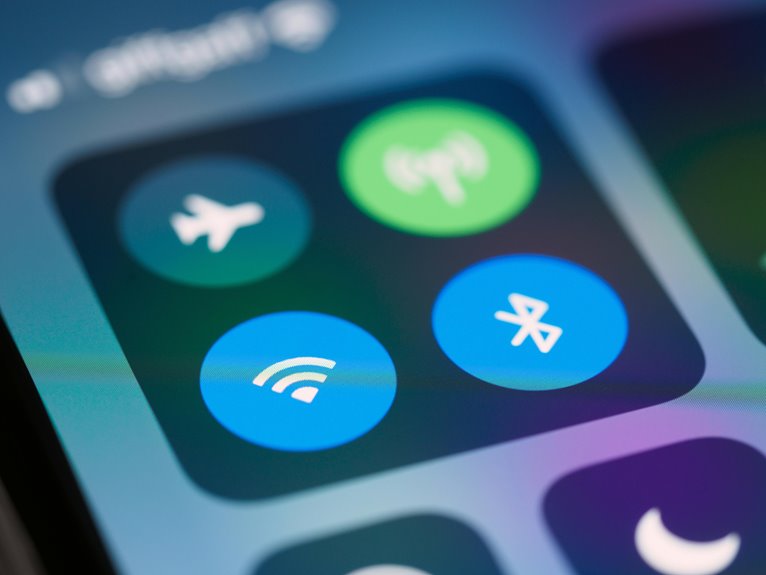
Precise location uses GPS, Wi‑Fi, Bluetooth, and cellular data to pinpoint your position more accurately than basic location access, so it should stay off for apps that don’t need exact tracking. You’ll reduce exposure, limit profiling, and keep control through clear precision location tradeoffs. It also helps with maps battery impact whenever you aren’t getting directions.
| Setting | Effect | Best use |
|---|---|---|
| Precise on | Exact coordinates | Ride apps |
| Precise off | Approximate area | Weather |
| Review often | Lower drift | Everyday apps |
You can usually find this in Location settings, then choose approximate access for trusted tools. That choice supports a privacy-minded group while preserving function. For many apps, the extra detail adds little value but raises risk. Keep precision only wherever accuracy truly matters.
App-Level Location Permissions
You can set location access timing to allow only while using, ask every time, or never, which sharply limits passive tracking.
Apply per app location exceptions only whenever a service truly needs them, such as weather or maps, and deny access to utilities, games, or shopping apps that don’t need continuous data.
Check permission prompts and privacy dashboards to spot unnecessary requests, then tighten settings promptly.
This approach gives you a consistent, privacy-conscious baseline that helps your device stay useful without exposing your movement patterns to apps that don’t earn that trust.
System Location History Controls
You should open Settings > Location, then review any system-level tracking features, such as Google Location History or Samsung location data sharing.
Upon you disable them, you reduce location history logs that can reveal routines, commute patterns, and visited places.
On you’ve already collected data, use map timeline deletion to remove stored trips and stops.
Check related activity controls too, because some devices sync location data with web and app activity.
You stay in control, and your device fits your privacy standards.
Revisit these settings after updates, since vendors sometimes reset defaults or add new tracking options.
Limit Camera, Mic, and Contacts Access
To limit camera, microphone, and contacts access, open your phone’s Permission Manager in Settings > Privacy and review each permission individually.
Check which apps truly need visual, audio, or address-book data, then switch the rest to don’t allow or only while using. A camera permission audit helps you spot apps with unnecessary imaging privileges, while microphone access alerts reveal unexpected listening attempts. For contacts, keep access restricted to trusted messaging, calling, or backup tools.
This selective control reduces exposure and keeps you aligned with a privacy-conscious community that values informed choice.
Use the privacy dashboard to verify recent access, and revoke permissions from apps that don’t match your workflow. On Android, unused apps can lose access automatically, adding another technical safeguard.
Turn Off Ad Tracking and Personalization
Once you’ve tightened camera, mic, and contacts access, the next privacy layer is ad tracking and personalization.
You can reduce profiling via opening your phone’s advertising controls and turning off ad personalization. This stops platforms from linking in-app behavior to a long-term ad tracking identifier, so your interests don’t get inferred as aggressively. Whenever your device offers it, delete or reset the advertising ID regularly to fragment correlation across apps. On some phones, you can also disable vendor customization services that feed behavioral data into targeted ads.
These changes won’t remove ads, but they’ll make them less predictive and less invasive. You stay part of the ecosystem, yet you keep more control over how your data shapes what you see.
Review Browser Privacy Settings
Browser settings often expose more personal data than users realize, so you should review them with the same care you give app permissions.
Check your default search engine, pop-up blocking, site permissions, and tracking protection in each browser.
Turn on private browsing whenever you don’t want sessions stored locally, but don’t assume it hides you from every site.
Tighten cookie controls by blocking third-party cookies, clearing stored cookies on exit, and limiting cross-site tracking.
Review autofill, saved passwords, and download history, then disable sync provided that you want less data moving between devices.
You’ll fit better into a privacy-aware group whenever your browser shares only what’s necessary.
Revisit these settings after updates, since vendors often reset options or add new data-sharing features without obvious prompts.
Secure Your Account With Stronger Sign-In
After you tighten browser privacy, protect the account behind it with stronger sign-in controls. Use a unique, high-entropy password for every service, and rely on password manager use so you don’t reuse credentials or store them in unsafe notes.
Enable two factor authentication wherever the app supports it; a time-based code or push approval blocks attackers even though they learn your password. Prefer biometric release only as a local convenience layer, not a replacement for MFA. Review recovery email, phone, and trusted device settings so only you can regain access.
When your phone offers security alerts, keep them on. These steps cut account takeover risk and help you stay in control with the same careful community of users who value privacy and disciplined security.
Control Photo and Backup Sharing
When you sync photos and backups, you extend sensitive data beyond the device, so you should audit exactly what uploads and what metadata goes with it. Open your cloud and gallery settings, then tighten backup sync controls so only chosen folders, videos, and device states leave your phone. Check whether timestamps, geotags, and face labels are included, because they can expose your routine to people who don’t need it.
- Disable auto-upload for screenshots and receipts.
- Review shared album permissions before inviting anyone.
- Remove old devices from backup access.
You’ll stay aligned with users who value control while you verify restore options, encryption status, and deletion behavior. Should a service offer separate photo and backup policies, split them; that keeps your circle safer and your data clearer.
Turn Off System Analytics and Data Sharing
Once you’ve locked down photo and backup sharing, check the device-level analytics that still report usage, diagnostics, and crash data to the vendor.
Open Privacy or Data Sharing settings and disable usage analytics, diagnostic telemetry, and any “improve the product” toggles.
On Android, review Google activity controls and vendor services; on iPhone, turn off Share iPhone Analytics and related app analytics.
This reduces routine signal streams that can expose app patterns, error states, and device behavior to third parties.
You’ll keep a tighter control surface without breaking core functions, and you’ll fit in with users who prioritize minimal disclosure.
After you change these options, revisit them after major OS updates, because vendors sometimes re-enable collection or add new consent prompts.
Adjust Notification and Lock Screen Privacy
You should hide lock screen previews so sensitive message content doesn’t appear before you open the device.
Limit notification content to concise summaries, and set app-specific alert privacy so only approved apps can surface details on the lock screen.
This reduces exposure of personal data to anyone who can view your phone.
Hide Lock Screen Previews
Lock screen previews can expose message content, photos, and app alerts at a glance, so tighten notification settings to keep sensitive data off the display. You can preserve lock screen privacy via enabling concealed notification previews in your system’s notification controls. This reduces casual exposure while your phone sits on a desk or in a shared space, helping you stay aligned with a privacy-conscious community.
- Set notifications to show only icons or a summary on the lock screen.
- Disable preview text for messaging, mail, and social apps.
- Use per-app controls so trusted alerts remain visible while others stay concealed.
Review these settings after OS updates, because defaults can reset. Via auditing preview behavior regularly, you keep access intentional and your personal data less readable to anyone nearby.
Limit Notification Content
Notification content can reveal message text, calendar details, OTP codes, and other sensitive data even while the phone stays locked, so tighten both lock screen and in-app alert settings to limit exposure.
You should use notification preview control to show only the sender, not the full payload, and you can disable sensitive lock screen alerts for banking, mail, and messaging apps.
On Android and iPhone, set alerts to appear silently or with minimized detail once the device is locked.
Keep banners, sounds, and badges as long as they help you stay informed, but remove body text, snippets, and image thumbnails.
This balance lets you remain connected to your group while reducing shoulder-surfing risk.
Review these controls after updates, since system defaults can change without notice.
Set App Alert Privacy
After tightening preview text, refine app alert privacy so notifications expose only the minimum on the lock screen and inside alerts. In your app alert settings, disable sensitive previews for messages, banking, and work apps, then use privacy notification controls to hide content until you access the device. You’ll keep your circle informed without broadcasting credentials, codes, or personal background to anyone nearby.
- Set lock screen alerts to show counts, not message bodies.
- Mute high-risk apps or route them to silent delivery.
- Review per-app notification categories and revoke intrusive banners.
This configuration reduces shoulder surfing, supports shared-device safety, and keeps you aligned with trusted defaults. Recheck changes after updates, because system resets can restore broader alert visibility.
Check Privacy Settings in Popular Apps
Start with the apps you use most, because their default privacy options often collect more data than you’d expect.
Open each app’s settings and run app privacy checks for location, camera, microphone, contacts, and notifications.
Use in app data controls to restrict sharing, disable ad personalization, and remove linked accounts you don’t need.
In Google apps, review activity controls and ad settings; in Samsung apps, verify customization and data-sharing options.
For social and messaging apps, set audience limits, mute background access, and block device identifiers where possible.
In Apple apps, inspect privacy reports and revoke unnecessary access.
You’ll fit in better with a privacy-aware community whenever you choose the strictest practical option, then confirm the app still works before moving on.
Review Smartphone Privacy Settings Regularly
Make it a habit to review your smartphone privacy settings on a regular schedule, because app updates, OS upgrades, and new permissions can quietly change what’s being shared. During each privacy audit, inspect location, camera, microphone, and background activity controls, then confirm every setting still matches your needs. A quick permission cleanup keeps your device aligned with your current habits and reduces unwanted data exposure.
- Check the privacy dashboard for recent access.
- Revoke unused permissions and app tracking.
- Verify advertising and auto-reset settings.
If you use Android, review auto-reset permissions for unused apps and location access. On Samsung and Google devices, also confirm data-sharing and ad personalization controls. Regular reviews help you stay in command and keep your digital circle safer together.
Frequently Asked Questions
How Do I Stop Unused Apps From Keeping Background Access to My Data?
Turn off background activity for apps you no longer use in Settings, then use app power controls to limit when they can run. This blocks quiet data access, cuts tracking, and keeps your device more secure.
Can I Reset My Advertising ID Without Affecting App Functionality?
Yes, you can reset your advertising ID without disrupting most apps. The change mainly limits ad profiling, so app features should keep working as usual. You may see less personalized ads, but the apps themselves should remain functional.
Which Apps Can Still Access Location When Permissions Are Set?
Only apps with location permission can access your location, such as weather, maps, and other apps you trust. Think of your phone as a gatehouse: app specific location exceptions can still get through. Check each app setting carefully.
How Often Should I Clear Cached Data and Learned Device Data?
Clear cached data and learned device data about once a month, or sooner after troubleshooting, cache cleanup, or major app changes. This helps keep personalization in place while removing stale files, tracking residue, and performance drift.
Where Do I View Recent Camera and Microphone Access History?
You can check recent camera and microphone access in your privacy dashboard or app privacy report, where permission logs and privacy indicators list the most recent activity. Open each app’s settings to see which apps accessed those permissions.