Whenever your phone’s signal bars flicker like a faulty gauge, you’re seeing more than a weak connection; you’re watching a system fight for registration, control, and bandwidth. You might face drops from congestion, SIM errors, roaming settings, or a carrier fault in the radio path. Before you assume the handset is broken, you can test signal patterns, settings, and location to isolate the fault—and the next clue usually tells you where it starts.
Why Your Mobile Network Keeps Dropping
Your mobile network keeps dropping whenever the radio link, backhaul, or core network can’t maintain a stable connection. You’re seeing a control-plane break, not just a momentary annoyance, and you’re not alone.
If network authentication fails, the device can’t stay registered, and a roaming handoff may abort when timing, credentials, or signal thresholds don’t align. Software bugs, misconfigurations, aging hardware, and power loss can all interrupt session continuity.
Fiber, microwave, or base-station faults can cut the path between your phone and the packet core. Even brief interruptions force reattach procedures, which you’ll notice as call drops, stalled data, or repeated reconnects.
When this happens, your network stack keeps trying to recover, but it needs stable transport and valid identity checks to hold the session.
Weak Signal, Congestion, or Outage?
Once you’ve ruled out repeated drops caused through session or registration failures, the next question is whether you’re handling weak signal, local congestion, or a broader outage.
Use signal diagnostics to compare RSSI, SINR, and band selection across locations, then check coverage mapping to see whether you’re at the edge of service or inside a known dead zone.
Whenever bars fall steadily as you move indoors or away from a window, weak signal is likely.
Whenever performance collapses only at rush hour, stadiums, or dense urban sites, congestion’s the better fit.
Whenever multiple users lose service across a wide area at once, suspect an outage.
You’re not alone in this; these patterns are measurable, and they let you narrow the cause fast and act with confidence.
How Mobile Network Issues Affect Calls and Data
If mobile network conditions degrade, calls usually fail before they fully connect, audio can sound choppy or robotic, and data sessions may slow, stall, or drop outright. You’ll notice call quality changes whenever packet loss, jitter, or congestion disrupts voice codecs; even brief bursts can make you miss names, numbers, or urgency. Data session interruptions hit harder because apps retry, buffers empty, and uploads time out.
| Symptom | Network effect | What you feel |
|---|---|---|
| Call drops | Loss of bearer stability | Frustration |
| Choppy audio | Jitter, loss | Strain |
| Slow pages | Congestion | Delay |
| App retries | Packet loss | Anxiety |
| Session reset | Signaling failure | Isolation |
Whenever your connection degrades, you’re not alone; the network’s shared capacity is simply under stress.
Check Your Phone Settings and SIM Card
Before assuming the tower is at fault, check the phone itself: incorrect network settings, an outdated carrier profile, or a SIM card issue can block registration even when coverage is available. You should confirm your phone settings use automatic network selection and the correct carrier mode, because a manual choice can hold you on an unsupported band.
Next, inspect the sim card for wear, misalignment, or contamination, then reseat it so the contacts make firm contact. When your device shows no service after a profile update, refresh the carrier settings and verify the APN entries match your plan. These checks help you stay connected with the network your device is meant to join, and they often reveal a local fault rather than a wider outage.
Try These Mobile Network Fixes First
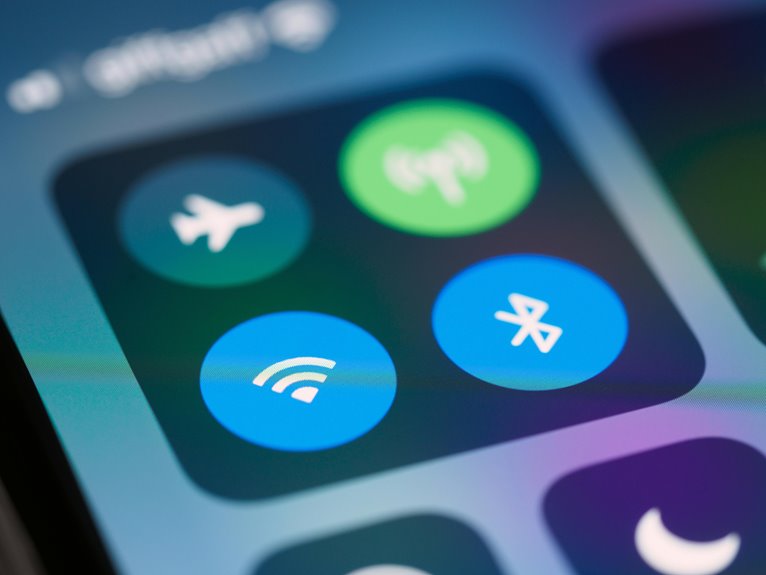
Start with the simplest recovery steps: restart your phone, then toggle airplane mode on and off to force it to re-register on the network. This restart and refresh clears transient modem faults and often restores a clean session.
Next, check mode and settings: keep network mode on Auto, confirm cellular data is enabled, and verify you haven’t enabled an unusual calling or data restriction.
Should your phone still lags, open the SIM tray, reseat the card, and inspect it for visible wear. Then test again in a different location, because local signal conditions can shape performance.
Should the connection returns, you’ve isolated a device-side or temporary registration issue, and you can stay connected with confidence alongside everyone who’s troubleshooting.
When to Blame Your Carrier
If your phone still drops calls, stalls on data, or shows weak service after a restart, airplane-mode toggle, SIM reseat, and settings check, the carrier network becomes the likely fault domain. You should compare symptoms with carrier outage patterns and network maintenance windows.
| Signal | Carrier clue | Action |
|---|---|---|
| Multiple users fail | Area-wide issue | Check status page |
| Problems recur nightly | Maintenance window | Wait and retest |
| Busy hour slowdown | Congestion or overload | Record timestamps |
If your issue matches others on the same network, the carrier likely owns the fault. You’re not isolated; your report helps confirm a broader incident. Whenever only your device fails, keep troubleshooting hardware, account state, and coverage separately.
Improve Signal Indoors and Outdoors
You should initial identify the structures and materials that attenuate your signal, including concrete walls, metal framing, low‑E glass, dense foliage, and nearby buildings.
Indoors, you can improve reception via moving closer to exterior walls or windows, repositioning your device, or using a signal booster where carrier policy allows.
Outdoors, you should optimize location via reducing distance to the tower, avoiding obstructions, and choosing higher or more open terrain whenever possible.
Identify Signal Blockers
Identifying signal blockers starts with mapping the physical path between your device and the nearest cell site, because buildings, terrain, dense foliage, thick walls, and even energy-efficient glass can attenuate or fully block RF signals indoors and outdoors. You can then isolate the dominant physical obstructions and test each path.
- Check building materials: concrete, metal, and low-E glass often cause strong attenuation.
- Look for physical obstructions like hills, trees, parked vehicles, and neighboring structures.
- Compare signal at windows, upper floors, and open areas to locate the blocker.
If your readings drop sharply in one direction, the blocker is likely structural or environmental, not device-related. Upon identifying the obstacle, you’ll join the users who troubleshoot with confidence and precision, instead of guessing where coverage fails.
Boost Indoor Reception
Once you’ve ruled out external blockers, the quickest way to improve indoor reception is to improve the signal path between your device and the nearest cell site. You can place a signal repeater near a window or external wall, where it captures a stronger donor signal and rebroadcasts it inside your space.
Pair it with indoor antennas positioned high and centrally to reduce attenuation from concrete, metal, and low-e glass. You should also keep the repeater away from routers, microwaves, and large appliances that add RF noise.
In offices or homes with shared dead zones, adjust antenna orientation and test multiple rooms to map the clearest path. This approach helps you stay reliably connected with your group, even whenever building materials suppress bars.
Optimize Outdoor Coverage
Outdoor coverage improves whenever you remove the biggest source of loss: weak donor signal and unnecessary attenuation between your device and the network. You can reduce that loss through checking antenna alignment, confirming clear line of sight, and choosing tower placement that favors elevation over obstruction. In practice, you belong to the strongest usable cell when you optimize the path, not just the device.
- Aim antennas toward the nearest sector with stable RSRP and SINR.
- Keep metal, trees, and glass out of the Fresnel path.
- Relocate hotspots or repeaters to minimize cable length and attenuation.
You should validate results outdoors and indoors, because stronger donor signal lifts both areas. Provided performance still drops, reassess congestion, weather, and site hardware before changing settings again.
Prevent Future Connectivity Disruptions
You should run regular network audits to detect failing hardware, misconfigurations, and congestion hotspots before they trigger service loss.
You should also design redundancy into power, backhaul, and radio paths so a single fault doesn’t take a site offline.
Proactive monitoring alerts can then flag latency, packet loss, and signal degradation at an early stage, letting you intervene before users notice disruption.
Regular Network Audits
- Verify alarms, logs, and KPI trends.
- Inspect power, backhaul, and radio parameters.
- Confirm change records against live settings.
When you review these signals together, you identify concealed faults, congestion triggers, and misconfigurations before users feel the impact. You also strengthen shared accountability across operations, engineering, and field teams, which helps your network community stay reliable.
Use each audit to prioritize corrective actions, document findings, and track closure, so your service quality stays consistent and predictable.
Redundancy Planning Strategies
Redundancy planning reduces the chance that a single fault takes users offline via building alternate paths for power, transport, and radio access into the network design.
You should pair diverse backhaul routes with separate fiber, microwave, or leased lines, so a cut doesn’t isolate a cell cluster. You also need backup carrier options to preserve service whenever one uplink degrades or a regional outage hits.
At the site level, deploy failover power systems with batteries, generators, and automatic transfer switches to keep radios, core nodes, and timing equipment live. You’ll improve resilience further through separating critical loads, duplicating controllers, and avoiding shared failure points.
Whenever you design this way, your team gains a network that stays available, predictable, and trusted via the users who rely on it most.
Proactive Monitoring Alerts
- Set baselines per cell, band, and hour.
- Escalate alerts by severity and duration.
- Correlate alarms with logs, KPIs, and weather.
This approach reduces blind spots, supports faster triage, and helps your operations group protect service continuity with confidence.
Frequently Asked Questions
How Do I Know if My Phone Is Unsupported on 5G?
Your phone is unsupported if its modem or radio does not match your carrier’s 5G bands. Open network settings and look for 5G or Auto, then compare your exact model with the carrier’s approved device list and required software version.
Can Weather Really Cause Temporary Mobile Signal Loss?
Yes, weather can cause temporary signal loss. Heavy rain, storms, or fog can create interference and signal attenuation, weakening your connection to nearby towers. You may notice brief drops, slower data, or unstable calls until conditions improve.
Why Does My Battery Affect Cellular Performance?
As the battery ages, power management can curb modem output to save energy, which can lead to slower data speeds, poorer network registration, and more dropped connections as the charge falls.
Are Signal Boosters Legal for Home Use Everywhere?
No, home signal boosters are not legal everywhere. Check your local rules on home signal use, since carriers and regulators may require approved devices, registration, and limits on interference.
How Can I Tell if My SIM Card Is Failing?
You may have a failing SIM card if your phone keeps losing signal, shows SIM not recognized errors, or cannot connect to the network after you remove and reinsert the card. Look for cracks, scratches, or dirty contacts on the SIM, and test it in another phone to see whether the problem follows the card.