

If you’re swapping drives or rescuing data, picking the right IDE/SATA enclosure makes the job quicker and safer. You’ll want clarity on drive sizes, 12V power for 3.5″ disks, cloning and hot‑swap features, and proper cooling. I’ll walk you through five reliable options and the key factors to match your needs – here’s what to look for next.
| TCC-S862 USB 2.0 Dual SATA/IDE Hard Drive Dock |
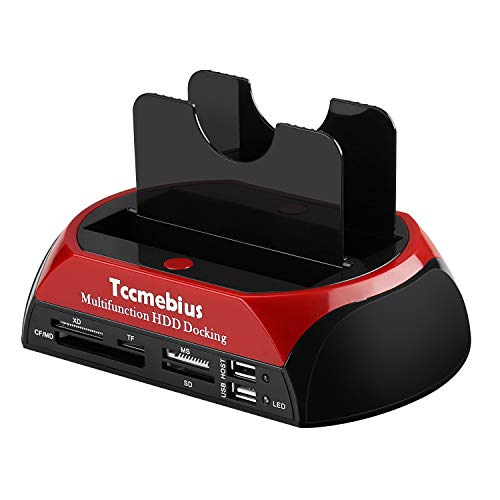
| All-in-One Utility | Supported Drive Types: 2.5″ & 3.5″ IDE and SATA HDD/SSD | USB Host Interface: USB 2.0 | Hot‑plug / Hot‑swap Support: Supports hot‑plug (note: don’t swap while powered on) | VIEW LATEST PRICE | Read Our Analysis |
| IDE & SATA HDD Docking Station USB 3.0 |

| Fastest Performance | Supported Drive Types: 2.5″ & 3.5″ SATA HDD/SSD and IDE (dual-bay; mixed use) | USB Host Interface: USB 3.0 | Hot‑plug / Hot‑swap Support: Hot‑pluggable / hot‑swappable | VIEW LATEST PRICE | Read Our Analysis |
| USB 2.0 Dual SATA/IDE Hard Drive Docking Station |
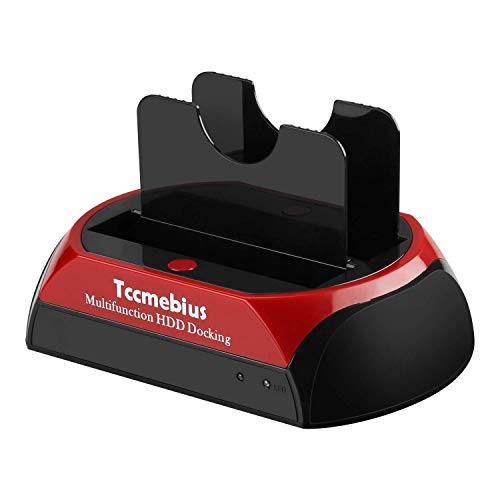
| Reliable Classic | Supported Drive Types: 2.5″ & 3.5″ IDE and SATA HDD/SSD | USB Host Interface: USB 2.0 | Hot‑plug / Hot‑swap Support: Hot‑plug support (do not replace drive while powered) | VIEW LATEST PRICE | Read Our Analysis |
| USB 3.0 to SATA/IDE Hard Drive Adapter |

| Power & Compatibility | Supported Drive Types: 2.5″ & 3.5″ IDE and SATA HDD/SSD (also 5.25″ optical) | USB Host Interface: USB 3.0 | Hot‑plug / Hot‑swap Support: Hot‑swap support | VIEW LATEST PRICE | Read Our Analysis |
| USB 3.0 & Type-C to SATA/IDE Hard Drive Adapter |

| Modern Connectivity | Supported Drive Types: 2.5″ & 3.5″ IDE and SATA HDD/SSD (and internal Blu‑ray) | USB Host Interface: USB 3.0 (with USB‑C adapter) | Hot‑plug / Hot‑swap Support: Plug‑and‑play with power switch (supports swapping with caution) | VIEW LATEST PRICE | Read Our Analysis |
More Details on Our Top Picks
TCC-S862 USB 2.0 Dual SATA/IDE Hard Drive Dock
If you need a simple, versatile way to swap between older IDE drives and newer SATA HDDs or SSDs, the TCC-S862 is built for you: its dual ports and adjustable IDE connector let you dock 2.5″ and 3.5″ drives of IDE or SATA I/II/III (SATA up to 20 TB, IDE up to 1 TB) without fumbling with adapters, and its USB 2.0 connection and integrated hub make quick data transfers and card reading straightforward. You’ll use USB 2.0 (480 Mb/s) for transfers, an all‑in‑1 card reader (one card at a time, up to 64 GB), OTB backup for Windows, and cross‑platform file systems. Don’t swap drives while powered.
- Supported Drive Types:2.5″ & 3.5″ IDE and SATA HDD/SSD
- USB Host Interface:USB 2.0
- Hot‑plug / Hot‑swap Support:Supports hot‑plug (note: don’t swap while powered on)
- External Power for 3.5″ Drives:External power implied (required for 3.5″) – includes power adapter (product notes)
- One‑Touch Backup / Cloning:One‑Touch Backup (OTB) feature (software; not macOS/iOS)
- Multicard Reader or Card Slots:All‑in‑1 card reader (XD, TF, MS, CF, SD) – one card at a time
- Additional Feature:Integrated USB hub functionality
- Additional Feature:All‑in‑1 card reader
- Additional Feature:Supports SATA up to 20TB
IDE & SATA HDD Docking Station USB 3.0
Power users and technicians who need fast, flexible drive access will appreciate the IDE & SATA HDD Docking Station USB 3.0 for its dual-bay, hot-pluggable design that supports both IDE and SATA drives and offers USB 3.0 speeds up to 5 Gbps. You can dock 2.5″ or 3.5″ SATA I/II HDDs/SSDs and an IDE drive simultaneously (note: it won’t read two SATA drives at once and 3.5″ WD IDE drives aren’t supported). Tool-free, plug-and-play setup includes one-touch backup and one-touch cloning, standalone HDD-to-HDD cloning, multi-card reader slots, LED status indicators, and broad OS compatibility with a one-year limited warranty.
- Supported Drive Types:2.5″ & 3.5″ SATA HDD/SSD and IDE (dual-bay; mixed use)
- USB Host Interface:USB 3.0
- Hot‑plug / Hot‑swap Support:Hot‑pluggable / hot‑swappable
- External Power for 3.5″ Drives:Includes power for desktop drives (supports 3.5″)
- One‑Touch Backup / Cloning:One‑touch backup and one‑touch cloning (OTB & OTC); standalone clone
- Multicard Reader or Card Slots:Multi‑card slots (SD/MMC/MS, TF, CF, M2, etc.; six slots)
- Additional Feature:One‑to‑one standalone cloning
- Additional Feature:LED read/write indicators
- Additional Feature:Tool‑free installation
USB 2.0 Dual SATA/IDE Hard Drive Docking Station
The USB 2.0 Dual SATA/IDE Docking Station is ideal for technicians and home users who need quick, tool-free access to both SATA and IDE drives-its dual slots (one adjustable IDE and one SATA) let you swap 2.5″ or 3.5″ HDDs and SSDs without opening a case. You’ll connect via USB 2.0 (up to 480 Mbps) and access most SATA I/II/III drives up to 16 TB and IDE drives up to 1 TB. Don’t swap drives while powered. Use the one-touch backup feature with provided OTB software (not compatible with macOS/iOS). It supports Windows, Mac OS 10.10+, Linux file systems, includes a 1-year warranty and lifetime support.
- Supported Drive Types:2.5″ & 3.5″ IDE and SATA HDD/SSD
- USB Host Interface:USB 2.0
- Hot‑plug / Hot‑swap Support:Hot‑plug support (do not replace drive while powered)
- External Power for 3.5″ Drives:External power implied/required for 3.5″ (standard dock design)
- One‑Touch Backup / Cloning:One‑Touch Backup (OTB) feature (software; not macOS/iOS)
- Multicard Reader or Card Slots:Card reader functionality implied (similar dock with card reader)
- Additional Feature:Universal adjustable IDE connector
- Additional Feature:Tool‑free installation
- Additional Feature:Supports SATA up to 16TB
USB 3.0 to SATA/IDE Hard Drive Adapter
For anyone who needs quick access to internal drives for recovery or cloning, the USB 3.0 to SATA/IDE adapter shines by supporting both SATA and IDE 2.5″/3.5″ SSDs/HDDs and even 5.25″ optical drives, so you can plug in a range of devices without guessing which cable you need. You get USB 3.0 with UASP (up to 5 Gbps) and backward USB 2.0/1.1 support, plus plug-and-play hot-swap compatibility with Windows, macOS, and Linux. It includes a 12V/2A power supply, Molex cable, dual 40/44-pin IDE and one SATA II connector, LED activity indicator, and supports drives up to 6 TB.
- Supported Drive Types:2.5″ & 3.5″ IDE and SATA HDD/SSD (also 5.25″ optical)
- USB Host Interface:USB 3.0
- Hot‑plug / Hot‑swap Support:Hot‑swap support
- External Power for 3.5″ Drives:Includes 12V 2A AC power supply (for 5V/12V devices)
- One‑Touch Backup / Cloning:Supports cloning/backup use cases (adapter for drive access; no dedicated OTB software listed)
- Multicard Reader or Card Slots:No dedicated card reader listed (focus on IDE/SATA/optical) – but supports optical drive access
- Additional Feature:UASP support (USB 3.0)
- Additional Feature:Includes Molex 4‑pin cable
- Additional Feature:Supports 5.25″ optical drives
USB 3.0 & Type-C to SATA/IDE Hard Drive Adapter
If you need a fast, versatile way to access or recover data from both modern SATA and older IDE drives, this USB 3.0 & Type‑C to SATA/IDE adapter delivers: You can connect 2.5″ and 3.5″ SATA HDD/SSD, 2.5″ and 3.5″ IDE, and internal SATA/IDE Blu‑ray drives for transfer, backup, cloning, or recovery. USB 3.0 (with USB‑C to USB‑A adapter) gives up to 5 Gbps for SATA; IDE runs to 133 Mbps. It’s plug‑and‑play across Windows, macOS, and Linux, includes a 12V/2A power supply, an on/off switch, instructions, and technical support.
- Supported Drive Types:2.5″ & 3.5″ IDE and SATA HDD/SSD (and internal Blu‑ray)
- USB Host Interface:USB 3.0 (with USB‑C adapter)
- Hot‑plug / Hot‑swap Support:Plug‑and‑play with power switch (supports swapping with caution)
- External Power for 3.5″ Drives:Includes 12V/2A power supply (for 3.5″ drives)
- One‑Touch Backup / Cloning:Supports cloning/backup/data recovery (adapter designed for those tasks)
- Multicard Reader or Card Slots:No dedicated card reader listed (focus on SATA/IDE adapter)
- Additional Feature:Includes USB‑C adapter
- Additional Feature:On/off power switch
- Additional Feature:Detailed troubleshooting guide
Factors to Consider When Choosing IDE and SATA Hard Drive Enclosures
When choosing an enclosure, you’ll want to confirm it supports the drive sizes and interfaces you plan to use, plus the data transfer speeds you need. Check power options and cooling to keep drives stable, and weigh build quality and physical size against portability. Also look for backup and cloning features if you’ll be duplicating or regularly safeguarding data.
Drive Compatibility Range
Start by checking the enclosure’s physical and interface compatibility so you don’t buy a case that won’t accept your drive. Verify whether it accepts 2.5″ and/or 3.5″ sizes and supports SATA and IDE; if IDE, confirm 40‑pin and 44‑pin layouts. Check the maximum single‑drive capacity (for example, 6 TB, 16 TB, 20 TB) so you can handle current and future upgrades. Make sure the enclosure recognizes the drive generation (SATA I/II/III) and required transfer modes such as UASP for best SSD use. For multi‑bay or hybrid units, note any interface limitations-whether all bays can run SATA simultaneously or if only one SATA plus one IDE is allowed. These checks prevent incompatibility headaches.
Interface And Speed
Pick an enclosure that matches the interface speed you actually need: USB 2.0 is fine for small transfers and older drives, but choose USB 3.x or USB‑C (and UASP support for SATA) if you work with large files, SSDs, or cloning-otherwise the connection will bottleneck the drive. Check USB 3.0/3.1/3.2 or USB‑C ratings (starting at 5 Gbps) to align with your workload. For SATA drives, UASP support boosts throughput and lowers CPU overhead, so prefer enclosures that advertise it. Use IDE/PATA enclosures only for legacy drives-ATA/133 caps at about 133 Mbps and will limit modern media. Also confirm the enclosure’s maximum drive capacity so large HDDs are supported, and pick one with native cloning or a fast host interface if you’ll clone images often.
Power And Cooling
Because desktop HDDs draw more power and run hotter than laptop drives, you’ll want an enclosure that supplies proper external power (e.g., a 12V/2A adapter for 3.5″ drives) and has solid cooling to protect performance and longevity. Check that the enclosure offers an on/off switch and safe hot-plug support so you won’t risk corruption when swapping drives. Prefer active cooling-a 40–80 mm fan-or at least ample ventilation for sustained heavy reads/writes, since temperatures above ~50–55°C shorten drive life. Look for thermal features like fan-speed control, automatic spin-down, or metal housings that dissipate heat and cut idle noise. Finally, confirm the power delivery and cooling match your drive’s form factor, capacity, and spin speed to avoid underpowering or overheating.
Build Quality And Size
Check the enclosure’s build quality and size to make sure it protects your drive and fits your setup: choose sturdy materials (metal or thick ABS) and solid internal brackets to minimize vibration, confirm the chassis fits 2.5″ or 3.5″ drives (noting that 3.5″ models are larger and usually need a 12V external supply), and prefer secure, tool-free mounting or adjustable connectors that hold the drive firmly while allowing tidy cable and adapter placement. Also assess ventilation and thermal design-metal cases, vents, or heatsinks cut operating temps for dense, high-capacity drives. Check port and power placement so a 12V adapter, USB or USB‑C plug won’t block nearby devices. Prioritize compact, well-weighted enclosures if you’ll transport drives frequently.
Backup And Cloning Features
When you need fast, reliable backups or to migrate a drive without a PC, look for enclosures with one‑touch backup or cloning buttons and true standalone cloning capability; these let you copy sector‑by‑sector between drives at full interface speeds and keep the process simple and portable. You’ll want hardware cloning that handles SATA-to-SATA at interface limits (USB 3.x/UASP up to ~5 Gbps) and supports large capacities-check specs for multi‑TB drives (often 16–20 TB). Verify whether cloning requires bundled software and confirm OS compatibility; some OTB/OTC tools are Windows‑only. Also make certain hot‑plug support and clear LED/activity indicators so you don’t remove a drive mid‑transfer. Finally, confirm mixed IDE/SATA handling if you plan cross‑interface clones.




