

You want a clutter-free desk and one cable that handles displays, power, and peripherals. These five plug‑and‑play docking stations simplify hot‑desking, support multiple monitors, and keep your laptop charged while freeing up ports. I’ll walk you through compact dual‑display options up to high‑end multi‑monitor hubs so you can match features to your workflow – but first, consider which ports and power levels matter most.
| Plugable UD-3900 Universal Laptop Docking Station |
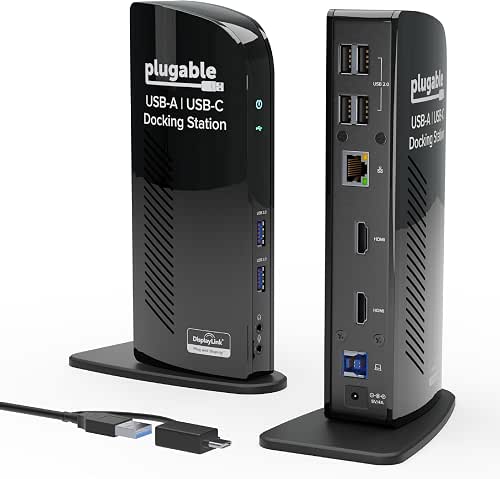
| Reliable Office Essential | Video Outputs: 2× HDMI (also single HDMI higher-res) | Ethernet: Wired Gigabit Ethernet | USB Data Ports: 2× USB 3.0 + 4× USB 2.0 | VIEW LATEST PRICE | Read Our Analysis |
| RayCue 15-in-1 Laptop Docking Station – Triple 8K |

| Powerhouse Multimonitor Dock | Video Outputs: 2× HDMI + 1× DisplayPort | Ethernet: Gigabit Ethernet (1 Gbps) | USB Data Ports: 2× USB‑C (10Gb/5Gb) + 4× USB‑A (two 5Gbps, two 480Mbps) | VIEW LATEST PRICE | Read Our Analysis |
| Plugable USB-C Triple Display Docking Station (100W PD) |

| Hybrid Workstation Hub | Video Outputs: 3× HDMI | Ethernet: Gigabit Ethernet | USB Data Ports: 6× USB 3.0 (5 Gbps) | VIEW LATEST PRICE | Read Our Analysis |
| Laptop Docking Station for 3 Monitors with 130W PD |

| Ultimate Multi-Display | Video Outputs: 2× DisplayPort + 1× HDMI | Ethernet: Gigabit Ethernet | USB Data Ports: Multiple high-speed USB (2× USB‑C 10Gb, 1× USB‑A 10Gb, 3× USB‑A 5Gb) | VIEW LATEST PRICE | Read Our Analysis |
| 13-in-1 USB-C Docking Station for 4 Monitors |

| Creative Powerhouse | Video Outputs: 2× HDMI + 1× DisplayPort + 1× VGA | Ethernet: 1 Gbps Gigabit Ethernet | USB Data Ports: Multiple 10 Gbps USB ports (Type‑A and Type‑C) | VIEW LATEST PRICE | Read Our Analysis |
More Details on Our Top Picks
Plugable UD-3900 Universal Laptop Docking Station
If you need a straightforward, budget-friendly dock to expand a work laptop’s ports for web and productivity tasks, the Plugable UD-3900 is a solid pick – its hybrid USB 3.0/USB‑C single‑cable connection plus dual HDMI outputs and wired Gigabit Ethernet give you the essentials for a multi‑monitor office setup, though it won’t charge your laptop or handle gaming and 4K playback. You get two HDMI ports (up to 1920×1200@60Hz dual or 2560×1440@50Hz single), multiple USB ports, analog audio jacks, and DisplayLink driver support for Windows, macOS, and ChromeOS-just not Linux. TAA-compliant, two-year coverage, lifetime support.
- Video Outputs:2× HDMI (also single HDMI higher-res)
- Ethernet:Wired Gigabit Ethernet
- USB Data Ports:2× USB 3.0 + 4× USB 2.0
- Audio Jack:3.5 mm headphone and microphone jacks
- USB-C Power Delivery (PD) / Charging Support:No host charging (does not charge laptop)
- Multi-Platform Compatibility (Windows/macOS/ChromeOS/etc.):Windows (driver via Windows Update), macOS (manual DisplayLink driver), ChromeOS (v100+); not Linux
- Additional Feature:Hybrid USB 3.0/USB-C cable
- Additional Feature:TAA-compliant product
- Additional Feature:North American lifetime support
RayCue 15-in-1 Laptop Docking Station – Triple 8K
Power through heavy visual workloads with the RayCue 15-in-1 if you need multi‑monitor flexibility and fast data transfers; it supports one 8K DisplayPort plus two 4K HDMI displays for Windows laptops while offering USB‑C PD pass‑through up to 85W and a 10Gbps USB‑C port for quick file moves. You’ll get 15 ports including two USB-C data, four USB-A, SD/TF reader (160MB/s), Gigabit Ethernet, AUX, and a 100W PD input. The compact aluminum dock adds a digital LED status screen, five shortcut buttons, and a 1m cable. macOS only supports a single external display; adapter and power cable aren’t included.
- Video Outputs:2× HDMI + 1× DisplayPort
- Ethernet:Gigabit Ethernet (1 Gbps)
- USB Data Ports:2× USB‑C (10Gb/5Gb) + 4× USB‑A (two 5Gbps, two 480Mbps)
- Audio Jack:3.5 mm AUX jack
- USB-C Power Delivery (PD) / Charging Support:USB‑C PD input (100W) with up to ~85W pass‑through
- Multi-Platform Compatibility (Windows/macOS/ChromeOS/etc.):Windows (triple-monitor), macOS (limited to single external display); USB‑C/TB hosts supported
- Additional Feature:Built-in LED status screen
- Additional Feature:Five top-panel shortcuts
- Additional Feature:100W PD input (no adapter)
Plugable USB-C Triple Display Docking Station (100W PD)
For teams and professionals who need reliable multi-monitor setups without juggling adapters, the Plugable USB-C Triple Display Docking Station (100W PD) delivers three external displays, full 100W host charging, and robust wired networking in a single 12‑in‑1 hub. You get 3× HDMI, Gigabit Ethernet, six USB 3.0 ports, audio, and DisplayLink plus native USB‑C Alt Mode to drive 1× 4K@30Hz and 2× 1080p@60Hz. It supports Windows, macOS (11+ with drivers), ChromeOS, USB4 and Thunderbolt systems, including Apple Silicon, but not Linux or HDCP content. North American support and a compatibility guarantee simplify enterprise deployments.
- Video Outputs:3× HDMI
- Ethernet:Gigabit Ethernet
- USB Data Ports:6× USB 3.0 (5 Gbps)
- Audio Jack:Audio (3.5 mm)
- USB-C Power Delivery (PD) / Charging Support:100W USB‑C Power Delivery (charges host)
- Multi-Platform Compatibility (Windows/macOS/ChromeOS/etc.):Windows, macOS (11+ with driver), ChromeOS (v100+); supports Apple Silicon; not Linux
- Additional Feature:Supports Apple Silicon
- Additional Feature:100W host charging
- Additional Feature:DisplayLink + Alt Mode
Laptop Docking Station for 3 Monitors with 130W PD
Professionals who need to drive three external monitors while keeping their laptop charged will appreciate the WAVLINK UMD01 MPRO, which delivers 2× DisplayPort + 1× HDMI outputs and up to 100W PD passthrough from a 130W adapter. You’ll connect via USB-C (host must support video and PD) to run up to three displays-single DP can do 4K@144Hz with a DP1.4 source, typical dual/tri setups reach 4K@60Hz depending on your GPU. Ports include high-speed USB-C/A, Gigabit Ethernet, audio jack, and BC1.2 charging. It ships with a 130W adapter, supports Windows, Chrome OS, Linux, Android OTG, Harmony OS, and includes 12-month warranty.
- Video Outputs:2× DisplayPort + 1× HDMI
- Ethernet:Gigabit Ethernet
- USB Data Ports:Multiple high-speed USB (2× USB‑C 10Gb, 1× USB‑A 10Gb, 3× USB‑A 5Gb)
- Audio Jack:3.5 mm combination audio jack
- USB-C Power Delivery (PD) / Charging Support:Included 130W adapter; PD passthrough up to 100W
- Multi-Platform Compatibility (Windows/macOS/ChromeOS/etc.):Windows, ChromeOS, Linux, Android (OTG), Harmony OS; not macOS
- Additional Feature:Includes 130W power adapter
- Additional Feature:Linux/Android/ChromeOS compatible
- Additional Feature:High-refresh DP1.4 support
13-in-1 USB-C Docking Station for 4 Monitors
If you need to drive four monitors from a single USB-C or Thunderbolt laptop, this 13-in-1 USB-C docking station delivers-dual 4K HDMI, an 8K DisplayPort, and a 1080p VGA port let you run four displays simultaneously (host-dependent; macOS limits MST). You’ll get dual HDMI at up to 4K/60Hz, DisplayPort to 8K/30Hz, and VGA at 1080p/60Hz. It includes multiple 10 Gbps USB-A/C ports, SD and MicroSD slots (up to 104 MB/s), Gigabit Ethernet, and a USB-C PD input that supports 100W adapters and supplies up to 82W to your laptop. It’s plug-and-play for business, creative, and gaming use.
- Video Outputs:2× HDMI + 1× DisplayPort + 1× VGA
- Ethernet:1 Gbps Gigabit Ethernet
- USB Data Ports:Multiple 10 Gbps USB ports (Type‑A and Type‑C)
- Audio Jack:3.5 mm audio (implied via ports list)
- USB-C Power Delivery (PD) / Charging Support:USB‑C PD input up to 100W; delivers up to 82W to laptop
- Multi-Platform Compatibility (Windows/macOS/ChromeOS/etc.):Windows/macOS/Thunderbolt hosts supported; macOS limited (no MST for multi-monitor)
- Additional Feature:Quad-monitor support (MST)
- Additional Feature:8K DisplayPort output
- Additional Feature:SD + MicroSD card slots
Factors to Consider When Choosing Plug and Play Laptop Docking Stations
When choosing a plug-and-play docking station, check that it has the ports you need and supports the number and resolution of displays you’ll run. Make sure it provides adequate power delivery for your laptop and matches your operating system and USB/Thunderbolt standards. Finally, look for solid build quality and reliable reviews so the dock lasts and performs consistently.
Port Availability
Several specific port choices will determine how well a plug-and-play dock fits your workflow, so check types and speeds, display outputs, power delivery, and extra interfaces up front. Count USB-A and USB-C ports and note their data rates-5 Gbps and 10 Gbps ports matter; 480 Mbps ports will bottleneck big transfers. Confirm how many HDMI, DisplayPort, or VGA outputs exist and their maximum resolutions/refresh rates so you can drive the monitors you need. Verify USB-C PD wattage (for example, up to 85–100W) to guarantee the dock can charge your laptop. Make sure the dock has Gigabit Ethernet and 3.5 mm audio jacks if you rely on wired network or headsets. Look for card readers and dedicated fast-charging or high-bandwidth downstream ports for peripherals.
Display Support
Think through how many and what kind of external displays you need, because docks differ widely in output types, per‑port resolution/refresh limits, and the protocol they use (USB‑C Alt Mode vs. You should check the number and types of video outputs-HDMI, DisplayPort, VGA, USB‑C Alt Mode-to confirm the dock can drive your monitors simultaneously. Verify each port’s maximum resolution and refresh rate (for example 1920×1200@60Hz, 2560×1440@50Hz, 4K@60Hz, 8K@30Hz) since per‑port and total limits vary. Determine whether the dock uses native Alt Mode or a graphics adapter protocol like DisplayLink/MST, because Alt Mode may only support one display while the others enable multiple independent screens. Also confirm host OS/GPU limits (Apple Silicon, Windows) and whether HDCP/DRM playback is supported on extended displays.
Power Delivery
Match the dock’s Power Delivery (PD) to your laptop’s needs so it can charge reliably and keep performance steady under load. Check the dock’s USB‑C PD rating and confirm it meets or exceeds your laptop’s required wattage (commonly 45W–100W). Verify the maximum passthrough wattage-some docks advertise high adapter ratings but pass through less power, which slows charging under heavy use. Confirm whether the dock uses a separate power adapter and its wattage, since multi‑monitor and peripheral loads often demand 65W–130W PSUs. For GPU/CPU‑heavy workflows, choose a PD rating with headroom above your laptop’s nominal draw to avoid battery drain. Finally, make sure the dock supports PD negotiation standards (USB PD 2.0/3.0 or PPS) compatible with your laptop for safe, efficient charging.
Compatibility Requirements
Because docks rely on your laptop’s ports, OS, and hardware limits, you should confirm compatibility before buying so the unit works plug‑and‑play. First, verify the host port type and capabilities-USB‑A, USB‑C, USB4, or Thunderbolt-and whether it supports protocols like USB‑C Alt Mode, Thunderbolt, or DisplayLink, since video, data, and charging depend on them. Check your operating system and version; some docks need vendor or DisplayLink drivers while others are truly driverless. Match the dock to your GPU and OS multi‑display support (MST/Alt Mode or single‑display restrictions) to achieve desired monitor counts and resolutions. Make certain PD wattage aligns with your laptop’s charging spec. Finally, confirm Ethernet, USB speeds, card reader throughput, and analog audio support and driver compatibility for peripherals.
Build And Reliability
When you shop for a plug-and-play dock, prioritize build quality and reliability since a well-made unit lasts longer and maintains performance under real-world use. Check casing and connector materials – aluminum housings and gold-plated contacts resist wear, dissipate heat, and cut signal degradation. Verify power delivery ratings and thermal management specs so PD limits or poor cooling won’t cause throttling or connector failure under sustained loads. Inspect port resiliency like insertion/removal cycle ratings and cable strain-relief to judge durability with frequent docking. Look for certifications (CE, FCC, RoHS), stated MTBF, and clear warranty terms as indicators of manufacturing quality control. Favor modular or replaceable cables and accessible firmware updates so you can repair or update rather than replace the entire dock.
Frequently Asked Questions
Do Docking Stations Work With Gaming Consoles Like the Nintendo Switch or PS5?
Yes – but compatibility varies: think of a docking station as a universal key that sometimes won’t fit. You’ll need one with the right video, USB, and power support for Switch, PS5, and specific docking modes.
Can I Hot-Swap External Hard Drives Without Disconnecting the Dock?
Yes – you can hot-swap most external hard drives through the dock if the drive and docking station support USB hot-plugging and your OS safely ejects devices; always eject before removing to avoid data corruption.
Do Docking Stations Support Biometric Devices (Fingerprint Readers)?
Yes – many docking stations support biometric devices like fingerprint readers via USB ports; you’ll need compatible drivers and sufficient power, and some docks with USB-C/Thunderbolt pass-through provide reliable connectivity for biometric peripherals.
Are There Firmware Updates That Improve Dock Performance or Compatibility?
About 72% of docks receive firmware updates; yes, you’ll often get firmware that boosts compatibility, fixes USB/display bugs, and improves stability, so you should check the manufacturer regularly and apply updates to keep your dock performing at its best.
Can Docks Be Secured Physically to Prevent Theft in Public Spaces?
Yes – you can secure docks physically: you’ll use cable locks, dock-specific Kensington lock slots, mounting brackets, or lockable enclosures bolted to desks. Combine with anchor cables and surveillance to deter theft and guarantee quick, authorized access.




