

You want a USB‑C monitor that simplifies your setup, charges your laptop, and boosts productivity without clutter. These five picks span portable 15.6″ travel screens, sleek 24–27″ single‑cable docking displays, fast 100–120 Hz panels for snappy multitasking, and a 34″ ultrawide that replaces dual monitors. Each prioritizes USB‑C PD, DP Alt Mode, ergonomic stands, and eye‑care features-here’s how to choose the best fit for your workflow.
| MNN 15.6″ FHD Portable USB-C HDMI Monitor |

| Travel-Friendly Companion | Screen Size: 15.6″ | Resolution: 1920 × 1080 (FHD) | USB‑C Connectivity: Two full‑feature USB‑C ports (power + display) | VIEW LATEST PRICE | Read Our Analysis |
| SANSUI 27″ Curved 120Hz FHD USB-C Monitor |
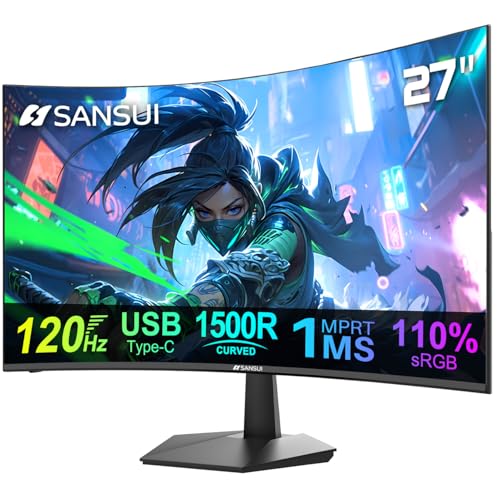
| Immersive Gaming Performer | Screen Size: 27″ | Resolution: 1920 × 1080 (FHD) | USB‑C Connectivity: USB‑C port (1) | VIEW LATEST PRICE | Read Our Analysis |
| ASUS 23.8″ Full HD USB-C Docking Monitor (VA24ECPSN) |

| Best Docking Solution | Screen Size: 23.8″ | Resolution: 1920 × 1080 (FHD) | USB‑C Connectivity: USB‑C with video/data and up to 65 W charging | VIEW LATEST PRICE | Read Our Analysis |
| Sceptre 27″ IPS 100Hz Gaming Monitor (E275W-FP100T) |
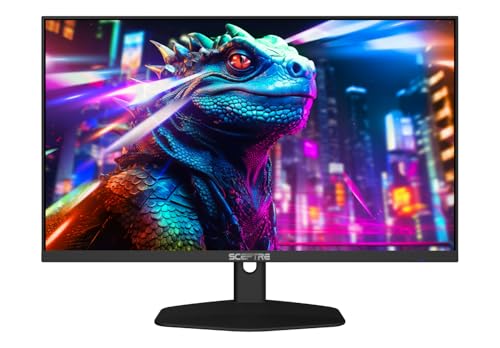
| Budget Gaming Power | Screen Size: 27″ | Resolution: (implied) Full HD (100% sRGB IPS-FHD) | USB‑C Connectivity: USB‑C connectivity (listed among features) | VIEW LATEST PRICE | Read Our Analysis |
| Samsung Viewfinity S65UA 34″ Ultrawide QHD Curved Monitor |

| Productivity Powerhouse | Screen Size: 34″ | Resolution: 3440 × 1440 (UWQHD) | USB‑C Connectivity: USB‑C with 90 W power delivery | VIEW LATEST PRICE | Read Our Analysis |
More Details on Our Top Picks
MNN 15.6″ FHD Portable USB-C HDMI Monitor
If you need a truly portable second screen that’s ready for work, play, or travel, the MNN 15.6″ FHD Portable USB-C HDMI Monitor is a strong choice: its 15.6″ IPS 1080p panel with HDR and eye-care features delivers clear, color-rich images while two full-feature USB‑C ports (one cable supplies both power and video) make it easy to plug into laptops, phones, consoles, or MacBooks-just use the included USB‑C cable and you’re set. You’ll appreciate the matte anti-glare panel, 178° viewing, and reduced blue light/no-flicker comfort. It’s ultra-slim, fits backpacks, supports DP Alt Mode/Thunderbolt hosts, works plug-and-play in multiple orientations, and includes a PU leather smart cover that doubles as a stand for travel-ready protection.
- Screen Size:15.6″
- Resolution:1920 × 1080 (FHD)
- USB‑C Connectivity:Two full‑feature USB‑C ports (power + display)
- HDR Support:HDR support
- Eye‑Care / Low Blue Light:Reduced blue light, no flicker
- Use Cases (Product Positioning):Portable travel, students, gamers, remote workers, engineers
- Additional Feature:Two full-feature USB-C
- Additional Feature:Smart PU leather cover
- Additional Feature:Ultra-slim travel design
SANSUI 27″ Curved 120Hz FHD USB-C Monitor
The SANSUI 27″ Curved 120Hz FHD USB-C Monitor suits gamers and hybrid workers who want smooth motion and simple connectivity; its 120 Hz refresh rate, 1 ms MPRT, and USB-C port let you plug in a laptop or console and enjoy responsive gameplay or fluid multitasking without extra adapters. You’ll get a 27″ 1500R curved FHD panel with HDR, 110% sRGB, 16.7M colors, 300 nits brightness, and 4000:1 contrast for vivid images. Adaptive Sync, anti-flicker, and low blue light protect your eyes. Ultra-thin bezels, tilt adjustment, VESA mount, two 2W speakers, HDMI 1.4, and anti-glare complete the package.
- Screen Size:27″
- Resolution:1920 × 1080 (FHD)
- USB‑C Connectivity:USB‑C port (1)
- HDR Support:HDR support
- Eye‑Care / Low Blue Light:Anti‑Flicker, Low Blue Light
- Use Cases (Product Positioning):Desktop, laptop, tablet use; gaming and PC work
- Additional Feature:1500R curved panel
- Additional Feature:120 Hz refresh rate
- Additional Feature:Built-in 2×2W speakers
ASUS 23.8″ Full HD USB-C Docking Monitor (VA24ECPSN)
For professionals and students who want a single-cable workstation, the ASUS 23.8″ VA24ECPSN pairs USB-C power delivery (up to 65 W), video, and data to simplify your desk setup. You get a 23.8″ Full HD IPS panel with up to 75 Hz and Adaptive-Sync for smoother motion and reduced tearing. Connectivity includes HDMI, DisplayPort, USB hub, RJ45, and an earphone jack, plus built-in speakers. The stand offers tilt, swivel, pivot, and height adjustments and it’s VESA-mountable. TÜV-certified Flicker-Free and Low Blue Light protect your eyes. In-box cables and a limited Adobe Creative Cloud trial are included.
- Screen Size:23.8″
- Resolution:1920 × 1080 (FHD)
- USB‑C Connectivity:USB‑C with video/data and up to 65 W charging
- HDR Support:HDR not explicitly listed (adaptive‑sync + IPS) – product spec set does not list HDR
- Eye‑Care / Low Blue Light:TÜV Rheinland Flicker‑Free & Low Blue Light certified
- Use Cases (Product Positioning):Office/creative work with docking (productivity, charging)
- Additional Feature:65W USB-C charging
- Additional Feature:RJ45 LAN + hub
- Additional Feature:Height/tilt/swivel/pivot
Sceptre 27″ IPS 100Hz Gaming Monitor (E275W-FP100T)
Gamers and creative pros who want vivid colors and smooth motion will appreciate the Sceptre 27″ IPS 100Hz Gaming Monitor (E275W-FP100T). You get an IPS panel with 100% sRGB for true-to-life colors and wide viewing angles, so collaborative work or color-critical edits stay accurate. Its 100 Hz refresh rate and 1 ms BR reduce blur and keep fast action smooth for gaming and multimedia. Blue-Light Shift lowers blue emissions to help prevent eye strain during long sessions. Built-in speakers free up desk space while delivering convenient audio, making this monitor a balanced choice for play and productivity.
- Screen Size:27″
- Resolution:(implied) Full HD (100% sRGB IPS-FHD)
- USB‑C Connectivity:USB‑C connectivity (listed among features)
- HDR Support:HDR not listed (focus on color/gamut) – product spec set does not list HDR
- Eye‑Care / Low Blue Light:Blue‑Light Shift technology
- Use Cases (Product Positioning):Gaming and creative/multimedia work
- Additional Feature:100% sRGB gamut
- Additional Feature:1 ms blur reduction
- Additional Feature:Integrated speakers
Samsung Viewfinity S65UA 34″ Ultrawide QHD Curved Monitor
If you juggle spreadsheets, creative apps, and video calls, this 34″ ultrawide curved monitor lets you replace dual screens with one seamless workspace. You’ll get Ultra WQHD (3440 x 1440) on a 21:9, 1000R panel that wraps your field of view and reduces eye strain. HDR10 and a 1 billion–color gamut boost contrast and color fidelity. A 100 Hz refresh rate with AMD FreeSync keeps motion smooth. TUV-certified eye care adjusts brightness and color temperature, adds eye-save and flicker-free modes. USB-C with 90W power delivery simplifies setup, while a height-adjustable, virtually borderless design keeps your desk tidy.
- Screen Size:34″
- Resolution:3440 × 1440 (UWQHD)
- USB‑C Connectivity:USB‑C with 90 W power delivery
- HDR Support:HDR10 support
- Eye‑Care / Low Blue Light:TUV‑certified intelligent eye care (eye save mode, flicker‑free)
- Use Cases (Product Positioning):Multitasking/productivity (ultrawide), gaming, professional use
- Additional Feature:90W USB-C power delivery
- Additional Feature:1000R curvature
- Additional Feature:Virtually borderless design
Factors to Consider When Choosing USB C Monitors
When choosing a USB-C monitor, you’ll want to match the power delivery to your laptop so it charges reliably while connected. Consider resolution and color accuracy for image detail and faithful tones, plus refresh rate if you game or work with motion. Also check the available ports and hub features to make sure you can connect your peripherals without extra adapters.
Power Delivery Needs
Because USB-C monitors can also act as your laptop’s charger, check the power delivery (PD) wattage carefully to make sure the monitor can keep your device charged under normal and heavy use. Look for PD ratings-common outputs run 45W–90W; most ultrabooks need 45–65W. If you push CPU/GPU hard or run peripherals, pick 65–90W to prevent battery drain. Verify the USB-C port is full-featured (PD + DisplayPort Alt Mode + data) so a single cable handles power, video, and accessories without extra adapters. For daisy-chaining or multi-monitor setups, confirm the monitor’s passthrough can maintain sufficient wattage downstream. Finally, match PD output to your device’s maximum protocol-phones and small laptops often only need 18–30W for ideal charging.
Display Resolution Choice
Choosing the right display resolution means balancing screen size, pixel density, and your work: Full HD is fine for general productivity on 13–27″ USB‑C monitors, while photo/video editors usually want QHD or 4K on larger panels to see fine detail and do pixel‑level edits. You should match resolution to screen size to keep pixel density high enough to avoid visible pixelation – for example, a 27″ 4K panel looks noticeably sharper than 27″ 1080p. Remember higher resolutions demand more bandwidth and may require USB‑C Alt Mode with DisplayPort 1.4 or Thunderbolt, which can affect available power/data lanes. Also factor in OS scaling and your GPU: high‑res displays often need UI scaling and a capable GPU to drive multiple monitors smoothly.
Color Accuracy Importance
Resolution and color fidelity go hand in hand for image- and video-focused work, so after you pick the right pixel density you’ll want to check how accurately the monitor reproduces color. You should look at coverage numbers for sRGB, Adobe RGB, or DCI‑P3-100% sRGB is a baseline for web/content work, while wider gamuts suit print or cinema projects. Check reported Delta E (ΔE); aim for <2 for imperceptible deviation. Prefer IPS or high‑quality VA panels with good uniformity and either factory calibration or hardware‑calibration support via ICC profiles and calibration devices. Choose 10‑bit panels and wide gamut support to reduce banding. Finally, confirm accurate color holds up over USB‑C (DP Alt Mode) and that profiles persist across reconnects and OSs.
Refresh Rate Requirements
When you pick a USB‑C monitor, match its refresh rate to how you’ll use it: 60–75 Hz is fine for everyday office work, 100–144 Hz (or higher) benefits fast-paced gaming and action content, and variable or frame‑matched rates help video editors avoid judder during playback. For productivity you don’t need high Hz; 60–75 Hz gives smooth cursor movement and scrolling. Gamers should target 100–144 Hz or beyond, but remember higher rates demand a capable GPU and enough USB‑C bandwidth (DisplayPort Alt Mode or Thunderbolt). Video editors should match monitor Hz to source frame rates (24, 30, 60 fps) and enable adaptive sync to reduce judder. Also note higher refresh rates increase power draw and can limit available USB‑C power delivery, so balance performance with charging needs.
Port And Hub Options
After you’ve settled on refresh rate needs, check the monitor’s ports and hub features so your setup actually works the way you expect. Make sure the USB‑C port supports DisplayPort Alt Mode so it carries video; some USB‑C sockets only handle data. Verify the power delivery rating (45W, 65W, 90W) if you want to charge your laptop-insufficient wattage won’t keep larger notebooks topped up. Look for a full-featured hub with USB‑A, Ethernet, and audio so the monitor can act as a single-cable dock. Confirm how many USB‑C ports exist and which are upstream vs downstream to support multiple devices or daisy‑chaining. Finally, check HDMI/DisplayPort inputs and USB hub speeds (USB 3.1 Gen1/Gen2) to match legacy gear and bandwidth needs.
Ergonomics And Adjustability
Because you’ll spend hours looking at your screen, pick a USB‑C monitor that adjusts enough to keep your head and neck neutral: at minimum aim for about 100 mm of height travel and tilt around -5° to 15°, and prefer swivel and 90° pivot so you can share the display or use portrait mode. Also check VESA compatibility (75×75 or 100×100 mm) so you can mount the display on an ergonomic arm or wall bracket for ideal viewing angles. Choose low‑reflection or anti‑glare coatings and a tilt mechanism that reduces glare without forcing awkward head positions. Finally, prefer USB‑C models with power delivery so a single cable powers and connects your laptop, cutting clutter and letting you position the monitor where ergonomics are best.
Size And Portability
If you need a monitor that travels with you or anchors a desk setup, pick a size and build that match how and where you’ll use it: 13–15.6 inches fits frequent travel and tight workspaces, while 24–34 inches (including ultrawide or curved options) boosts desktop productivity but adds weight and bulk. Choose a screen size that balances workspace and portability, and favor ultra-slim, lightweight designs if you’ll slip the display into a backpack. Check weight, thickness, and whether the stand or smart cover supports both landscape and portrait orientations for flexible use on the go. Remember larger curved or ultrawide panels improve immersion but aren’t practical for mobility. Confirm USB-C power delivery and DP Alt Mode support-portable screens may not provide substantial laptop charging.




