

If you’re trying to add reliable wireless printing to a home or small office without replacing your printer, these six print servers make that easy. You’ll get options for USB and Ethernet, modern Wi‑Fi, AirPrint/Mopria support, and secure management. I’ll walk you through which models suit portable setups, shared workstations, or mixed networks – and which tradeoffs to expect next.
| DAUERHAFT Wireless USB 2.0 Network Print Server |

| Portable & Simple | Connectivity Type: USB (printer) + Ethernet + wireless (Wi‑Fi) | USB Printer Support: Supports USB printers (≈95% brand compatibility) | Network Sharing / Multi‑user Printing: Enables network printing for multiple users | CHECK LATEST PRICE | Read Our Analysis |
| IOGEAR 1-Port USB 2.0 Print Server GPSU21 |
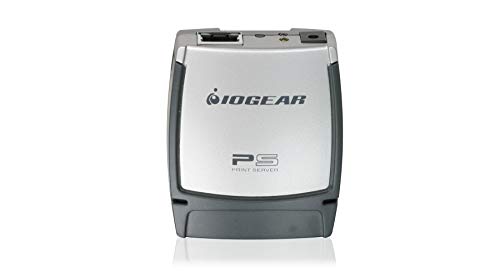
| Reliable Business Classic | Connectivity Type: USB (printer) + Ethernet (network) | USB Printer Support: Connects USB 2.0 / 1.1 printers to network | Network Sharing / Multi‑user Printing: Shares one USB printer among multiple computers (LAN/Internet) | CHECK LATEST PRICE | Read Our Analysis |
| Wireless Print Server LK100W – USB to WiFi/Ethernet |

| Feature-Rich Flexibility | Connectivity Type: USB (printer) + Ethernet + Wi‑Fi (2.4 GHz) | USB Printer Support: Converts USB printer to networked printer (≈95% compatibility) | Network Sharing / Multi‑user Printing: Allows multiple LAN computers to share one printer (queueing) | CHECK LATEST PRICE | Read Our Analysis |
| Wireless USB 2.0 Network Print Server with USB-C |

| Compact Power Solution | Connectivity Type: USB (printer) + Ethernet + wireless (Wi‑Fi) | USB Printer Support: Supports USB printers (most brands) | Network Sharing / Multi‑user Printing: Enables multiple users to share USB printer via wireless network | CHECK LATEST PRICE | Read Our Analysis |
| BrosTrend AC1200 Wi‑Fi to Ethernet Adapter Bridge |
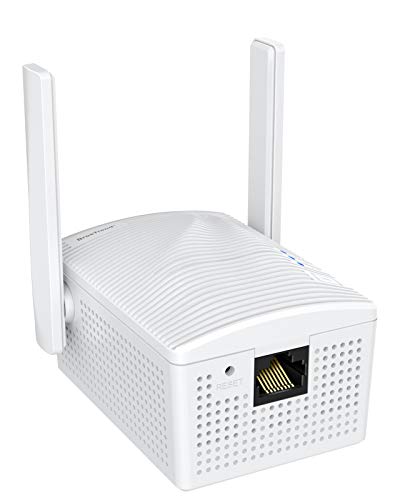
| High-Speed Bridge | Connectivity Type: Ethernet (device bridge to Wi‑Fi) – supports networked printer via Ethernet | USB Printer Support: Supports network printers via Ethernet (for printers with Ethernet port) | Network Sharing / Multi‑user Printing: Enables wired device (including network printer) to use Wi‑Fi for shared network access | CHECK LATEST PRICE | Read Our Analysis |
| LP-N110W Wireless USB Print Server for Home Office |

| Home Office Workhorse | Connectivity Type: USB (printer) + Ethernet + wireless (2.4 GHz) | USB Printer Support: Supports USB 2.0 printers (≈95% compatibility) | Network Sharing / Multi‑user Printing: Local wireless shared printing for multiple computers | CHECK LATEST PRICE | Read Our Analysis |
More Details on Our Top Picks
DAUERHAFT Wireless USB 2.0 Network Print Server
If you need a simple, portable way to share a USB printer across a small network, the DAUERHAFT Wireless USB 2.0 Network Print Server is a solid choice – it’s compatible with over 95% of USB printers, supports Linux (kernel 3.4+), Android and iOS, and gives multiple users reliable network printing without bulky hardware. You’ll plug a USB printer into its port, connect Ethernet if desired, and power via USB-C. It handles image and text printing, and accepts USB storage up to 256 GB for jobs or drivers. Its compact, lightweight design makes it easy to move and tuck away.
- Connectivity Type:USB (printer) + Ethernet + wireless (Wi‑Fi)
- USB Printer Support:Supports USB printers (≈95% brand compatibility)
- Network Sharing / Multi‑user Printing:Enables network printing for multiple users
- Ethernet Port(s):Single Ethernet port
- Wireless Capability:Wireless print server (supports Wi‑Fi clients)
- Small / Portable Design:Simple, compact, lightweight, portable
- Additional Feature:USB storage up to 256GB
- Additional Feature:USB Type-C power
- Additional Feature:Broad OS support (Linux/Android/iOS)
IOGEAR 1-Port USB 2.0 Print Server GPSU21
For small offices or home users who need simple, reliable network printing, the IOGEAR GPSU21 makes sharing a single USB 2.0 printer across your LAN-or even over the Internet-easy. You’ll connect USB 2.0 or 1.1 printers via the included USB cable and Cat5 Ethernet to the auto-sensing 10/100Base-T port. It lets multiple computers print over your network or remotely, and supports DHCP, common network protocols, Telnet, and web-based management for simple setup and control. IOGEAR backs it with a 3-year warranty and free lifetime US technical support; consult the user guide and PDF for troubleshooting.
- Connectivity Type:USB (printer) + Ethernet (network)
- USB Printer Support:Connects USB 2.0 / 1.1 printers to network
- Network Sharing / Multi‑user Printing:Shares one USB printer among multiple computers (LAN/Internet)
- Ethernet Port(s):Single 10/100Base‑T Ethernet port (Cat5 included)
- Wireless Capability:(Network-focused) supports printing over network/Internet – requires Ethernet (no built‑in Wi‑Fi)
- Small / Portable Design:Small standalone print server (desktop form factor with included cable)
- Additional Feature:Includes Cat5 Ethernet cable
- Additional Feature:Telnet and web management
- Additional Feature:3-year warranty + US support
Wireless Print Server LK100W – USB to WiFi/Ethernet
Turn a lone USB printer into a shared network resource with the LK100W-ideal when you need reliable office printing without replacing existing hardware. You’ll convert most USB printers into network devices via 2.4 GHz WiFi or a 10/100 Ethernet port, letting multiple computers print simultaneously with automatic queueing and access by assigned IP. Use the dual-port wired bridge to daisy-chain a PC (Ethernet-only internet passthrough). It handles RAW/IPP for inkjet, laser, thermal label and dot matrix (some brands excluded), but no AirPrint or mobile printing. Setup’s quick with Windows or manual web-based config for Mac/Linux; smart LEDs show status.
- Connectivity Type:USB (printer) + Ethernet + Wi‑Fi (2.4 GHz)
- USB Printer Support:Converts USB printer to networked printer (≈95% compatibility)
- Network Sharing / Multi‑user Printing:Allows multiple LAN computers to share one printer (queueing)
- Ethernet Port(s):One 10/100 Mbps Ethernet plus second Ethernet port (dual-port)
- Wireless Capability:Built‑in Wi‑Fi 2.4 GHz (802.11b/g/n)
- Small / Portable Design:Compact device with indicator lights (desktop)
- Additional Feature:2.4 GHz 802.11b/g/n WiFi
- Additional Feature:Dual Ethernet daisy-chain port
- Additional Feature:Quick install tool + tutorials
Wireless USB 2.0 Network Print Server with USB-C
Small offices and home users who need a simple way to share a USB printer will appreciate this wireless USB 2.0 network print server with USB‑C, which lets multiple people print over Wi‑Fi while keeping the printer tucked away. You’ll get image and text printing support for typical home and office tasks, plus Ethernet for wired networks and a Type‑C power port. It accepts most USB printers, supports system versions 3.4+, and can host up to 256 GB of storage. The compact design makes it easy to move and save space, offering flexible connections for shared printing and small workgroups.
- Connectivity Type:USB (printer) + Ethernet + wireless (Wi‑Fi)
- USB Printer Support:Supports USB printers (most brands)
- Network Sharing / Multi‑user Printing:Enables multiple users to share USB printer via wireless network
- Ethernet Port(s):Ethernet interface (single)
- Wireless Capability:Wireless print server (Wi‑Fi support for sharing)
- Small / Portable Design:Simple, compact, space‑saving, easy to carry
- Additional Feature:USB storage up to 256GB
- Additional Feature:USB Type-C power
- Additional Feature:Supports system versions 3.4+
BrosTrend AC1200 Wi‑Fi to Ethernet Adapter Bridge
If you need a simple way to give wired gear Wi‑Fi access, the BrosTrend AC1200 bridge is a straightforward pick: it plugs into a power outlet and converts Ethernet devices-printers, game consoles, smart TVs, Raspberry Pi boards-into wireless clients with dual‑band AC1200 speeds. You’ll get up to 867 Mbps on 5 GHz and 300 Mbps on 2.4 GHz using 802.11ac, which helps streaming and gaming versus older N300 gear. Two external, angle‑adjustable antennas improve reception. Setup’s easy with WPS and no drivers or updates are required. It’s compatible with any 802.11ax/ac/a/b/g/n router and many Ethernet devices.
- Connectivity Type:Ethernet (device bridge to Wi‑Fi) – supports networked printer via Ethernet
- USB Printer Support:Supports network printers via Ethernet (for printers with Ethernet port)
- Network Sharing / Multi‑user Printing:Enables wired device (including network printer) to use Wi‑Fi for shared network access
- Ethernet Port(s):Ethernet port(s) for device bridging (wired-to‑Wi‑Fi)
- Wireless Capability:Acts as Wi‑Fi bridge (802.11ax/ac/a/b/g/n compatible; 2.4/5 GHz)
- Small / Portable Design:Compact wall‑plug/adapter with external antennas (portable installation)
- Additional Feature:AC1200 dual‑band speeds
- Additional Feature:Two external adjustable antennas
- Additional Feature:WPS one‑touch setup
LP-N110W Wireless USB Print Server for Home Office
For home-office users who need to share a single USB printer among several computers without reconfiguring each machine, the LP-N110W gives you reliable wireless access plus two 10/100 Mbps ports that let it act as a tiny network switch for flexible layouts. You’ll connect the printer via USB 2.0, join the device to your 2.4 GHz LAN, and follow the quick setup steps so printing behaves like a direct USB link. It supports Windows, macOS, and Linux (host drivers required), SNMP, and most USB printers. Use it to centralize printing, enable cross-LAN jobs, and simplify small-office workflows.
- Connectivity Type:USB (printer) + Ethernet + wireless (2.4 GHz)
- USB Printer Support:Supports USB 2.0 printers (≈95% compatibility)
- Network Sharing / Multi‑user Printing:Local wireless shared printing for multiple computers
- Ethernet Port(s):Two 10/100 Mbps Ethernet ports (dual‑port switch functionality)
- Wireless Capability:Wireless 2.4 GHz support for shared printing
- Small / Portable Design:Small device for home office (compact, easily deployed)
- Additional Feature:Dual 10/100 Mbps ports (switch)
- Additional Feature:SNMP support
- Additional Feature:Notes on special-model exceptions
Factors to Consider When Choosing Wireless Print Servers
When you pick a wireless print server, check compatibility with your printer and the available port and power types so nothing’s left unsupported. You’ll want flexible network connectivity options and up-to-date wireless standards support for reliable speed and range. Also prioritize security and access controls to keep print jobs and your network protected.
Compatibility With Printers
Although wireless print servers promise convenience, you should confirm they actually support your printer’s physical interface and print protocols (USB‑A, USB‑C, RAW, IPP, LPR) so jobs transmit reliably. Check compatibility with your printer type – inkjet, laser, thermal, or dot‑matrix – since specialty devices (dye‑sublimation, proprietary CAPT drivers) may not work. Verify the server lists supported models or shows a compatibility percentage and search for your exact model to avoid missing features or driver issues. Make certain the server supports the operating systems on your network and that required drivers can be installed on host machines. If you use mobile printing, confirm support for AirPrint, Mopria, or other native mobile printing standards before purchasing.
Network Connectivity Options
Wondering how the print server will fit into your network? Check supported interfaces-whether the device offers 2.4 GHz or 5 GHz Wi‑Fi and 10/100/1000 Mbps Ethernet-so it matches your router and throughput needs. Confirm wired versus wireless options or dual‑port bridging/switch features for flexible placement, daisy‑chaining, or LAN‑to‑LAN setups. Verify protocol support (DHCP, static IP) and management tools (SNMP, Telnet or web UI) so you can discover and monitor the device. Evaluate security: WPA/WPA2/WPA3, MAC filtering, admin passwords, and HTTPS management protect print jobs and access on shared networks. Finally, consider power and placement-PoE, USB‑C or AC power and the server’s size-relative to where it’ll sit and connect to your printer.
Wireless Standards Support
Now that you’ve checked interfaces, shift focus to the wireless standards the print server supports, since they determine speed, range, and compatibility with your existing Wi‑Fi. You should prioritize devices that support newer standards (802.11ac or 802.11ax) for higher throughput, lower latency, and better multi‑client handling compared with legacy 802.11b/g/n. Confirm support for the frequency band you need: 2.4 GHz for longer range and broad device compatibility, 5 GHz for higher speeds and less interference. Make sure WPA2 or WPA3 is available to protect print jobs and admin access. Verify mixed‑mode compatibility so the server coexists with clients using different standards. Finally, consider useful Wi‑Fi features like WPS for setup, QoS to prioritize printing, and multiple SSID/VLAN tagging for traffic segregation.
Port And Power Types
When picking a wireless print server, check the ports and power options so you can match the device to your printer, mounting location, and any attached peripherals. Verify the printer connection port type-USB-A and whether it’s USB 2.0 or legacy 1.1-to guarantee physical and data-rate compatibility. Confirm power input type (micro‑USB, USB‑C, or barrel jack) and the required voltage/current so you can use the correct adapter or PoE. Prefer USB‑C power for reversible cabling and higher delivery if you want simpler, more universal hookups. If you plan to attach storage or other peripherals, make certain the server’s USB port supports both printers and USB storage and check the maximum supported capacity. For flexible installs, look for Ethernet with PoE support.
Security And Access Controls
Because print servers sit between your network and sensitive documents, you should prioritize strong encryption, authenticated access, and up‑to‑date firmware to keep print jobs and settings secure. Make sure the device supports WPA2 or WPA3 for wireless links and TLS/SSL for any web management so data in transit stays protected. Use strong, unique admin passwords and separate admin and user accounts or role‑based access to limit risky changes. Enable user authentication-IP/MAC filtering, 802.1X, or LDAP/Active Directory-so only authorized people can print. Disable unused services and remote protocols like Telnet, UPnP, and FTP, and apply firmware updates promptly. Finally, configure logging and use SNMPv3 or secure syslog when available to monitor access and keep an audit trail.
Setup And Management Ease
If you want a painless install and straightforward ongoing management, prioritize print servers that include guided setup wizards or web-based configuration and support discovery protocols like DHCP, mDNS/Bonjour, and UPnP so client devices can find and add printers automatically. Check for one-click installers and web GUIs that cut provisioning to under 15 minutes. Verify the unit exposes local and remote management (web/Telnet) and clear status LEDs so you can diagnose connectivity, queues, and firmware issues quickly. Confirm support for automatic queue printing and standard TCP/IP ports (RAW/IPP/LPR) to avoid reconfiguring drivers on each workstation. Finally, make certain firmware updates and vendor manuals/tutorials are reachable from the device UI so you can apply security patches and resolve problems without delay.
Performance And Throughput
Setup and management ease gets you printing quickly, but performance and throughput determine how well the server keeps up under real workloads. Check interface speeds-USB 3.0 and Gigabit Ethernet cut transfer times versus USB 2.0 and 10/100 ports. Evaluate wireless radios and standards: 5 GHz 802.11ac/ax offers higher bandwidth and lower latency than crowded 2.4 GHz 802.11b/g/n. Consider the device’s CPU and memory; stronger processors and larger buffers handle concurrent jobs and complex PDFs or images with fewer delays. Favor servers that support efficient protocols and modes-RAW, IPP, server‑side spooling/queueing and SNMP-to reduce retransmissions and speed delivery. Finally, size throughput for expected job sizes and simultaneous users so the network won’t bottleneck and queues stay short.
Form Factor And Portability
When you need to move a print server between rooms or squeeze it into a crowded closet, pick a compact, lightweight model with a durable enclosure and simple mounting options so installation’s quick and reliable. You’ll want space‑saving designs that offer desk, wall, or DIN‑rail mounting and robust ventilation if you attach USB storage or expect large print queues. Favor dual Ethernet ports or a built‑in switch function when a single unit must serve both printer networking and a wired client. Prioritize low‑power designs and common power connectors like USB‑C so you can run the server from portable power banks or universal adapters during mobile deployments. Check physical port placement and chassis cooling to avoid bottlenecks or overheating.




