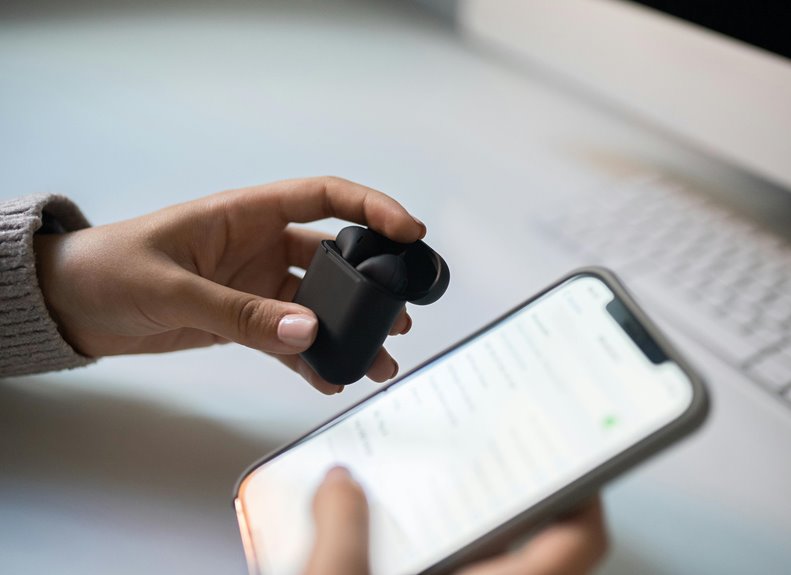
At the time you use Bluetooth on your phone, you’re relying on a short-range 2.4 GHz wireless link that replaces cables for audio, file transfers, and device control. You pair accessories through security checks, then the devices exchange data over an encrypted connection. It’s simple on the surface, but version support, battery use, and connection stability can change how well it works in practice. The details matter more than you could expect.
What Bluetooth Does on Mobile
Bluetooth on mobile lets your phone connect wirelessly to nearby devices over a short range, replacing cables for tasks like audio streaming, file transfer, and peripheral control.
You can pair your handset with wireless peripherals such as headphones, speakers, keyboards, mice, and car kits, then use them as part of your everyday setup. It also supports device detection, so your phone can find compatible gear nearby and prompt you to connect quickly.
You can share photos, videos, music, and documents directly between devices without needing a router or mobile data link. For you, that means cleaner pockets, faster setup, and a more unified device experience.
Bluetooth helps your phone act as a hub for personal connections, keeping your tools close, synced, and ready.
How Bluetooth Works on Phones
On a phone, Bluetooth works through using a short-range radio link in the 2.4 GHz band to scan for nearby devices, exchange identification data, and establish a paired connection.
You start the device discovery process once your phone listens for advertising signals, identifies supported profiles, and confirms a match.
Then it sends pairing requests, verifies security keys, and creates an encrypted link.
During transmission, signal hopping basics keep traffic moving across many channels, which reduces interference and improves reliability.
After connected, your phone can route audio, files, or control commands directly to the accessory.
You stay within range, and the link remains active as long as both devices keep exchanging packets.
This gives you a dependable, cable-free connection that feels immediate and familiar.
Bluetooth Versions on Phones
After your phone establishes a Bluetooth link, the version it uses shapes speed, power use, and what kinds of devices it can support. You’ll usually see two families: Bluetooth classic and low energy. Classic handles continuous links well, while low energy cuts drain during brief, scheduled exchanges. Here’s a quick view:
| Version | Strength | Best fit |
|---|---|---|
| Bluetooth classic | Stable throughput | Audio and legacy devices |
| Low energy | Minimal battery draw | Sensors and quick updates |
| Dual-mode phones | Broad compatibility | Mixed device environments |
When you choose a phone that supports both, you join a wider device ecosystem without giving up efficiency. Version support also affects pairing behavior, codec options, and how long your battery lasts. For reliable everyday use, match the version to your device’s radio profile and workload.
Common Bluetooth Uses on Mobile
A mobile device uses Bluetooth to link directly with nearby peripherals and services without relying on Wi‑Fi or cables. You can connect wireless accessory connections like headphones, speakers, keyboards, mice, and gaming controllers to keep your setup clean and mobile.
You’ll also use it for car kits and hands-free headsets, so you can take calls and stream directions safely. Bluetooth supports mobile file sharing between phones, tablets, and computers for photos, videos, music, and documents, which helps you move content fast during everyday work or social use.
In smart spaces, your phone can also control cameras, TVs, wearables, and home appliances. These uses make you part of a practical, connected ecosystem built for short-range, low-power communication.
How to Pair Bluetooth on Mobile
To use those Bluetooth accessories and services, you initially need to pair your mobile device with the other device.
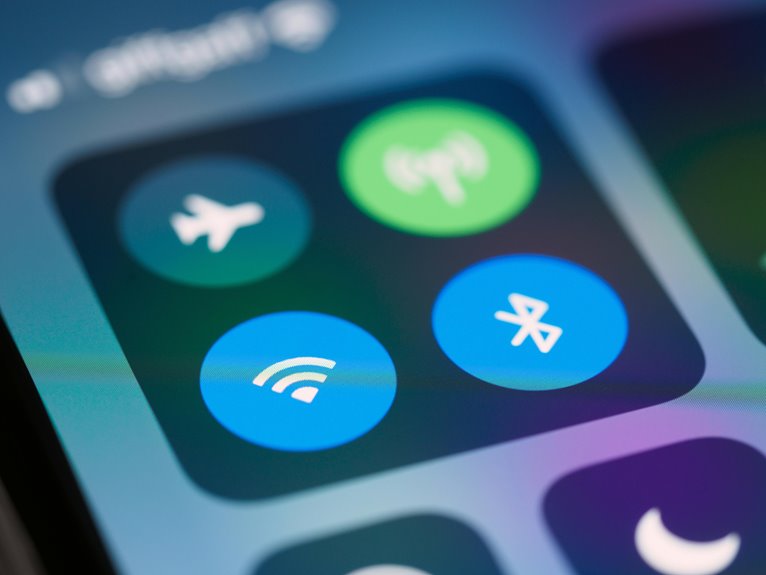
Open Bluetooth in your phone’s settings, then enable visibility or nearby detection provided that your model requires it.
Put the accessory in pairing mode, so it appears during device discovery.
As your phone lists it, tap the name and compare any passkey or code shown on both screens.
Provided that they match, accept the pairing confirmation.
Once the connection completes, your phone stores the link and reconnects automatically whenever both devices are on and in range.
You can then join the Bluetooth network for audio, files, or peripherals without cables.
Provided that you manage several trusted devices, rename them for quicker identification and easier belonging in your personal device set.
Fixing Bluetooth Problems on Mobile
As Bluetooth fails on your mobile, initially check that Bluetooth is enabled, visible, and connected to the correct device.
Provided pairing still fails, restart both devices and remove the saved pairing before you try again.
You should also update your system software, since outdated firmware can block Bluetooth finding and connections.
Check Bluetooth Settings
Start with checking your Bluetooth settings to confirm that Bluetooth is turned on, your device isn’t in airplane mode, and the mobile is set to visible or discoverable whenever you need to pair a new device. Open the Bluetooth menu and verify that device visibility is enabled for nearby accessories.
If you belong to a shared workspace or home setup, make sure the correct profile is selected for headphones, speakers, or keyboards. Review saved connections and confirm that the target device appears in the list, not blocked or hidden.
Check power-saving options, since they can restrict radio activity and reduce detection. Also, confirm that Bluetooth Low Energy or Classic mode matches the accessory’s requirement.
These settings help you keep reliable short-range links and stay connected with the devices your group uses every day.
Restart Device Pairing
If Bluetooth still won’t connect after you check the settings, restart the pairing process from scratch. You’ll remove stale links, rebuild trust, and get both devices talking again.
- On your phone, open Bluetooth, clear pairing history, and forget the device.
- Power the accessory off, then on, and force device re discovery by putting it back in pairing mode.
- Select the device again, confirm the code, and wait for the connection to finish.
This reset often fixes handshake errors, duplicate entries, and concealed conflicts. You’re not starting over alone; you’re restoring a clean match between devices that should belong together.
Should the link still fails, repeat the process once more and verify both devices stay within range during uncovering.
Update System Software
Keeping your phone’s system software current often fixes Bluetooth bugs that come from outdated drivers, firmware, or compatibility patches. Run software update checks in Settings, then install the latest OS build and restart. You’ll usually restore stable pairing, audio, and file transfer behavior fast. Should your device offers firmware compatibility fixes, apply them before re-pairing accessories.
| Check | Action | Benefit |
|---|---|---|
| OS version | Update now | Restores Bluetooth stack |
| Firmware | Install fixes | Improves device match |
| Reboot | Complete restart | Clears cached errors |
After updates, forget the device, pair again, and test range. Keep automatic updates on so you stay with the group that gets the newest bug fixes, security patches, and Bluetooth improvements without manual hunting.
Bluetooth Security Tips and Battery Impact
You should use secure pairing methods, such as numeric comparison or passkey confirmation, to reduce unauthorized access.
You can also cut battery drain through turning Bluetooth off whenever you don’t need it and limiting background scans.
Review app permissions regularly so only trusted apps can use Bluetooth services.
Secure Pairing Practices
Secure pairing starts with device verification: use passkeys, numeric comparison, or out-of-band confirmation, and reject any unsolicited pairing requests. You strengthen device trust verification by checking names, MAC addresses, and service prompts before you accept a link. Pairing authentication methods should match the risk level: choose passkeys for routine accessories, numeric comparison for trusted peers, and OOB confirmation during you need stronger assurance.
- Confirm the device’s identity on both screens.
- Pair only in a private, controlled area.
- Remove unused pairings from your saved list.
During you follow these steps, you reduce spoofing, preserve access control, and keep your Bluetooth circle reliable. Stay alert during re-pairing after resets, because attackers often exploit rushed approvals. Consistent verification builds confidence across your mobile devices and keeps your trusted connections clean.
Reduce Battery Drain
After pairing is verified, cut unnecessary Bluetooth activity to save power and reduce exposure. You should turn Bluetooth off whenever you’re not using headphones, wearables, or file transfer, because constant scanning drains the battery and keeps radios active.
Use battery optimization features in your phone’s settings to restrict background Bluetooth tasks, and enable power saving settings whenever you need longer uptime. Keep accessories connected only during active sessions, then disconnect cleanly so your device can sleep faster.
Prefer Bluetooth Low Energy devices for intermittent syncing, since they draw less current than Classic links. Should your phone offer adaptive power controls, keep them on. These steps help your device stay efficient, and they let your group of connected users keep phones ready for calls, music, and wayfinding.
Manage Bluetooth Permissions
Grant Bluetooth permissions only to apps and devices you trust, because broad access can expose location data, contacts, and nearby-device identifiers. Review app permissions in your phone’s settings, then revoke anything that doesn’t need Bluetooth. Limit connection access to paired devices, and delete old pairings you no longer use. That keeps your network tighter and lowers attack surface.
- Check which apps can scan, pair, or stay connected.
- Deny background Bluetooth access where an app only needs one-time use.
- Audit trusted devices regularly so you’re not sharing with strangers.
You’ll also save power: fewer scans and fewer active links reduce battery drain. Should your device supports Bluetooth Low Energy, keep it on for sensors and wearables, but turn Bluetooth off by the time you’re done.
What’s Next for Mobile Bluetooth
As Bluetooth continues to evolve, you can expect mobile devices to gain better audio quality, lower power use, and faster, more reliable short-range connections. You’ll likely see LE Audio become standard, giving you clearer calls, richer music, and more efficient sharing across earbuds and speakers. Developers will use ambient audio experiences to keep sound consistent as you move through rooms, cars, and workspaces.
You’ll also benefit from device mesh networking, where phones, wearables, and accessories coordinate directly without heavy battery drain. These advances should improve hands-free control, location-aware features, and seamless pairing. As the ecosystem grows, your devices won’t just connect; they’ll cooperate, creating a more responsive, personal mobile environment that feels built for you and your everyday routine.
Frequently Asked Questions
What Frequency Band Does Bluetooth Use on Mobile Devices?
Bluetooth operates in the 2.4 GHz ISM band, from 2.402 GHz to 2.480 GHz. This range supports short range connections between mobile devices and allows them to pair without cables or routers.
How Many Channels Does Bluetooth Classic Use?
Bluetooth Classic uses 79 channels. Frequency hopping shifts among them 1,600 times per second, keeping the connection stable and reducing interference.
What Is Bluetooth Low Energy Mainly Designed For?
Bluetooth Low Energy is built for devices that need to run for long periods on small batteries, such as sensors and fitness wearables. It supports short, efficient data exchanges while keeping nearby wireless communication dependable.
What Is an Alternate Mac/Phy in Bluetooth?
You use an alternate MAC and PHY when Bluetooth shifts data handling to another radio, usually Wi Fi, to move data faster. It pairs a different MAC layer with a different PHY mode, so Bluetooth can keep the initial connection while transferring data at higher speed.
What Devices Commonly Use Bluetooth Beyond Headphones and Speakers?
You’ll commonly use Bluetooth with smartwatches, fitness bands, car infotainment systems, keyboards, mice, game controllers, cameras, TVs, and home appliances for nearby syncing, control, and data sharing with low power use.