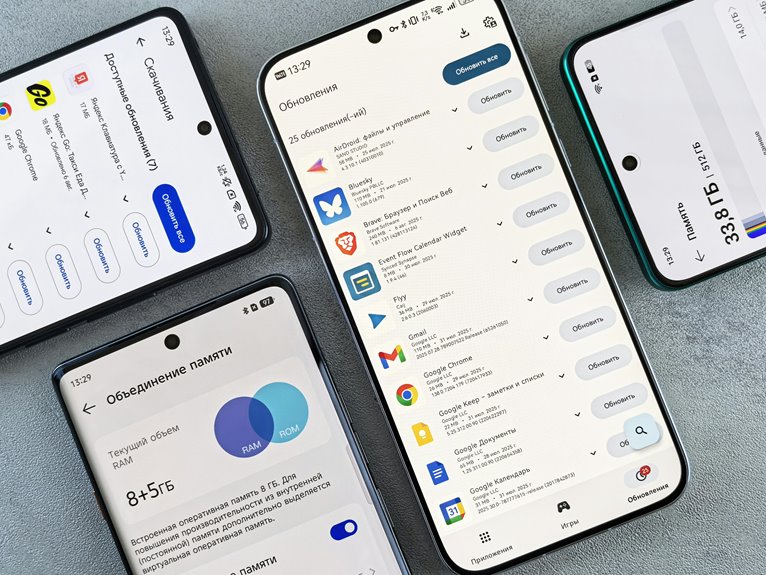
You can free up phone storage faster whenever you start with the largest space users, not the smallest files. Check your storage breakdown, then clear cache, remove unused apps, trim photos and videos, and delete old attachments or offline media. A few targeted actions usually beat random cleanup. The key is understanding what’s consuming space now, because the next step changes depending on what you find.
Check What’s Using Phone Storage
Start then checking which categories are taking up the most space on your phone.
Open Settings, then tap Storage on Android or General > iPhone Storage on iOS.
You’ll see a storage overview that shows total used space, free space, and a category breakdown for apps, photos, videos, messages, and system files.
Review the bars and percentages to spot patterns fast.
Built-in recommendations can flag large attachments, unused items, or cached content, so you don’t have to guess.
Whenever your device offers a Free up space option, use it to join a smarter cleanup routine.
This view gives you the shared starting point you need, so you can make informed choices and fit right in with users who manage storage with precision.
Find the Biggest Storage Hogs First
Once you’ve checked the storage overview, focus on the biggest offenders initially. In your space ranking, target apps, media folders, and downloads that consume the most gigabytes. You’ll move faster when you sort via size and set a clear storage priority for each item.
Open Settings > Storage, then review the top entries and observe anything unusually large or unfamiliar. Should your device show recommendations, follow them to identify bulky attachments, duplicate files, or old content. You belong to a smarter cleanup routine once you handle the heaviest items first, because each removal creates immediate breathing room.
Keep your list ordered, act on one category at a time, and confirm how much space you’ve recovered after each step. This method keeps you focused, efficient, and in control throughout the process.
Clear App Cache to Free Space
App cache stores temporary files that speed up loading, but it can build up and consume significant space over time.
You can clear cache in Settings > Storage or Device Care, then target specific apps when you want finer control.
This frees space without deleting your app data or login information.
App Cache Benefits
Clearing app cache is a fast way to recover space without removing your data, because cached files only support temporary app performance. You keep your account info, settings, and saved content, while the device drops files that apps can rebuild on demand.
That means you get temporary data benefits without risking core information. You can also notice smoother cache performance whenever an app stops carrying outdated fragments. For teams of users who want a leaner phone together, this is a practical maintenance habit that fits busy routines.
It helps you reclaim storage, reduce clutter, and keep essential apps ready for daily use. Whenever your device feels crowded, cache cleanup gives you an efficient reset with minimal disruption and no need to start over.
Clear Cache Steps
To clear app cache and free space, start with checking which apps are using the most temporary data. Open Settings, then Storage, and review each app’s cache size. Tap the app, then choose Clear Cache unless your device offers it, or use the app info screen for storage controls.
On Android, some systems place cache clearing methods under Device Care or Cached Data. Focus on browsers, social apps, and streaming tools initially, since they build up quickly. Skip Clear Data unless you want to reset logins and local settings.
After temporary file removal, recheck storage to confirm the gain. Whenever you and your device stay consistent, you’ll keep more space available and avoid clutter without losing significant content or app access.
Delete Unused Apps and App Data
Unused apps can quietly consume gigabytes, so start via reviewing Settings > Storage > Apps to see which ones you rarely open and which ones take up the most space. Run an unused app audit, then uninstall anything you don’t use.
Unless you’re on iPhone, use app offloading to remove the app while keeping its documents and settings; on Android, delete the app and reclaim both space and data. Check app-specific storage, because some tools store bulky downloads, offline files, or local caches.
Review permissions and sign-ins before removal so you don’t lose access. You’re not decluttering alone; you’re building a leaner phone that fits your workflow. Revisit this list every few weeks to keep storage stable and avoid silent buildup.
Reduce Photo and Video Storage
Photos and videos often eat the most storage, so start with reviewing your gallery and identifying large media files, duplicates, and old clips you no longer need.
Sort items according to date, size, or album so your gallery organization stays efficient and easy to maintain.
Then move keepers to cloud backup or a computer, and delete the rest from local storage.
Use photo compression to shrink high-resolution images before saving them, especially for screenshots and burst shots that don’t need full quality.
Trim long videos by cutting dead space and exporting shorter versions.
You’ll reclaim space fast while keeping the moments that matter to your shared memories.
Recheck your media library regularly, since new captures can quietly rebuild storage pressure over time.
Empty Downloads and Duplicate Files
You should check your Downloads folder initially, because it often holds installers, documents, and media you no longer need.
Next, scan for duplicate files across storage and remove extra copies to recover space fast.
Use your file manager or storage tools to sort according to size and delete the largest unnecessary items initially.
Clear Download Folder
Your Downloads folder can quietly collect installers, documents, media, and duplicate files that add up fast. Open your file manager and sort using date or size so you can review the newest and largest items first. Start with browser downloads cleanup: delete saved PDFs, ZIPs, and installers you no longer need.
Then handle apk file removal after apps install, since those packages just waste space. Keep only files you actively use, such as recent receipts or work documents. Should a file belong in cloud storage or another app, move it there and clear the local copy.
Finish by emptying the trash, then check the folder weekly so you stay in control with the rest of your storage-savvy group.
Remove Duplicate Files
Duplicate files can quietly consume useful storage, so start with scanning Downloads, gallery folders, and messaging attachments for repeated items. You’ll sharpen file organization and reclaim space fast.
| Location | What to Remove | Benefit |
|---|---|---|
| Downloads | Repeated PDFs, APKs, ZIPs | Frees clutter |
| Photos | Near-identical shots, screenshots | Reduces media bloat |
| Messages | Forwarded media copies | Cuts concealed duplicates |
Use duplicate photo detection in your gallery or a trusted cleaner to compare names, sizes, and timestamps. Delete the extra copy, then empty the recycle bin so the space returns immediately. Should you keep a shared photo set, stay consistent with one source folder and one backup path. That habit helps your phone feel lighter, and it keeps your storage group moving together.
Back Up Important Files to the Cloud
Back up essential files to cloud storage before deleting local content so you don’t lose photos, videos, documents, or other critical data. Choose cloud backup options that fit your device, budget, and sync needs, then enable automatic upload for selected folders. Use secure file archiving with encryption and strong passwords to protect private records while keeping them accessible across your accounts.
Verify that your backup completed, compare file counts, and test a restore on one item so you know the process works. You’ll stay in control, reduce storage pressure, and keep your phone lean without sacrificing the files that matter most. If you belong to a well-organized routine, cleanup feels safer, faster, and more confident.
Remove Unnecessary Message Attachments
You should review message threads for old media and large attachments that no longer matter. Delete photos, videos, and files directly from chats to reclaim space quickly. Then verify your storage usage to confirm the cleanup worked.
Delete Old Media
Old message attachments can quietly consume a surprising amount of storage, especially in chat apps that save photos, videos, voice memos, and documents automatically. You should review your old media archive and decide what still matters. Build a photo rotation plan so recent items stay accessible while stale files move out. Use the app’s storage tools, then delete duplicates and outdated media with intent.
| Action | Result |
|---|---|
| Open chat storage | Find saved media |
| Sort by age | Spot stale items |
| Review archives | Keep essential files |
| Remove repeats | Reduce clutter fast |
| Confirm deletion | Free space safely |
If you act together, your phone stays lighter, and your shared space feels organized. Prioritize items you no longer reference, then clear them in batches.
Clear Large Attachments
Large message attachments often hide in chats and quietly consume gigabytes, so review them initially as soon as storage is tight. You should open Messages, WhatsApp, or similar threads, then sort shared files by size and date. Delete videos, PDFs, voice notes, and image bursts you don’t need. Check email attachments too, because forwarded documents often duplicate elsewhere on your phone.
Save any file worth keeping to cloud sync first, then remove the local copy to reclaim space safely. In group chats, target repeated media instead of deleting entire conversations. Use storage tools that list large attachments, because they surface the biggest gains fast.
Whenever your team shares files often, agree on one cloud folder so everyone keeps the same copy and your phone stays lean.
Remove Offline Music and Podcasts
Offline music and podcast downloads can quietly take up a surprising amount of space, especially whenever you keep entire albums, playlists, or long series stored on your phone. Audit offline playlists and apply podcast episode limits to keep storage lean.
| Item | Action | Result |
|---|---|---|
| Albums | Remove duplicates | Reclaim space |
| Playlists | Keep favorites only | Faster access |
| Podcasts | Delete finished episodes | Smaller library |
After you listen, delete files you won’t replay. In your music app, sort according to download size, then remove stale downloads firstly. On podcast apps, clear back catalogs and cap stored episodes per show. This helps you stay in control with your crew of everyday listeners, without losing quick access to content you actually use. Check storage after cleanup so you can spot the gains and keep your phone ready for new media.
Set Up Automatic Storage Cleanup
Once you’ve cleared out offline music and podcasts, set up automatic cleanup so storage stays under control without constant manual checks.
Open your phone’s storage tools and enable automation scheduling for caches, downloads, and unused media removal where your device supports it.
On Android, use Files through Google or device care; on iPhone, turn on offload recommendations and optimize photos.
Set storage alerts so you get notified before space runs low, then act quickly on the largest offenders.
Sync photos and videos to cloud backup, and let the system remove local copies after upload.
This keeps your phone lean, reliable, and ready for your group chats, work files, and memories without last-minute cleanup stress.
Build Simple Storage Cleanup Habits
Start with apps, photos, videos, downloads, and cache, then remove the largest offenders first. Keep a monthly cleanup reminder so you don’t wait until your phone slows down or fills up.
In each session, delete unused apps, clear temporary files, and offload media to cloud storage or a computer. Review your Recycle Bin too, because deleted items can still hold space.
These small steps help you keep control, reduce stress, and stay part of a group that runs efficient, well-managed devices.
Frequently Asked Questions
How Can I Tell if Storage Loss Is From a Hidden App or System File?
Open Settings > Storage and see which category is unusually large. If media or cache is taking most of the space, that is often the source. Check app cache details and look through hidden folders, then compare the totals to spot what is using the storage.
Will Clearing Storage Affect My Contacts, Texts, or Saved Passwords?
Usually not. Clearing storage will not remove contacts, texts, or saved passwords if account sync is on and a backup is saved. Check the app’s cleanup settings before deleting anything important.
How Often Should I Clean Phone Storage to Avoid Performance Issues?
Clean your storage every 2 to 4 weeks. If your phone starts slowing down, that is often a sign that files, apps, and media are piling up. Make storage checks part of your routine, and adjust how often you clear space based on how heavily you use your phone.
Can a Full Storage Problem Damage My Phone Permanently?
Usually not, a full storage situation will not permanently damage your phone, but it can trigger battery strain, app crash alerts, and slower system performance. Free up space quickly, because keeping storage maxed out for too long can raise wear and the risk of data corruption.
What’s the Safest Way to Free Space Without Deleting Personal Memories?
Back up your photos and videos to cloud storage first, then remove the local copies you no longer need. Clear app caches, delete duplicate downloads, check storage usage, offload unused apps, and empty the recycle bin.