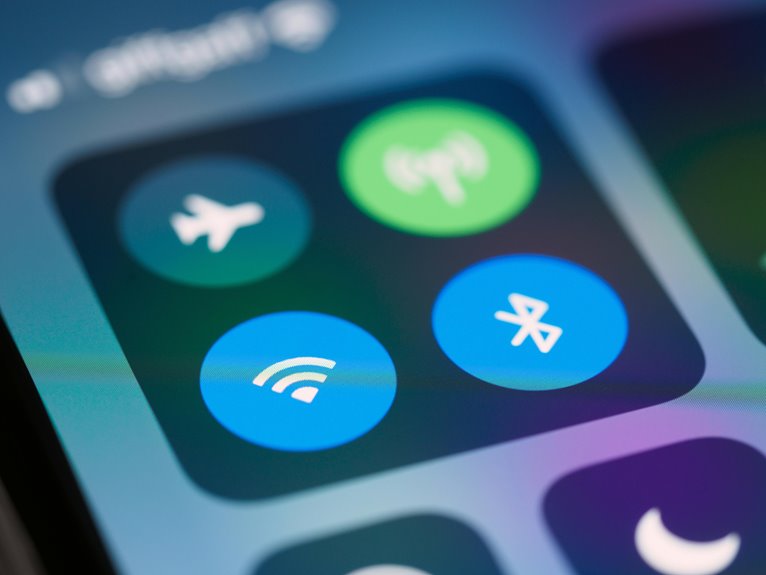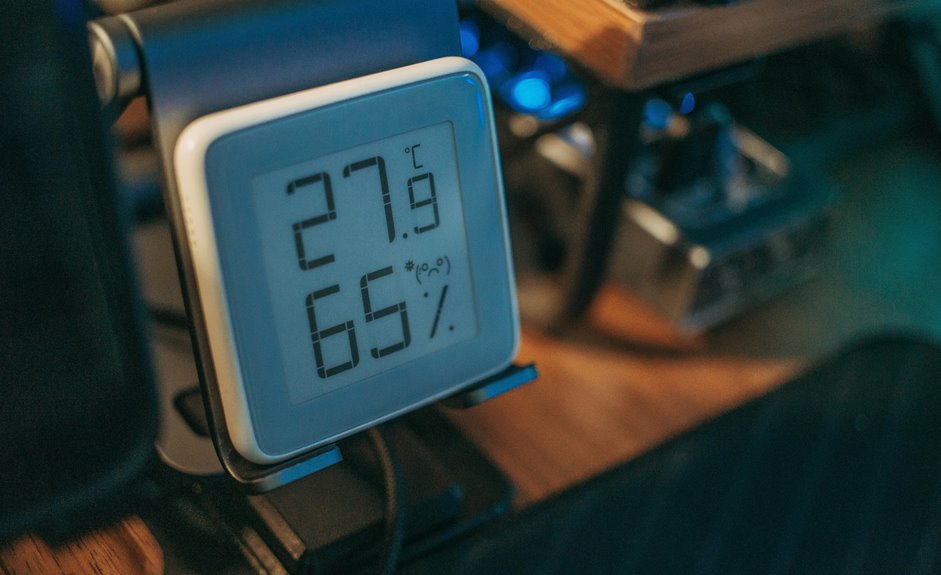
Like a warning light on a dashboard, your phone’s heat signals strain: heavy apps, high brightness, charging load, and constant radio use can push temperatures up fast. You can cool it down by closing demanding processes, lowering brightness, enabling Battery Saver, and disabling Wi‑Fi, Bluetooth, or Location whenever they’re unnecessary. If it’s charging, unplug it and let it rest, because the next step matters more than you could expect.
Why Your Phone Overheats
Your phone overheats as its processor, display, radios, and battery are all working hard at the same time. You push it further with gaming, streaming, navigation, and multitasking, which raises CPU load and screen power demand.
Bluetooth, Wi-Fi, and mobile data keep radios active, while charging adds more thermal stress. Battery aging also increases internal resistance, so the pack wastes more energy as heat.
App updates can briefly spike background activity, indexing, and downloads, adding extra workload. Thick cases can trap heat, and direct sunlight speeds temperature rise.
If several of these factors stack up, your device has less thermal headroom, so temperature climbs fast. You’re not alone; this is normal behavior under heavy system demand.
Cool Your Phone Fast
To cool your phone fast, cut off the main heat sources first: stop demanding apps, lower screen brightness, turn on Battery Saver, and disable Bluetooth, Wi‑Fi, and Location Services unless you don’t need them. Then move with your device team:
- Place your phone in a shaded, cooler spot, away from sunlight and hot surfaces.
- Remove the case so heat can escape faster through the chassis.
- Use fan assistance or air conditioning for emergency cooling, keeping airflow steady.
- Turn on Airplane Mode or power the phone off whenever temperatures stay high.
These steps reduce processor load, limit thermal buildup, and help your phone recover quickly.
Stay consistent, and you’ll protect performance while keeping your device ready for the next task.
Stop Charging If It Gets Hot
Should your phone gets hot while charging, stop the charge immediately and let the device cool before resuming. You’re protecting the battery, the connector, and your sense of control. Charging pauses for heat reduce chemical strain and keep internal temperature within safer limits. Whenever warmth rises fast, unplug before battery stress builds and power down the charger. Stay with the people who treat battery health as a shared standard, not a gamble.
| Signal | Action | Result |
|---|---|---|
| Hot back | Pause charging | Less heat |
| Battery warning | Unplug | Lower stress |
| Slow recharge | Wait | Safer cells |
| Normal temp | Resume | Stable cycle |
You don’t need to push through discomfort. Let the phone cool, then reconnect only once it feels neutral to the touch.
Close Apps That Make Your Phone Hot
You should close background apps that keep the CPU, GPU, and memory active, because they sustain heat generation even while you’re not using them.
Stop heavy apps such as games, video editors, and route-planning tools whenever your phone starts to warm, since they drive sustained processor load.
Use Device Care or the app switcher to identify and terminate unnecessary processes quickly.
Close Background Apps
Background apps keep drawing CPU cycles, memory, and battery power even while you aren’t using them, which raises internal temperatures. You can lower that load with disciplined background process management and app memory cleanup. Close only the services you don’t need so your phone can cool faster and stay responsive.
- Open recent apps and swipe away idle ones.
- Check system settings for battery or device care tools.
- Disable auto-start for apps that restart after shutdown.
- Recheck after syncs, because concealed tasks can return.
When you manage background activity well, you’re not fighting your device; you’re helping it run within safer thermal limits. That keeps you in control and part of the group of users who maintain cool, efficient phones.
Stop Heavy App Usage
Heavy apps can spike CPU activity, drive up processor load, and quickly raise your phone’s temperature. You’ll cool it faster once you identify high-demand apps and close them immediately. Use task prioritization to keep only essential tools active, and set app memory limits where your system supports them.
| App type | Heat impact | Action |
|---|---|---|
| Games | High | Close now |
| Video editors | High | Pause work |
| Maps | Medium | Exit after use |
| Social feeds | Medium | Limit refresh |
If an app keeps syncing, streaming, or rendering, it keeps your chipset busy and your battery warm. You belong to a group of users who manage load beforehand, so don’t wait for throttling. Trim heavy usage, reopen only what you need, and let your phone recover.
Lower Brightness and Turn Off Hot Features
Reducing screen brightness and disabling heat-producing features can lower a phone’s power draw and slow temperature buildup. You can keep your device steadier by tightening display settings and cutting background load. If your phone supports adaptive display, let brightness automation adapt output to ambient light instead of forcing maximum luminance.
- Lower brightness manually to the minimum level you can read comfortably.
- Enable adaptive display and brightness automation for efficient, responsive tuning.
- Turn off Bluetooth, Wi-Fi, and Location Services when you don’t need them.
- Use Battery Saver Mode to restrict background activity and reduce thermal stress.
These changes help you stay in control with a phone that works less hard and runs cooler.
Get Your Phone Out of the Heat
Move your phone into a shaded, cooler area as soon as possible to slow heat buildup.
Remove the case right away, especially in the event that it’s thick or heat-trapping, so the device can dissipate thermal energy more effectively.
Keep it off hot surfaces like dashboards, windowsills, or other sun-exposed locations that drive temperature up quickly.
Move To Shade
Getting your phone out of direct heat is one of the fastest ways to lower its temperature. You should move it to shade placement immediately, because sunlight drives surface and battery heating. For cool parking, choose a covered spot, a bag, or an interior surface away from windows and hot metal.
- Relocate the device to shaded air.
- Keep it off dashboards and seats.
- Avoid glass exposure and sunbeams.
- Confirm the area stays cooler than ambient heat.
You’ll fit in with smart users using treating shade as a first response, not an afterthought. This simple move reduces thermal load fast and helps protect performance, battery health, and comfort without changing settings or opening menus.
Remove Case Quickly
Should your phone feel hot, remove the case right away so the chassis can dump heat more efficiently. This simple action gives you immediate case removal benefits because it exposes more surface area to ambient air and cuts the insulation layer trapping energy.
If you’re part of a group that values dependable devices, you’ll recognize the heat dissipation improvement fast: the frame transfers warmth outward more effectively, and the battery and processor can stabilize sooner.
Use two hands, power the device down if temps stay high, and keep the case nearby for reassembly after the phone cools. Thick polymer or leather cases slow thermal release, so quick removal is a practical first-response step when you need fast relief without changing settings or interrupting core use.
Avoid Hot Surfaces
Keep your phone away from hot surfaces, because a tabletop in direct sun, a dashboard, or a car cradle can drive temperatures up fast. You’ll protect the battery and processor through choosing cooler, shaded contact points.
Watch surface material risks: metal, dark stone, and glass hold heat, while carpeted or ventilated spots help more. Countertop heat exposure is especially dangerous near windows and appliances.
- Move the device to shade immediately.
- Lift it off the surface with a stand.
- Avoid car cradles during charging and route guidance.
- Check the touchpoint temperature before you set it down.
You’re part of the group that treats heat like a system problem, not an accident. Small placement choices reduce thermal load, slow throttling, and keep your phone stable.
Use Safe Ways to Cool Your Phone
While your phone starts to heat up, move it to a cooler, shaded area and out of direct sunlight, since sun exposure and hot environments accelerate temperature buildup. You can follow safe cooling habits through pausing demanding apps, lowering brightness, and letting air circulate around the device. Use gentle temperature checks with the back of your hand; whether it still feels warm, wait before resuming heavy use.
| Method | Action | Effect |
|---|---|---|
| Shade | Relocate device | Cuts solar loading |
| Airflow | Use a fan | Improves heat transfer |
| Case | Remove temporarily | Releases trapped heat |
| Power | Lock screen | Reduces processor load |
These steps help you stay in control and keep your device aligned with the group’s shared goal: steady, safe operation.
Avoid DIY Cooling Tricks
You shouldn’t use ice, freezers, or other DIY cold sources, because rapid thermal shock can condense moisture and damage internal components. Don’t wrap the phone in a wet cloth, since liquid contact can enter ports and accelerate corrosion.
Keep it out of direct sun exposure, because solar load will raise device temperature faster than ambient cooling can offset it.
Skip Ice And Freezers
Skip ice packs and freezers whenever a phone overheats, because rapid, direct cooling can cause condensation and thermal stress that may damage internal components. You should avoid freezer shock and prevent condensation damage using controlled cooling instead.
- Move the phone to shade.
- Power it off or enable Airplane Mode.
- Remove the case if it’s thick.
- Aim a fan at it.
These steps let heat leave gradually while keeping you part of a smart, device-safe routine. Don’t seal the phone in cold air or expose it to frost; sudden temperature swings can warp seals, stress solder joints, and trap moisture.
Should you want the same result your community trusts, choose steady airflow, not extreme cold.
Avoid Wet Cloths
Although a wet cloth could seem like a quick fix, avoid DIY cooling tricks that introduce moisture or uneven temperature changes. You’re better off keeping your phone dry because damp cloth hazards include liquid ingress through ports, seams, and speaker openings.
Even slight condensation can trigger corrosion, short circuits, or sensor faults, and those moisture damage risks can show up later as unstable charging or display issues. Don’t press a damp surface against the chassis; it can cool one area while leaving internal components stressed due to thermal gradients.
Whenever your device feels hot, power it down, remove the case, and let ambient airflow do the work. Stick with safe, consistent methods so you and your device stay protected, functional, and part of a careful user community.
No Direct Sun Exposure
Direct sunlight can push a phone’s temperature up fast, so keep it out of sunlit areas whenever possible. Use smart sun protection and shade placement to reduce thermal load and protect your device. You’re part of a group that knows heat management starts with environment control, not DIY tricks like ice packs or wet cloths.
- Move your phone to a shaded surface immediately.
- Avoid car cradles, which add sun, charging, and wireless load.
- Disable nonessential features while cooling begins.
- Let airflow, not moisture, remove heat safely.
If you need rapid recovery, place the phone indoors or under a fan. That approach lowers surface temperature without trapping condensation, and it keeps you aligned with reliable, professional cooling practice.
Cool Your Phone Safely While Gaming
While you’re gaming, your phone’s CPU, display, and wireless radios can generate heat fast, so the safest cooling approach is to reduce load while improving airflow.
Start with game session warmth checks: whenever the back panel feels hot, pause briefly. Lower brightness, enable Battery Saver Mode, and close unused apps to cut processor demand. Turn off Bluetooth, Wi-Fi, or Location Services whenever the game doesn’t need them. Remove a thick case to help heat escape, then place the device in a cooler, shaded spot with fan-assisted airflow. Avoid blocking vents or holding the phone against fabric.
These thermal comfort tips keep performance steadier and help you stay in the game with your crew without forcing the device into thermal throttling.
Prevent Overheating While Charging
Charging adds a second heat source on top of normal phone use, so you need to manage both power input and thermal buildup at the same time. Keep your device on a hard, open surface, not on bedding or inside a pocket.
- Use the charger and cable that match your phone’s specs.
- Check for charging cable heat; warm plugs can raise local temperatures.
- Enable battery temperature monitoring whether your device offers it.
- Pause charging, or slow it down, once the phone feels hot.
You’ll also lower strain with closing background apps and reducing screen brightness while plugged in. If possible, charge in a cooler room and avoid direct sun. These steps help you stay connected with your device team and keep charging stable.
When Overheating Means Repair
Should your phone keeps overheating after you’ve moved it to a cool place, removed the case, lowered brightness, and closed background apps, the problem could be hardware-related rather than environmental. You should schedule a hardware inspection should you notice swelling, random shutdowns, charging failures, or heat around the battery or charging port.
These symptoms often point to a degraded battery, damaged connector, or failing thermal sensor. Don’t keep using the device in this state; continued stress can worsen internal damage and reduce safety.
Should a technician confirms battery degradation, battery replacement could restore normal temperatures and performance. You belong to a group of users who act promptly: document the symptoms, back up data, and seek service promptly. Prompt repair usually costs less than delayed component failure.
Frequently Asked Questions
How Do Cooling Pads Help Prevent Phone Overheating?
Cooling pads work by pulling heat away from your phone through thermally conductive materials, spreading it out faster, lowering the phone’s surface temperature, and limiting heat accumulation. This helps keep performance more stable and reduces overheating during heavy use.
What Is Thermal Herding in Smartphone Processors?
Thermal herding is when a phone shifts tasks among its processor cores to spread heat more evenly. It works with thermal throttling, which reduces the speed of hotter cores so the device can avoid overheating.
Does Removing a Phone Case Really Cool It Faster?
Yes. Removing your phone case usually helps it cool faster because it exposes more of the phone’s surface to the air. Thick, insulating cases can hold in heat, so temperature often drops more quickly without them.
Can Adaptive Brightness Reduce Phone Heat Effectively?
Yes, adaptive brightness can lower heat by reducing screen power use when the surroundings get darker. This cuts display load and helps the phone stay cooler while keeping the screen easy to use.
Are Graphene Heat Spreaders Better Than Regular Cooling Methods?
Yes, graphene heat spreaders often move heat more effectively than standard cooling methods because graphene conducts heat very well, helping spread thermal energy quickly. Think of it like adding more exits to a busy station, which lets heat escape faster. Still, airflow or lower load is usually needed for the best performance.