If you want your iPhone to last longer between charges, you need to control the biggest power drains first. You can turn on Low Power Mode, lower screen brightness, and shorten Auto-Lock, but those steps only get you partway there. Background refresh, location access, mail fetch, and wireless radios can quietly pull more battery than you expect, and your battery’s health may be the real limit. The next steps get more specific.
Turn On Low Power Mode
This mode also applies performance throttling, so your phone might feel slightly less aggressive during heavy tasks, but you’ll keep power longer whenever it matters. Use it whenever you’re away from a charger, traveling, or need your device to stay available with your team.
iPhone might enable it automatically at low battery, but you can switch it on anytime for immediate savings. Whenever your charge recovers, you can turn it off and return to full performance.
Lower Screen Brightness and Auto-Lock
Lowering your screen brightness is one of the fastest ways to save battery, since a dimmer display uses less power than a bright one. Use brightness control in Control Center or Settings, and keep Auto-Brightness on provided you want the phone to adapt with you. Set auto lock timing to 30 seconds or 1 minute so the screen sleeps quickly once you pause.
| Setting | Battery impact |
|---|---|
| Lower brightness | Cuts display power draw |
| Short auto lock timing | Reduces idle screen use |
| Auto-Brightness on | Balances comfort and efficiency |
Together, these choices help you stay part of the battery-smart crowd without changing how you use your iPhone. Small screen tweaks add up fast, and they’re easy to keep.
Limit Background Refresh and Location
After you’ve trimmed screen power use, the next big battery saver is stopping apps from working behind the scenes.
Go to Settings > General > Background App Refresh and set background app limits for the apps you actually need. Most apps don’t need constant updates, so disable refresh entirely or keep it on only for essentials.
Next, open Settings > Privacy & Security > Location Services and review location permissions. Choose While Using for maps, delivery, and fitness apps, and turn off Precise Location whenever it isn’t necessary. Apps that track you nonstop wake the chip, ping the GPS, and burn power fast.
Tighten these controls, and your phone feels leaner, faster, and more in sync with the rest of the community.
Reduce Mail, Bluetooth, and AirDrop Drain
Mail can quietly drain battery when it’s set to fetch too often, so go to Settings > Mail > Accounts > Fetch New Data and switch it to Manual or a longer fetch interval for accounts you don’t need updating constantly. Fine-tune your mail fetch settings to match your routine. Whenever you stay in your apps, you won’t miss instant delivery.
| Setting | Impact | Best use |
|---|---|---|
| Manual | Lowest drain | Rare checks |
| Fetch 30 min | Moderate drain | Work inbox |
| Push | Highest drain | Critical mail |
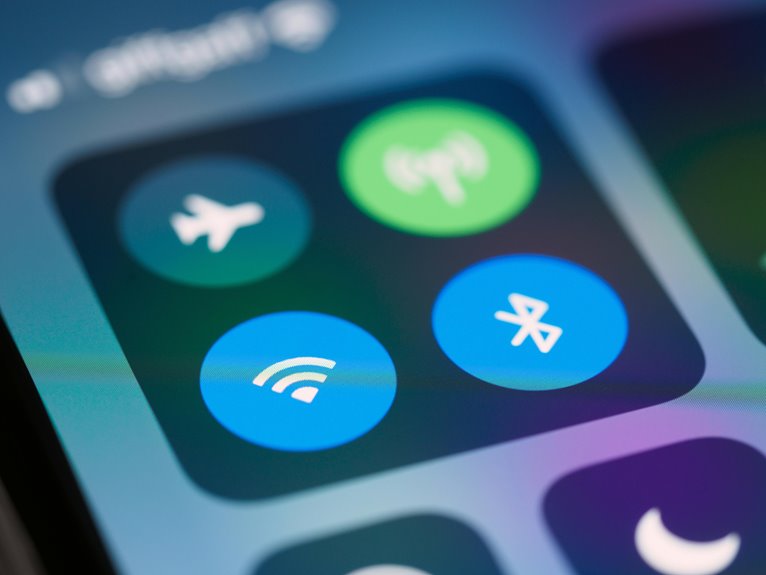
Keep Bluetooth off whenever you’re not using accessories, and turn AirDrop to Contacts Only or Receiving Off. Tighten your airdrop sharing habits so nearby devices aren’t scanning for you. That small change helps your iPhone stay ready for the group chat, the commute, and the long day.
Cut Down on Notifications and Widgets
As you trim notification noise, your iPhone does less background work and your screen wakes less often. Open Settings and use notification management to keep only alerts that matter: mute noisy apps, switch to Scheduled Summary, and turn off badges for low-priority tools. Fewer pushes mean fewer interruptions and less power spent lighting the display.
Next, review your Home Screen and lock screen widgets. Widget removal helps because each tile can refresh data, fetch updates, and tempt extra swipes. Keep just the widgets you actually check each day, like calendar or weather, and remove the rest.
You’ll stay connected to your essentials without carrying visual clutter, and your battery will last longer through the day.
Check Battery Health
Check your iPhone’s battery health in Settings > Battery > Battery Health & Charging to see its Maximum Capacity and Peak Performance Capability. You can compare battery capacity against a new battery baseline to gauge wear and plan smarter charging habits.
Should Maximum Capacity has dropped, expect shorter runtime under the same workload. Peak performance tells you whether iPhone can still deliver full power while apps demand it. Whenever performance management appears, your device can throttle to prevent shutdowns, so you’ll notice slower response during heavy tasks.
You’re not alone here; many users track this metric to understand real-world battery behavior. Check it regularly, especially should your phone feels less consistent, so you can make informed decisions about power settings and daily use.
Replace the Battery If Needed
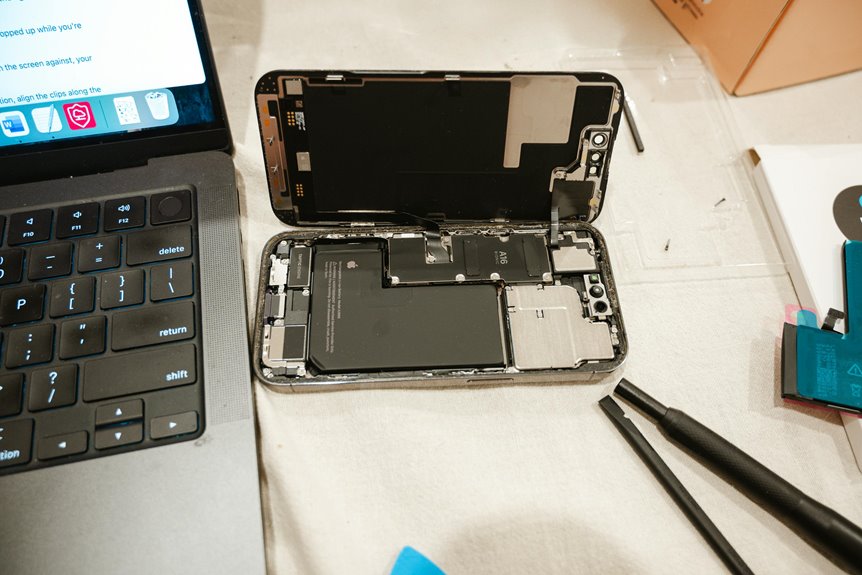
If your iPhone’s Maximum Capacity is low or it shuts down unexpectedly, replace the battery through Apple or an authorized service provider. A proper battery replacement restores usable runtime, stabilizes voltage, and reduces thermal stress, so you can stay in the loop with a device that works like it should. Book a service appointment soon when you notice swelling, slow charging, or sudden drops.
- Confirm battery health in Settings.
- Back up your data before service.
- Choose Apple or an authorized shop.
- Test performance after replacement.
You’ll usually see quicker charging, fewer shutdowns, and better standby time. Don’t keep pushing a worn cell; it can waste power and disrupt your day. Acting promptly keeps your iPhone dependable and helps you feel connected to the group.
Frequently Asked Questions
Does Enabling Auto-Brightness Actually Save Battery Life?
Yes. Auto brightness usually saves battery because the screen stays dimmer more often, and the display is the biggest power drain. On your iPhone, better screen calibration and adaptive brightness can cut display power use by about 20 percent in bright conditions.
Should I Turn off Wi-Fi When I’m Not Using It?
Yes, turn off Wi Fi when you are not using it if you are away from trusted networks. This can cut down on battery drain from scanning and repeated connection attempts, especially in weak signal areas and while traveling.
How Does Airplane Mode Help in Low-Coverage Areas?
Airplane mode stops your phone from repeatedly searching for weak cell signals, which reduces battery drain. In many cases, it still lets the phone remain ready for emergency calls while preserving power in areas with poor coverage.
Can Reduce Motion Improve iPhone Battery Performance?
Yes, enabling Reduce Motion can improve battery performance. It cuts motion effects and visual animations, which reduces GPU activity and saves power. It will not extend screen on time dramatically, but it can help, especially on older iPhones.
What Is Adaptive Power and When Does It Activate?
Adaptive Power is an automatic iPhone battery feature that reduces performance when your device is under heavy use. It can activate when the system predicts a demanding day and may turn on Low Power Mode near 20% battery if needed.