Your phone can feel like a small furnace in your hand as soon as heat starts building behind the screen. You push the CPU with gaming and multitasking, keep brightness high, let background apps run, fight weak signals, and expose the device to sun or poor airflow. Battery strain and charging add more stress. Those triggers don’t act alone, and the real issue often starts before you notice the warning signs.
What Causes a Phone to Overheat?
A phone overheats whenever its processor, battery, or charging system is pushed beyond normal thermal limits. You can trigger that rise with a malware infection that runs concealed tasks, or with a faulty charger that sends unstable current and adds resistive heat. Poor ventilation makes things worse via trapping warmth under a case, in a pocket, or on a pillow.
Hot weather and direct sunlight also raise surface temperature faster than the phone can shed heat. Charging while you use the device increases electrical load, and fast or wireless charging often produces more heat than standard wired charging. Aging batteries and damaged ports can fail to regulate power, so your phone works harder, runs hotter, and loses safe thermal margin.
Heavy CPU Load
As you run multiple apps at once, you push the CPU and GPU harder and generate more heat.
Gaming, especially with demanding graphics, keeps the processor under sustained load and raises device temperature quickly.
Background processes can also consume cycles nonstop, so your phone might overheat even while you’re not actively using it.
App Multitasking Strain
Running multiple apps at once can quickly overload your phone’s CPU and GPU, driving up heat output. While you switch between messaging, maps, email, and media, you create app multitasking strain and force resource contention overload. Your device must juggle active threads, redraw screens, sync data, and keep radios engaged, so the processor stays busy longer. That sustained load raises internal temperature and can trigger throttling, lag, and faster battery drain.
You’ll fit in better with a smoother, cooler phone provided you close unused apps, limit background refresh, and avoid stacking heavy tasks together. Keep only what you need open, and let each app finish before launching the next.
Gaming Performance Heat
Gaming for hours, especially graphically demanding titles, pushes your phone’s CPU and GPU hard and quickly raises internal temperature. You’ll notice game overheating once frame rates drop, touch response slows, or the back panel feels hot. That heat comes from sustained compute load, not a defect in your skill or setup.
- High-resolution graphics increase power draw.
- Long sessions keep cores active at full load.
- Heat buildup can trigger thermal throttling to protect components.
Once thermal throttling starts, your device cuts performance to reduce stress, so gameplay stutters even though the game itself hasn’t changed.
You can fit in better via pausing between matches, lowering graphics settings, and keeping the device uncovered so heat escapes more efficiently.
Background Process Overload
Even outside of gaming, your phone can heat up whenever too many apps and services keep the CPU busy in the background. You’ll notice slower response, warmer edges, and faster battery drain as concealed tasks compete for cycles. Use resource monitoring to identify which apps stay active after you close them, then apply process prioritization so essential services run while the rest sleep.
| Signal | Meaning |
|---|---|
| High CPU | Background load is excessive |
| Warm battery | Power draw is rising |
| Lag | Processes are contending |
| Fast drain | Heat and work increase |
To stay in control, close unused apps, restrict auto-sync, and remove unneeded widgets. When your device stays lean, you’re part of a smoother, cooler experience that all of us can rely on.
Battery Strain
An aging or damaged battery can generate excess heat as it struggles to deliver power efficiently. You’ll notice this most whenever battery health declines and battery aging increases internal resistance, forcing the cell to work harder for the same output. That extra effort converts energy into heat, and your device can feel warm even during routine use.
Keep an eye on:
- rapid percentage drops
- unexpected shutdowns
- swelling or distortion
If you see these signs, your phone isn’t just losing runtime; it’s losing thermal stability too. You can reduce strain by replacing a failing battery before heat buildup affects nearby components. A healthy pack helps your device stay efficient, predictable, and safer for the group of users who depend on it every day.
Bright Screen Settings
High screen brightness increases panel power draw, so your battery drains faster and your device generates more heat.
At maximum brightness, the display and power circuitry work harder, which raises internal temperature.
Should you keep brightness high for long periods, you’ll add avoidable thermal load during normal use.
Screen Brightness Battery Drain
A bright screen can drain your battery fast and add heat because the display uses more power the higher you set brightness. You’ll notice higher display power usage during long sessions, so your phone works harder and warms up. That’s the core of the screen visibility tradeoffs: you gain readability outdoors, but you also increase energy draw. Keep your settings balanced so your device stays comfortable with you.
- Lower brightness indoors.
- Use auto-brightness to adapt to ambient light.
- Dim the screen if you don’t need sharp detail.
If you keep brightness high for hours, the screen becomes a steady load on the battery and thermal system. Small adjustments help you stay connected without pushing extra heat into your phone.
Heat From Maximum Brightness
When you keep your screen at maximum brightness, the display pulls more power and turns more energy into heat, which raises surface temperature and shortens battery life. You also increase display heat, so your phone works harder to stay cool.
| Setting | Effect |
|---|---|
| 100% brightness | More heat |
| Auto brightness off | Less control |
| Indoor use | Lower demand |
| Shade mode | Better efficiency |
| Lower levels | Better eye comfort |
You’ll fit in better with healthy device habits provided you trim brightness to the lowest readable level. That simple change cuts thermal load, protects battery health, and improves eye comfort. Should you need a brighter screen outdoors, use it briefly, then reduce it again. Small adjustments help your phone stay cooler, last longer, and perform more consistently every day.
Background App Activity
- Close unused apps after you finish using them
- Disable background refresh for nonessential apps
- Review sync settings and notification permissions
When you trim background tasks, you help your device cool down and you’ll join other users who keep their phones running cleaner, smoother, and safer.
Weak Signal and Extra Battery Drain
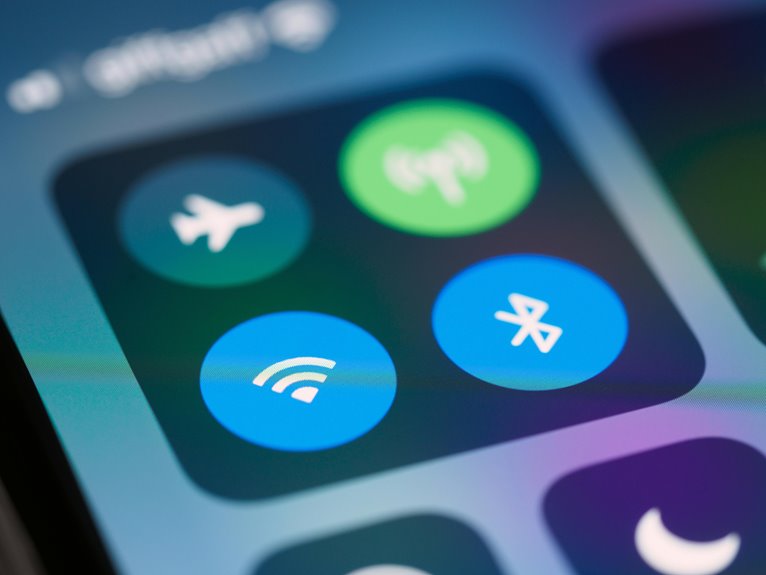
Weak Wi-Fi or weak cellular signal makes your phone work harder to maintain a stable connection, which increases processor load and battery drain. You’ll see signal searching strain when the radio keeps scanning, reconnecting, and increasing transmit power. That constant activity raises internal temperature and cuts runtime, especially provided that you’re streaming, calling, or syncing data at the same time.
In low coverage drain, your device might switch networks repeatedly, which adds extra background work and wastes energy. You can reduce heat via moving to a stronger signal area, turning on airplane mode briefly, or disabling data-hungry apps provided that reception’s poor. Staying connected matters, but your phone needs a stable link to avoid unnecessary stress and heat.
Hot Weather and Direct Sunlight
- Shade your device whenever you can.
- Avoid leaving it in parked vehicles.
- Reduce screen brightness in heat.
If you belong to the group that uses phones all day, treat heat as a real constraint, not a minor annoyance.
Prolonged exposure can trigger thermal throttling, shorten battery life, and force shutdowns.
Move into cooler air, and let your device recover before you continue using it.
Poor Ventilation
When your phone can’t dump heat into open air, its temperature rises fast. You trap warmth when you keep it in a pocket, bag, or under a pillow, because airflow stops and pocket heat buildup starts. A thick case can add another barrier, so the chassis can’t shed heat during gaming, charging, or video calls.
Tight enclosures also reduce convection, which forces the battery and processor to run hotter. Avoid insulated bag storage and place your device on a hard, cool surface instead. Should you charge in a cramped space or leave it on a dashboard, you’ll amplify the rise.
Good ventilation helps your phone stay in the safe zone, and it keeps your setup reliable for the long haul.
Frequently Asked Questions
Can Malware Make My Phone Overheat?
Yes, malware can overheat your phone by running hidden background processes and suspicious app activity. It keeps the CPU busy nonstop, increases power use, and you may notice heat, slowdowns, and faster battery drain.
Does Wireless Charging Cause More Heat Than Wired Charging?
Yes, wireless charging usually runs hotter than wired charging, like a small furnace under your phone. More energy is lost as heat because wireless charging is less efficient, and pad alignment affects both heat and power transfer.
Can a Bad Battery Make My Phone Hot?
Yes, a failing battery can heat up your phone. Signs include swelling, faster power loss, and a warmer back or screen as the cell wears out, so stop using it and have it inspected or replaced.
Do Outdated Apps Contribute to Overheating?
Yes, outdated apps can make your phone run hotter. They may cause more background processing, and compatibility issues can force the CPU to work harder, which raises temperatures. Updating apps often reduces that load and helps your device stay cooler.
Can Using My Phone While Charging Damage It?
Yes, you can, but using the phone hard while it charges creates extra heat and can wear the battery faster. Activities like gaming, long calls, or streaming put more strain on the device, so use a certified charger and let the phone cool when you can.