You may not know that a no signal problem often starts outside your device, not inside it. Weak tower reach, weather loss, or a carrier outage can look identical to a bad SIM or loose cable. You need to isolate the failure path fast, because each cause points to a different fix. The key is to test coverage, hardware, and provider status in the right order, and the next step can narrow it quickly.
What Causes a No Signal Problem?
A no signal problem usually comes from one of a few clear causes: weak coverage, a carrier outage, bad network settings, a damaged SIM card, software glitches, or hardware failure.
You’ll often see this in coverage gaps, where hills, forests, or tall buildings create signal blockage and your device can’t reach the network.
You might also face a provider outage in your area, which leaves nearby users offline too.
Should your phone shows bars but won’t connect, the APN or preferred network type may be wrong.
A loose, dirty, or damaged SIM can cut service entirely.
Outdated firmware and temporary bugs can also disrupt registration.
In rarer cases, failing radios, ports, or cables cause persistent loss of service.
How to Check the Fastest Fixes First
Start with the quickest checks: confirm whether the problem is caused through coverage, a carrier outage, or a temporary device glitch.
You can do quick diagnostics through looking at signal bars, moving to a clearer location, and checking whether nearby users on the same network also lose service. If everyone’s down, use rapid elimination and verify your carrier’s outage status on its support channels or Downdetector.
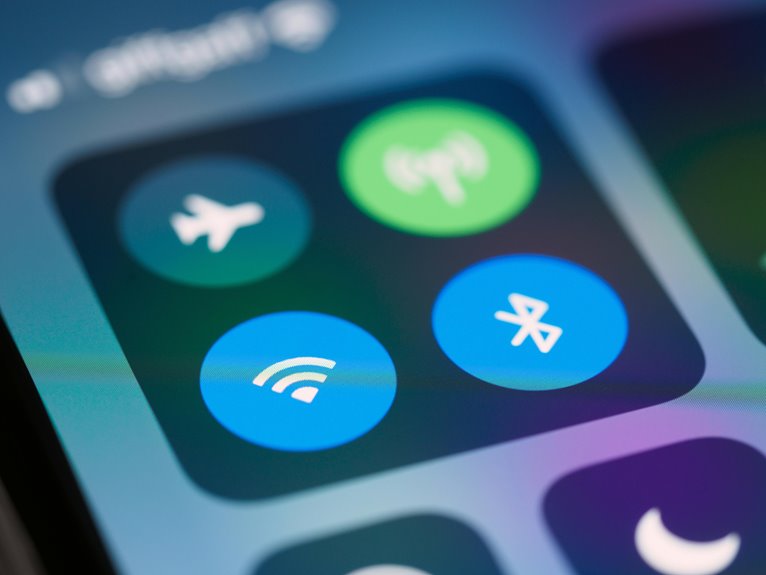
If service returns after a restart, airplane mode toggle, or network refresh, you’ve isolated a transient software fault. You’re not alone in this process; these initial steps help you join the group of users who solve the issue fast and avoid deeper troubleshooting.
Once you rule out coverage and provider problems, you can focus on device settings with confidence and precision.
Damaged Cables and Loose Connections
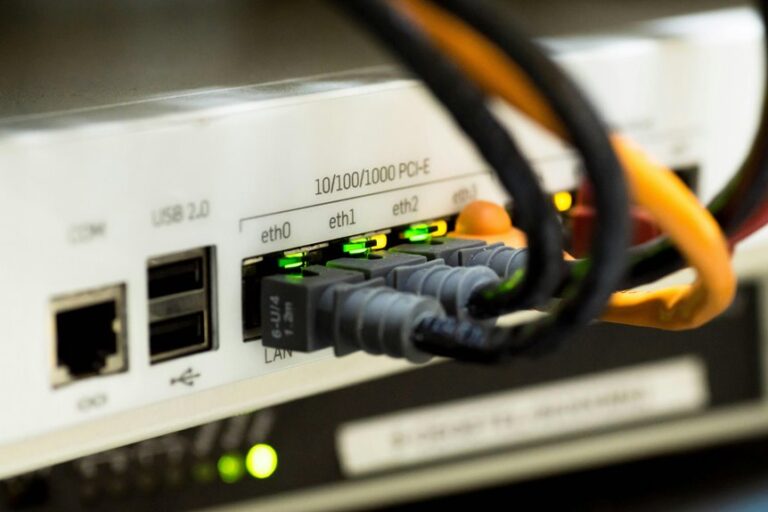
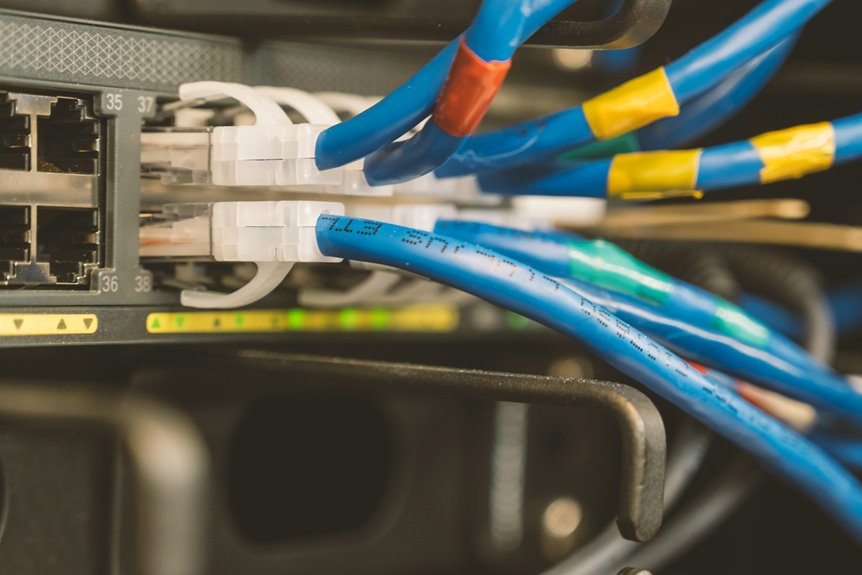
Whenever cables or connectors are loose, damaged, or pulled free, you lose network access even though your device settings may be fine. You should inspect each link at the wall jack, switch, router, and NIC, then reseat anything that’s not locked in place. Cable strain often bends conductors internally, while connector wear can widen contacts and cause intermittent dropouts.
- Check for bent pins or cracked housings.
- Feel for slack, pullback, or poor latch engagement.
- Replace frayed patch cords before they fail completely.
- Test with a known-good cable to isolate the fault.
If the link light stays dark after reseating, you’re likely handling a physical break, not a configuration issue. You’re not alone here; this is a common, fixable fault.
How Weather Can Cause Signal Loss
If heavy rain, snow, or ice sits between you and the signal path, it can attenuate radio waves and weaken connectivity.
You might also lose service if wind shifts antennas, loosens mounts, or damages exposed equipment.
Check for weather-related physical interference initially, because it can mimic an internal network fault.
Heavy Rain Attenuation
Heavy rain can weaken wireless signals through absorbing and scattering radio waves, especially on longer cellular or Wi-Fi links. You’ll notice rain fade as heavy precipitation adds path loss and drops your received power below usable levels. Because you’re in a shared network environment, the effect can feel sudden, but it’s measurable and predictable.
- Check signal bars before and during storms.
- Compare indoor and outdoor readings.
- Move closer to an access point or window.
- Recheck after the rain eases.
If your link recovers as the storm passes, attenuation was the cause, not hardware failure. You can verify this through testing latency and throughput. For your team, this diagnosis helps you avoid unnecessary resets and focuses troubleshooting on weather-related loss.
Snow and Ice Interference
Snow and ice can interrupt wireless service through adding weight, physically blocking antennas, and reducing line-of-sight signal paths between your device and the network. You’ll often see this whenever frost buildup coats outdoor hardware or an ice glaze forms on antenna panels, radomes, or cable joints.
That layer detunes signals, narrows beam patterns, and weakens reception, especially on exposed rooftops or poles. You can verify the issue via checking whether nearby, uncovered equipment performs better and whether signal bars recover after thawing.
Provided that you belong to a team managing the link, document the obstruction, compare readings before and after precipitation, and escalate for safe de-icing or inspection. Don’t keep retrying from the same spot; relocate whenever you can and confirm service once the path clears.
Wind Damage to Equipment
Strong winds can knock antennas out of alignment, loosen connectors, and strain cables until they crack or pull free, which drops signal quality or causes a full outage. You should treat this as a physical-layer fault, not a software issue, and inspect the site after every major storm. During a storm impact inspection, check mounts, brackets, and weatherproof seals for movement or corrosion. Verify wind blown antenna alignment with a signal meter, then retighten fasteners to spec.
- Look for bent poles or tilted dishes.
- Test continuity in exposed cabling.
- Reseal any cracked connectors.
- Confirm service returns after realignment.
When you document these findings, you help your team stay resilient and keep everyone connected.
When Weak Infrastructure Hurts Your Signal
At the time your signal drops in specific locations, weak infrastructure is often the cause: you’re likely handling with low tower coverage, building obstructions, distant routers, or blocked Wi‑Fi paths.
You can confirm it by watching the bars fall to one or none, then testing the same device elsewhere.
If relocation restores service, you’re dealing with structural loss, not a faulty phone.
For Wi‑Fi, move the router higher, shorten the distance, and clear metal barriers.
For mobile service, signal amplification tools and coverage expansion options can help when carriers already support the area.
If no service appears in hills, forests, or dense buildings, your network may simply can’t reach you.
You’re not isolated; your environment is limiting the link.
Why Networks Go Down at Peak Times
Whenever network demand spikes at peak times, you can hit congestion that saturates available bandwidth and increases latency.
Should too many users compete for the same cell tower, router, or backhaul link, the system can’t sustain normal throughput and service starts to fail.
In that state, you’ll see drops, slow responses, and intermittent loss as capacity limits are exceeded.
Peak Traffic Congestion
Peak traffic congestion can make a healthy network feel down because too many users compete for the same limited capacity at once. You’ll often see delays, dropped sessions, and failed logins during commute hours, events, or evening streaming peaks. This user congestion creates traffic overload that raises latency and makes your apps feel unresponsive.
- Shared access points slow foremost.
- Retransmissions rise as queues build.
- Wi‑Fi and cellular radios contend harder.
- Your experience degrades before total loss.
You belong on the network, but peak demand can crowd you out temporarily. Diagnostic clue: should service improves off-peak, the core path isn’t broken; it’s saturated through timing. Move high-bandwidth tasks to quieter windows, prioritize critical traffic, and watch for patterns across days.
Capacity Limits Exceeded
Even after congestion eases, a network can still fail during busy periods provided it simply runs out of usable capacity. You’ll see dropped sessions, slow authentication, and packets queueing until timeouts trigger.
In your environment, every radio, switch port, and backhaul link has a ceiling, and once demand crosses it, service degrades fast. Good network capacity planning helps you map peak usage, identify weak links, and add headroom before users feel pain. You should also enable bandwidth threshold alerts so you get warnings whenever utilization approaches critical levels, not after customers lose access.
If you’re seeing repeated peak-time outages, verify interface counters, throughput graphs, and oversubscription ratios. Then upgrade the constrained segment, rebalance traffic, or redistribute workloads to keep your network stable.
Misconfigured Settings That Block Signal
Misconfigured network settings can block signal access even whenever your device and carrier are otherwise functioning normally. You can belong to a stable network state again by checking APN configuration errors and preferred network mode settings initially. If the APN doesn’t match your carrier profile, your phone may show bars but refuse data or registration. If the network mode forces 5G in a weak 4G area, you’ll lose service. Verify each value, then save and reboot.
- Confirm the carrier APN exactly
- Switch preferred mode to LTE/4G or 3G
- Reset network settings after updates
- Reinsert the SIM, then retest
When you correct these settings, you restore proper signaling without chasing false faults elsewhere.
Hardware Problems in Routers and Modems
Whenever a router or modem has hardware trouble, you’ll usually see intermittent drops, no internet access, or a complete loss of signal even though your settings are correct. You should inspect the unit for router overheating, cracked ports, loose antennas, and worn Ethernet jacks.
If the LEDs flicker abnormally or stay dark, the modem power supply may be failing, so test another adapter with matching voltage and polarity. You can also feel for excessive heat, listen for unusual buzzing, and check whether the casing is swollen or damaged.
In our community of users who troubleshoot together, these symptoms usually point to failing internal components, not configuration errors. Power-cycle the device, reseat cables, and replace hardware that still misbehaves after basic checks.
Service Outages From the Provider
Should your phone suddenly show no service or only a weak signal, the outage could be on the carrier’s side rather than in your device.
You should check carrier maintenance schedules initiallly, because planned work can reduce coverage without warning. Use outage verification methods to confirm a broader service failure before you assume a local fault.
- Review the carrier’s status page for regional alerts.
- Compare your result with nearby users on the same network.
- Watch carrier social posts for restoration updates.
- Observe whether calls, texts, and data all fail together.
If the outage is provider-driven, you’re not alone; the network team has likely isolated the fault and is restoring capacity. In that case, your best diagnostic move is patience, not device changes, until service returns.
How to Trace No Signal Issues?
After you rule out a carrier outage, trace the no-signal problem via checking the most common failure points in order: signal coverage, mobile network settings, SIM card seating, software state, and hardware integrity.
Start with signal tracing by verifying whether you’re in a low-coverage zone, indoors behind dense materials, or too far from a strong tower. Confirm outage verification through carrier alerts whether nearby users still have service.
Next, inspect APN and preferred network type settings for mismatches. Reseat the SIM card, then check for damage or contamination.
Review software status for updates, corruption, or frozen network services. Finally, assess hardware for loose connectors, overheating, water exposure, or physical trauma.
You’re not alone in this process; each check narrows the fault domain.
Common Fixes for Network Failures
- Verify bars, location, and nearby obstructions.
- Reseat or clean the SIM, then test again.
- Switch LTE/4G when 5G isn’t available.
- Compare carrier status before deeper troubleshooting.
If the issue persists, update firmware, inspect cables, or replace damaged hardware.
Each step narrows the fault domain and helps you restore stable connectivity with confidence, faster.
Frequently Asked Questions
How Do I Check if My SIM Card Is Damaged?
Inspect the SIM card closely for cracks, bends, or corrosion. If the card looks worn, reseat it in the tray and test it in another phone to confirm whether the SIM is faulty.
Why Does My Phone Show Bars but No Internet?
You may see signal bars and still lose internet when the phone is connected to the tower but cannot pass data because of APN errors, a carrier outage, roaming restrictions, mobile data being off, or a loose SIM. Check mobile data, network mode, SIM placement, and your carrier status first.
Can Airplane Mode Fix a No Signal Problem?
Yes, airplane mode can sometimes fix a no signal problem by forcing your phone to disconnect and search for the network again. This signal refresh can reconnect a stuck radio, but a carrier outage or hardware issue may still keep the phone offline.
What APN Settings Should I Use for My Carrier?
Use your carrier’s support page to get the exact APN name, username, password, MCC, MNC, and authentication type needed for internet access. Enter them exactly as listed for your plan and device.
How Can I Tell if My Area Has a Carrier Outage?
Check your carrier’s outage map and status page. If nearby users are reporting the same service loss, the issue is probably on the network side rather than with your device.