

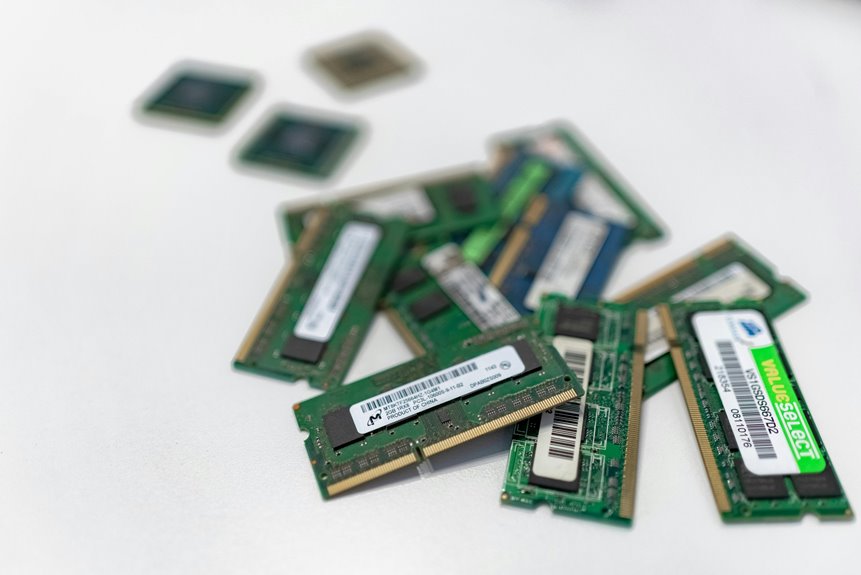
Does more RAM always make your laptop feel faster, or does the effect stop once your workload fits in memory? You’ll see that RAM mainly determines how smoothly you can juggle apps, tabs, and background tasks before the system falls back to slower storage. Once that happens, multitasking penalties show up fast, and the difference between 8GB, 16GB, and 32GB becomes hard to ignore.
What RAM Does in a Laptop
RAM in a laptop acts as fast, temporary workspace for the data your processor needs right now. You rely on it to hold active programs, open files, and system instructions so the CPU doesn’t keep fetching them from storage.
This enables quick data access and keeps your workflow responsive. Whenever you open software, your system loads the needed information into RAM, where it stays while you’re using it.
That design lets you move between tasks with less delay and helps your laptop maintain steady performance. Should RAM runs low, the system must clear space and reload data more often, which slows everything down.
In practice, more available RAM gives you the headroom you need to work confidently and stay in sync with your tools.
Why RAM Matters for Multitasking
Whenever you run many apps at once, each one reserves part of your RAM, and that capacity limit becomes the main constraint on multitasking.
If you switch between Photoshop, Excel, Slack, and Chrome with too little RAM, your system starts swapping data to storage, which slows every active task.
More RAM lets you keep more working data in memory, so app switching stays responsive instead of lagging or freezing.
Memory Capacity Limits
As your workload grows, memory capacity becomes the hard limit that determines whether multitasking stays smooth or turns into lag, freezes, and crashes. You hit memory ceilings once open apps, browser tabs, and background services consume more RAM than your laptop can reserve. At that point, the system adds allocation overhead, then starts swapping active data to storage, which slows processing and raises latency.
You’ll feel the impact in every task because the CPU waits longer for data it should’ve kept in memory. With enough RAM, you keep more working sets resident, reduce contention, and support the way your team works across tools.
That extra headroom helps you belong in faster, more reliable workflows, especially once your sessions stay open for hours.
Active App Switching
Once memory capacity is no longer the bottleneck, the next performance test is how quickly you can move between active apps without forcing reloads.
You need enough RAM to keep your working set resident while you shift window focus from Chrome to Excel, then to Slack or Photoshop.
With adequate memory, task switching feels immediate because the CPU reads data from RAM instead of slower storage.
Whenever RAM runs short, the system swaps, and each switch adds lag, freezes, or a full reload.
That delay breaks your flow and makes your laptop feel less responsive.
Should you manage many tabs, tools, or screens, higher RAM keeps active data close, so your multitasking stays efficient, stable, and consistent under pressure.
How Much RAM You Need
The amount of RAM you need depends on how many applications, browser tabs, and background processes you run at the same time. Provided that you only handle light work, 8GB can work, but you’ll feel limits fast with Chrome, Slack, and Office open together.
For most people, 16GB gives you smoother multitasking and fewer stalls; it also fits common RAM speed tiers without unnecessary cost. Provided that you edit video, run virtual machines, or keep many tabs active, 32GB is the safer choice.
You’ll also benefit from future proof sizing, since app memory demands keep rising. Select capacity firstly, then match your workload, so you stay in the productive group instead of fighting lag, freezes, and crashes.
RAM Vs. Storage: Why They’re Different
What’s the real difference between RAM and storage? You use RAM as your laptop’s active workspace: it holds the apps, tabs, and files you’re working on right now, so the CPU can reach them fast.
Storage, by contrast, keeps data long term on an SSD or hard drive.
That’s why the two serve different roles in cache hierarchy basics. RAM sits much closer to the processor, while storage lives farther away in the hierarchy.
You’ll see storage latency differences immediately when you open a large app or switch between tasks. RAM delivers quick access for active data; storage prioritizes capacity and persistence.
If you want smooth multitasking, consider of RAM as your team’s shared desk and storage as the archive.
What Happens When RAM Runs Low
Once your laptop runs low on RAM, it starts swapping active data to storage, which is far slower than memory access.
That shift increases latency, so apps can freeze, lag, or become unresponsive during multitasking.
You’ll notice the drop most when several memory-heavy programs compete for the same limited RAM.
Memory Swapping Slowdown
As RAM fills up, your laptop starts moving active data to slower storage in a process called swapping, and that shift sharply reduces performance.
You can consider this as virtual memory basics: the system extends RAM on disk, but access speed drops fast.
Whenever multiple apps keep requesting the same data, you’ll see disk thrashing effects, where the drive constantly shuttles pages in and out instead of letting the CPU work efficiently.
That extra I/O competes with your open programs, so multitasking loses its rhythm.
For you, the result is a machine that feels less responsive under pressure, especially whenever several tools, tabs, or background tasks share memory.
More RAM keeps active data close to the processor and helps your workflow stay steady.
App Freezing And Lag
Low RAM forces your laptop to pause active work, and apps start freezing because the system can’t keep enough data in fast memory. You feel lag whenever Windows or macOS pushes active files to storage, then pulls them back on demand.
That constant swapping cuts system responsiveness, especially when you keep Chrome, Slack, Excel, and Photoshop open together. Background processes still consume memory, so your foreground app gets less room and stutters during typing, scrolling, or tab switching.
Whenever you work across multiple screens, the pressure rises faster, and each extra window competes for the same limited RAM.
With enough RAM, your apps stay resident, interactions stay smooth, and your workflow feels more reliable.
How RAM Affects Browser Tabs and Apps
Browser tabs and open apps consume RAM the moment they load, and each additional tab, extension, or background process reduces the memory available for active work.
You’ll feel this most whenever Chrome holds many tabs, because browser extension clutter and media tab memory quickly compete with your editor, mail, and chat apps.
RAM keeps active data close to the CPU, so switching stays fast and pages reload less often.
Whenever memory runs tight, your laptop starts swapping to storage, and that delay slows every click, scroll, and app switch.
Provided that you manage multiple tools at once, you need enough RAM to keep your workflow responsive, stable, and in sync with the pace of your day.
Best RAM Sizes by User Type
Choosing the right RAM size depends on how you use your laptop, because your workload determines how much active data the system can keep ready in memory.
For basic student laptop use, 8GB usually covers note taking, web research, and light multitasking. Should you juggle many tabs, video calls, and Office apps, 16GB gives you smoother switching and fewer slowdowns. For creative work, coding, or heavy browser workloads, 32GB keeps large projects and background tasks responsive.
You’ll also feel the benefit whenever travel productivity matters, since fast app access reduces wait time on the move. Match RAM to your routine, not the marketing label, and you’ll stay in the performance zone with users who need efficiency, consistency, and headroom.
Can You Upgrade Laptop RAM?
Whether you can upgrade laptop RAM depends on the model, because many systems use soldered memory while others include accessible slots. You should check your service manual, since laptop compatibility determines whether you’ve got real upgrade options.
Should your chassis support DIMMs or SO-DIMMs, you can often add or replace modules to raise capacity and improve multitasking headroom. Should RAM be soldered, you’re limited to the factory configuration, so choosing the right spec upfront matters.
- Identify the exact laptop model
- Verify slot count and maximum supported RAM
- Match DDR generation and speed
- Confirm dual-channel support
- Review warranty before opening the case
Tips to Improve Multitasking Performance
When you want smoother multitasking, start by matching your RAM capacity to the number of apps, tabs, and screens you actually use. If you run Photoshop, Excel, Slack, and Chrome together, 16GB often feels like the practical baseline, while power workflows may need 32GB.
Use task prioritization to keep critical apps active and close tools you don’t need. Browser tab control matters too: trim media-heavy tabs, disable unneeded extensions, and do background cleanup so RAM stays available for active work.
On multi-screen setups, fewer open programs reduce lag and swap activity. You’ll notice faster switching, shorter load times, and fewer freezes because RAM lets the CPU access data immediately. That’s how your setup stays responsive, efficient, and part of a high-performing workflow.
Frequently Asked Questions
How Does RAM Affect Gaming With Multiple Monitors?
Multiple monitors do not automatically require more RAM by themselves, but higher resolutions, extra apps, and heavier game assets can increase memory use. Enough RAM helps keep textures, game data, and background programs loaded smoothly, which can reduce stutter, slowdowns, and crashes.
Does RAM Speed Matter for Everyday Multitasking?
Yes, RAM speed helps, but total capacity has a bigger impact on everyday multitasking. Dual channel memory can improve app switching and reduce delays when browsers, office apps, and chat tools are all using memory at the same time.
Can Virtual Machines Slow Down Laptop Multitasking Performance?
Yes, virtual machines can reduce laptop multitasking speed. They run alongside your other apps and consume CPU and RAM, which can lead to swapping, lag, and slower app switching if your system does not have enough memory.
Why Do Video Editors Need More RAM Than Office Users?
Video editors need more RAM because editing software keeps large video frames, preview caches, effect data, and timeline information in memory at the same time. That extra memory lets the editor scrub smoothly, preview edits faster, and reduce crashes when working with high resolution footage.
How Much RAM Do Browser Extensions Typically Use?
Browser extensions usually use about 10MB to 200MB each, though large tools can use more. When an extension uses more memory, your browser can slow down and tabs may feel less responsive.




