If your phone starts slowing down, draining fast, freezing, or missing calls and photos, the cause is often more specific than it first appears. You may be dealing with storage overload, worn cables, weak signal, app crashes, or concealed hardware wear that builds up over time. Some issues are easy to fix, while others point to deeper trouble, and the next few signs can help you tell the difference.
Why Smartphone Problems Happen
Smartphone problems usually happen whenever the device is overloaded, damaged, or running software that no longer fits its hardware. You can see slowdowns when RAM stays packed with unused apps and files, while older models often lag after updates add demands they can’t meet. Full storage also limits response time, and software bugs can trigger freezes or crashes.
As hardware wear builds, ports, buttons, and internal parts lose precision, so performance drops further. If you multitask heavily, you strain the CPU and make the phone feel less reliable. You’re not alone when this happens; many users face the same pattern as devices age. Careful app management and regular cleanup help you keep your phone responsive and stable without unnecessary strain.
Battery Draining Too Fast
Whenever you use power-hungry apps, they draw more energy and can drain your battery much faster than basic phone tasks.
You can reduce that strain through turning on battery-saving settings, which limit background activity and lower power use.
Should your battery still drops quickly, the issue often points to heavy app demand or settings that aren’t optimized for efficiency.
Power-Hungry Apps
You’ll notice this most with streaming, route guidance, and especially games, where game battery use climbs quickly and app heat builds as your phone works harder.
These apps often keep the CPU, screen, and radios active, so even short sessions can leave you searching for a charger.
If you belong to a group chat, a social feed, or a gaming community, you might see the same pattern: frequent refreshes and media loading quietly consume power.
You can reduce the strain via identifying which apps use the most energy and limiting the ones that stay active while you’re not using them.
Battery-Saving Settings
After identifying which apps consume the most energy, you can use built-in battery-saving settings to slow unnecessary drain. You should enable battery saver when charge drops, because it limits background activity, sync, and visual effects that quietly tax the system. Unless your phone supports adaptive display, let it lower refresh rates when you don’t need smooth motion.
Reduce screen brightness, shorten auto-lock, and turn off always-on features to conserve power. Review location privacy settings, since constant GPS access can keep radios active and drain the battery faster. You can also restrict background app refresh for tools you rarely open.
These controls help you stay connected longer, especially during busy days, while keeping performance steady and predictable.
Charging Port and Cable Issues
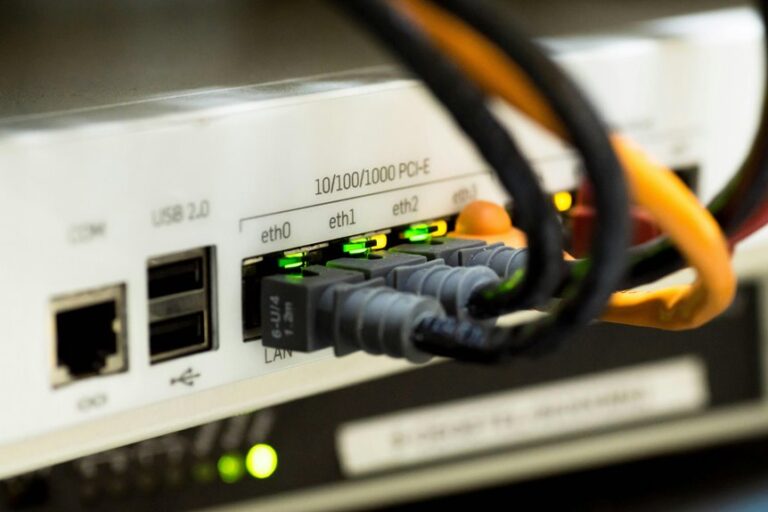
Damaged connectors can also prevent a steady current, even when the charger looks fine. Check for lint, bent pins, or corrosion in the port, and inspect the cable for fraying near the ends.
If you belong to a group of users troubleshooting together, you’re not alone; this problem is common. Swapping in a known-good cable or adapter helps isolate the fault. Should charging still fail, the port itself likely needs professional repair or replacement.
Slow Performance and Lag
When your phone also feels sluggish, the problem could go beyond charging hardware and into system performance. You might notice delayed app launches, slower typing, and longer load times whenever RAM fills with unused apps and background data. Older devices often lag as updates, cached files, and full storage strain the CPU.
You can improve response with memory cleanup, removing clutter, and closing apps you don’t need. Software optimization also helps: update the OS, trim widgets, and disable services that keep working in the background. Whenever you multitask heavily, your phone can feel overloaded and less reliable. Through treating lag as a shared maintenance issue, you can restore smoother performance and stay confidently connected.
Frozen Screen or Unresponsive Touch
whenever the screen freezes or touch stops responding, full storage and overloaded software are often part of the problem. You can test whether your phone still reacts after a restart, because that clears temporary conflicts and helps you see whether the issue is persistent.
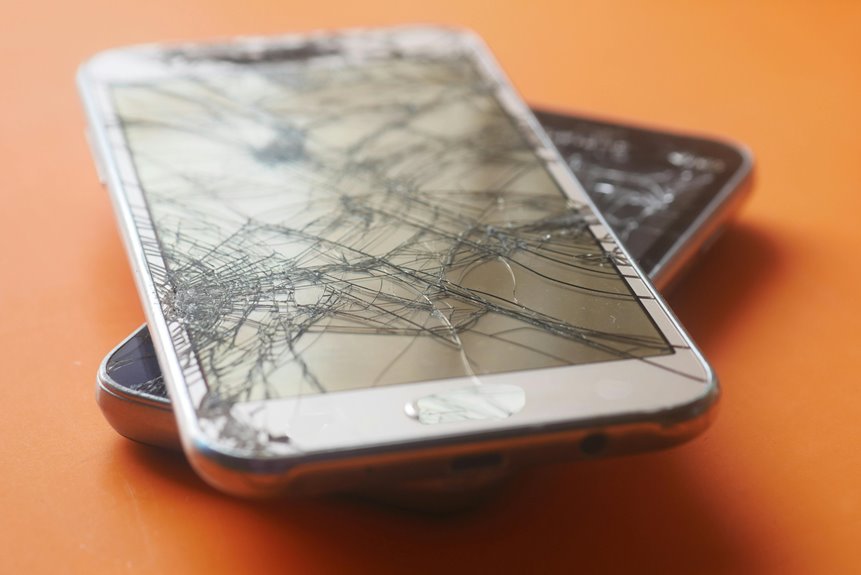
If taps register in the wrong spot, review touch calibration settings; a misaligned screen digitizer could cause delayed or inaccurate input. Clean the display, remove a tight case, and check for damage around the edges.
If the problem continues after you close recent apps and free space, you might need a software update or service support. You’re not alone in this; many users face the same fault whenever components age or data builds up over time.
Overheating During Use
When you use your phone heavily, the CPU, power-hungry apps, and charging problems can push its temperature up quickly.
You can lower heat by closing demanding apps, removing the phone from direct sunlight, and pausing use while it cools.
Should it keep overheating, even with normal use, you should have it checked for battery or hardware issues.
Common Heat Causes
Your smartphone often heats up during use because its processor is working harder than usual, especially as you run multiple apps at once or use power-intensive features like gaming, streaming, or GPS guidance.
Environmental heat can intensify this effect, since warm rooms, direct sunlight, or a hot car reduce your phone’s ability to release energy efficiently.
You might also notice thermal buildup while background tasks keep the CPU active for long periods.
Older devices, dense cases, and sustained data transfers can add to the load, making the chassis feel warmer than expected.
This pattern is usually most noticeable while you’re multitasking heavily, because each active function increases internal demand and slows heat dissipation.
Insight into these causes helps you recognize while your device is under stress, not just acting unusually.
Safe Cooling Steps
Your smartphone starts overheating during use, you should ease the load immediately by closing power-hungry apps, stopping intensive tasks such as gaming or wayfinding, and letting the device rest in a cooler place. Improve device ventilation by removing thick cases, keeping vents and edges unobstructed, and avoiding soft surfaces that trap heat. Use temperature monitoring to watch for rising warmth while you charge or multitask, because quick checks help you spot patterns before heat builds.
| Step | Effect |
|---|---|
| Close apps | Lowers CPU demand |
| Move to shade | Reduces ambient heat |
| Pause charging | Limits extra warmth |
These actions keep you connected with your device’s normal operating range and support safer daily use.
When To Seek Help
Even with careful cooling steps, some overheating problems need professional attention. If your phone still feels hot after light use, shuts down unexpectedly, or drains battery quickly, you’re likely contending with a hardware fault rather than normal strain.
You should stop using it and let a technician inspect the battery, charging port, and internal components. Persistent heat can signal damaged circuitry, a failing battery, or charger problems that home fixes won’t resolve.
If the device is under warranty, contact warranty support before opening the phone or paying for service. Otherwise, seek professional repair from a reputable shop that can test the device safely.
Acting promptly helps you protect your phone, stay connected, and avoid further damage that could affect performance, data, or your own confidence.
Weak Wi-Fi or Mobile Signal
Weak Wi-Fi or mobile signal can make a smartphone seem unreliable even though the device itself is functioning normally. You should initial check network coverage, then look for signal interference from walls, metal, or crowded radio environments. | Cause | Effect |
| — | — |
|---|---|
| Distance from router | Weaker Wi-Fi |
| Poor coverage | Dropped calls |
| Interference | Slow data |
| Network congestion | Delayed loading |
| Thick barriers | Fewer bars |
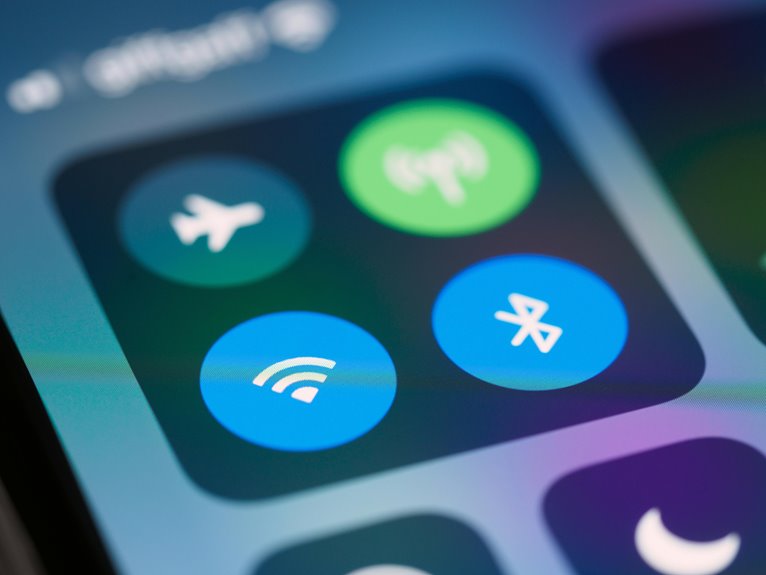
If you move closer to a router or open area, performance often improves. You can also restart your connection, toggle airplane mode, or switch between Wi-Fi and cellular service. These steps help you rule out service limits before assuming a hardware fault. Upon you understand the source, you stay in control and avoid unnecessary worry.
Apps Crashing or Freezing
Whenever apps start crashing or freezing, you’re often looking at a software or resource problem rather than a broken phone. You can usually trace the issue to recent updates, app compatibility gaps, or corrupted app data. If a crash begins after you install or update something, that change is a strong clue.
You should also check whether your phone’s operating system can support the app’s current version, because mismatched app compatibility often triggers instability. When too many apps run at once, your device may struggle to keep one app responsive, especially if background processes are active.
Closing and reopening the app, restarting the phone, or reinstalling the problem app often restores normal behavior and helps you stay in the group of users who keep devices running smoothly.
Storage Running Out
As your phone’s storage starts running out, it can quickly affect both performance and basic functionality. You might notice slower app launches, delayed updates, and fewer options whenever you try to install new tools.
Full media storage often comes from photos, videos, downloads, and cached data that build up over time, even if you don’t use them. A careful file cleanup helps you identify what to keep, move, or delete so your device stays responsive. You can also review large attachments and old documents to reclaim space efficiently.
Whenever storage stays near capacity, your phone works harder, and everyday tasks feel less reliable. Staying ahead of space limits helps you keep your device organized and makes it easier to belong in a connected, efficient routine.
Sound and Camera Problems
Once storage issues are under control, you might still run into sound and camera problems that affect how well your phone records, plays, and captures media. You may hear sound distortion from blocked speakers, loose audio settings, or damaged hardware, which can make calls and videos harder to trust. Camera focus can slip when the lens is dirty, the app lags, or autofocus struggles in low light.
| Symptom | Likely cause |
|---|---|
| Muffled audio | Dust in speaker grills |
| Crackling sound | Loose jack or speaker fault |
| Blurry photos | Smudged lens |
| Slow focus | Autofocus strain |
| Noisy video | Microphone obstruction |
You can test each function separately, compare results with headphones, and update apps or firmware. If problems continue, service support can help you stay connected and confident.
Frequently Asked Questions
Why Does My Phone Keep Restarting Randomly?
Your phone may be restarting because it gets too hot, the software crashes, storage is nearly full, the battery is wearing out, or a recent update has a bug that strains the device.
How Can I Tell if My Phone Battery Needs Replacement?
You should replace the battery if it drains quickly, runs hot, or starts to swell. Apple notes that batteries below 80 percent capacity often perform poorly. If charging is becoming unreliable, have it checked soon.
Why Is My Phone Not Detecting My SIM Card?
Your phone may not detect your SIM card if the SIM tray is damaged or if your carrier has locked the device, which can stop proper contact or authorization. Try reseating the card, checking your phone settings, and contacting your carrier if the error continues.
What Causes My Phone Speaker to Sound Distorted?
Distorted sound usually points to a blocked speaker grille packed with dust, or to damage in the audio hardware. Around 1 in 4 users notice it after drops, moisture exposure, or blasting the volume too high for the speaker to handle.
Why Won’T My Phone Camera Focus Properly?
Your phone camera may fail to focus when smudges on the lens obscure detail or when autofocus settings are off. Clean the lens, check the focus mode, and restart the app. Low light, software glitches, or physical damage can also affect focus.