

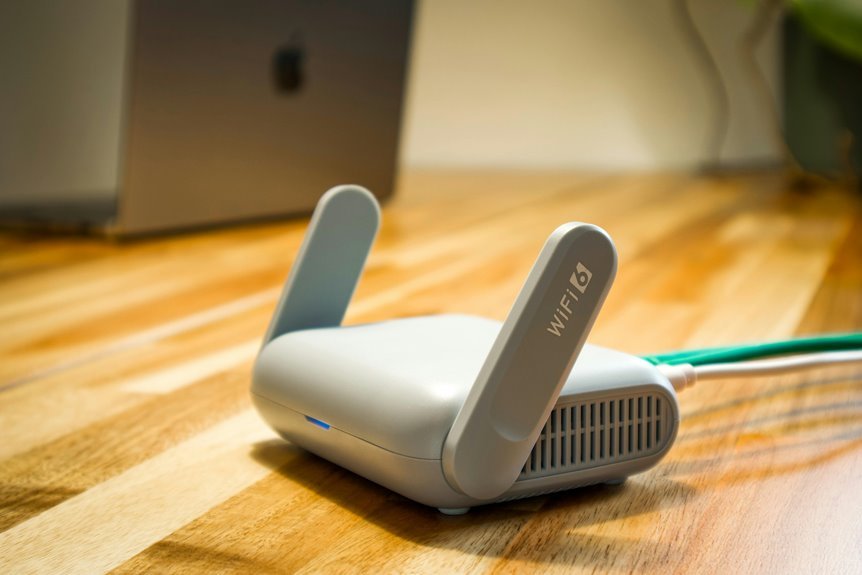
Your laptop connects to a coffee shop network, but the signal drops every few minutes. You use WiFi to link the device to a router through radio waves, then exchange data after authentication and DHCP assign an IP address. Performance depends on the adapter, driver state, band selection, and interference. Security also matters, because weak settings can expose your connection. The next step is figuring out why some links stay fast while others don’t.
What Laptop WiFi Does
Laptop WiFi is the wireless link that lets you connect your laptop to the internet without a cable. You use it to join a network, send data to a router, and receive data back through radio signals. That process gives you wireless internet access wherever a compatible network reaches.
Your laptop’s WiFi adapter functions as the interface that manages those exchanges, so you can browse, stream, and work without plugging in. It also lets you identify nearby networks by name, compare signal strength, and choose the connection that fits your needs. Upon you’re online, you stay part of the same digital space as everyone else, sharing files, messages, and services with ease and confidence.
Laptop WiFi Hardware Explained
Inside your laptop, the WiFi hardware includes a wireless network adapter that acts as the link between your system and a router, using radio signals instead of cables.
You’ll usually find two core parts: the wireless card and the antenna assembly.
Wireless card types vary by size and interface, such as M.2 or mini PCIe, but each handles radio processing, modulation, and protocol support.
The wifi antenna design matters because it shapes signal gain, directionality, and reliability inside the chassis.
Modern laptops integrate compact antennas near the display to reduce obstruction and improve reception.
When you understand these components, you can identify hardware limits, match supported standards, and feel confident choosing a system that fits your network needs and keeps you connected with your workspace.
How a Laptop Connects to WiFi
Once the wireless adapter and antennas are in place, your laptop connects to WiFi through scanning for nearby SSIDs, which are the names broadcast from routers. You choose your network, and the WiFi connection process begins with a handshake that compares your adapter’s capabilities with the router’s settings.
Next, your laptop performs network authentication steps by sending credentials, usually a password, to verify access. Should the router accepts them, it assigns an IP address through DHCP, and your system joins the local network.
From there, your laptop can send and receive data over radio waves. Upon you belong to a trusted network, your connection stays ready for apps, updates, and browsing without extra setup.
Why Laptop WiFi Gets Slow
When your laptop’s WiFi slows down, the cause is usually one or more bottlenecks in the wireless path: weak signal strength, radio interference, router congestion, outdated WiFi standards, or a misconfigured adapter. You’re not alone; these limits affect many users.
| Cause | Effect | Your feeling |
|---|---|---|
| Weak signal | Drops | Frustrated |
| Interference | Retries | Stalled |
| network congestion | Latency | Excluded |
| hardware aging | Lower throughput | Worn out |
| Adapter mismatch | Instability | Disconnected |
A busy router can’t serve every device at once, and shared channels amplify delay. Older radios also lose efficiency as hardware aging raises error rates. You might notice pages loading in bursts, video buffering, or login timeouts. Check the SSID, adapter status, and standard support initially; those details often explain the slowdown clearly.
How to Boost Laptop WiFi Performance
If slow WiFi comes from weak signal, interference, or an outdated adapter, you can usually improve performance by fixing the laptop side initially.
Start by confirming your wireless adapter supports current standards, because older hardware caps throughput and increases latency. Use speed testing methods at different rooms to find the strongest position and isolate dead zones. Keep the laptop clear of metal surfaces, docks, and USB 3.0 devices that can add noise.
Update the adapter driver from the manufacturer, not generic tools. Check battery saver impact, since power saving can throttle radio performance and reduce range.
When you work with the right setup, you join a faster, more reliable network experience and get steadier calls, downloads, and streaming.
Laptop WiFi Settings to Check
Start with the laptop’s WiFi controls, because a few settings often decide whether you connect cleanly or not. Open the WiFi settings menu and confirm WiFi is on, airplane mode is off, and the correct SSID appears.
Check the adapter’s status in network properties so you know the hardware is active. In network profile management, remove stale profiles and keep the current one set to connect automatically.
Verify security matches the router, usually WPA2 or WPA3, and enter the password exactly. Should you use random hardware addresses, leave them enabled for privacy unless your network requires a fixed address.
Review metered connection and IPv6 options only when your admin asks. These checks help you stay part of a stable, secure wireless environment.
How to Fix Common WiFi Problems
Should your WiFi drops or won’t connect, restart the wireless adapter first to clear temporary faults. You can do this in Windows via disabling and re-enabling the adapter or using the hardware toggle should your laptop has one.
Should the problem persists, update the wireless drivers to make certain you’re using the latest compatibility and stability fixes.
Restart Network Adapter
Restarting the network adapter can quickly clear temporary WiFi faults on your laptop by resetting the wireless interface and reestablishing communication with the router.
Open your network settings, then follow the adapter restart process by disabling the wireless adapter, waiting a few seconds, and enabling it again.
This network reset routine refreshes the connection state without changing your saved SSID or password.
If your laptop still can’t join the network, restart the system once, then try reconnecting to the router.
You’ll often restore normal access after a brief interruption.
Use this step when the connection drops, the signal stalls, or the network icon shows limited access.
It’s a simple fix that helps you stay connected with your device community.
Update Wireless Drivers
Updating your wireless drivers can resolve many common WiFi problems through replacing outdated or corrupted software that controls the laptop’s wireless adapter.
Open Device Manager, expand Network adapters, then select your adapter and check driver details.
Visit your laptop maker’s support page to confirm driver compatibility with your exact model and Windows version. Download the latest package, then run the driver installation or choose Update driver in Windows and point to the file.
Restart your laptop after installation so the new code loads cleanly.
Assuming WiFi still drops or won’t connect, roll back to a previous driver or uninstall the current one before reinstalling.
You’ll stay connected more reliably once your adapter uses current, certified software.
How WiFi Bands Affect Laptop Connections
WiFi bands directly affect your laptop’s connection speed, range, and reliability because each band uses different radio frequencies and handles interference differently.
On 2.4 GHz, you get better 2.4ghz range through walls and farther rooms, so your laptop stays connected whenever you’re away from the router.
On 5 GHz, you get higher 5ghz speed, lower latency, and cleaner channels, which helps whenever you’re streaming, gaming, or moving large files.
In case you’re in a crowded apartment or office, 2.4 GHz can suffer from overlap with nearby devices, while 5 GHz usually feels faster and more stable.
Choose the band that matches your space and task, and you’ll keep your connection aligned with the network performance you need.
When You Need a WiFi Adapter
You need a WiFi adapter whenever your laptop can’t detect or use a wireless network, because the adapter is the hardware that lets the computer communicate with the router over radio signals.
You’ll also need one whenever Device Manager shows no wireless hardware, whether the internal card fails, or if you’re using a desktop-style laptop repair setup.
Check adapter compatibility with your operating system and the router’s WiFi standard before you buy.
Many users choose external dongles because they’re fast to install through USB and work well because the built-in module is missing.
Whenever your laptop already has a working adapter, you don’t need another one; you just need the right network settings and an available SSID.
With the correct adapter, you stay connected and included.
How to Keep Laptop WiFi Secure
To keep your laptop WiFi secure, use WPA3 or WPA2 on every network you join, because those protocols encrypt traffic and block weak access. Verify the SSID before connecting, and ignore look-alike names. On public WiFi safety, avoid open hotspots unless you trust the venue and need access.
Turn on your firewall, update your OS, and sign out after use. Maintain encryption awareness by checking the lock icon and reading network details.
- Choose strong, unique passwords
- Enable a VPN on shared networks
- Disable auto-join for unknown SSIDs
- Use random hardware addresses
- Forget networks you don’t use
How to Keep Laptop WiFi Stable
To keep your laptop WiFi stable, place the router in a central, raised location with minimal obstructions.
You should also update your wireless drivers so your adapter uses the latest performance and compatibility fixes.
Cut signal interference by moving away from microwaves, cordless phones, and crowded channels.
Optimize Router Placement
A laptop’s WiFi stays more stable whenever the router sits in a central, raised, open location with minimal obstructions between the router and the wireless adapter. You improve signal coverage near placing it near the middle of your space, not in a corner or behind metal surfaces. Router elevation matters because higher placement reduces floor-level blockage and helps radio waves spread evenly.
To keep your connection steady, follow these checks:
- Put the router on a shelf, not the floor.
- Keep it away from walls, mirrors, and appliances.
- Center it between your laptop and the modem.
- Avoid cabinets, drawers, and dense furniture.
- Reposition it whenever one room gets weak coverage.
Whenever you optimize placement, you help everyone in your network feel included and connected.
Update Wireless Drivers
Keeping your laptop’s wireless drivers up to date helps WiFi stay stable, since the driver is the software link between the wireless adapter and the network.
You should check Device Manager, identify the adapter, and compare the installed version with the latest release from your laptop maker or adapter vendor.
Updated drivers improve driver compatibility with Windows, router protocols, and security changes. They can also fix drops, slow connections, and failed handshakes.
Should your model support it, install related firmware updates too, because they can refine radio behavior and power management.
Use trusted sources, restart after installation, and test your connection after each update.
That way, you stay aligned with the latest support and keep your WiFi experience reliable.
Reduce Signal Interference
Even while your WiFi adapter and drivers are working properly, signal interference can still make your laptop’s connection unstable. You can reduce it by moving closer to the router and keeping clear line of sight.
Use the 5 GHz or 6 GHz band if nearby devices crowd 2.4 GHz. Check for channel overlap in your router settings and switch to a cleaner channel. Keep microwaves, Bluetooth devices, and cordless phones away from your laptop and router.
- Reposition the router higher
- Remove metal obstructions
- Limit nearby wireless devices
- Enable signal shielding where available
- Test alternate WiFi channels
These steps lower noise, improve throughput, and help you stay connected with the network you rely on.
Frequently Asked Questions
How Do I Find My Laptop’s Wifi MAC Address?
Open Settings or Device Manager, choose the wireless adapter, and read the physical address listed in its details. To check it, match the MAC address with the one shown on your router.
Can I Use Two Wifi Networks Simultaneously on One Laptop?
Usually, one laptop cannot stay connected to two WiFi networks at the same time unless it has two network adapters or you configure connection sharing. In that setup, each adapter connects to a separate network, and you can route traffic between them or share the connection as needed.
How Do I Create a Hotspot From My Laptop?
Open Settings, go to Network and Internet, then turn on Mobile hotspot. Select the connection to share, give the hotspot a name, create a password, and turn on internet sharing so other devices can join securely.
What Does the SSID Mean on My Laptop?
SSID is the name of your WiFi network. It appears in your laptop’s network list and helps you pick the correct connection.
How Do I Change My Laptop’s Wifi DNS Settings?
Open Settings, go to Network and Internet, choose WiFi or Ethernet, then open DNS settings and edit the network configuration. Enter your preferred and alternate DNS addresses, save the changes, and reconnect. This can improve name resolution speed and privacy.




