Whenever you use USB technology, you rely on a standardized system that moves data and power between hosts, devices, and hubs through packet-based communication. You’ll see different connectors, cable limits, and speed tiers, each affecting performance and compatibility. Power delivery adds another layer, negotiating voltage and current for charging. The real question is how these pieces shape everyday device behavior, and that’s where the details start to matter.
What Is USB Technology?
USB, or Universal Serial Bus, is an industry standard developed via the USB Implementers Forum (USB-IF) for data transfer and power delivery between hosts, peripherals, and hubs.
You use it to connect devices through a common interface that reduces connector variety and improves compatibility. Its USB origins trace to the mid-1990s, at the time engineers needed a unified replacement for fragmented ports.
USB design defines the physical connectors, logical roles, and communication rules that let your computer identify a peripheral and support it reliably.
You benefit from a layered design that scales across generations while preserving backward compatibility. That structure helps you feel included in a broad ecosystem where keyboards, storage, displays, and chargers share one dependable standard.
How USB Transfers Data
Data moves over USB in small structured packets, and the host controls whenever each device sends or receives them.
You don’t transmit whenever you like; instead, the controller schedules traffic through host polling, so your device gets a precise turn. Each packet uses packet framing to mark boundaries, identify the endpoint, and protect integrity with error checks. The host then interprets the data and routes it to the right application or driver.
This design keeps communication orderly, even when several peripherals share the same bus. Whenever you connect devices, you join a coordinated system where timing, roles, and designation stay explicit. That structure helps you move files, input, and control signals reliably, while the protocol keeps latency predictable and collisions out of the path.
USB Connectors, Cables, and Ports
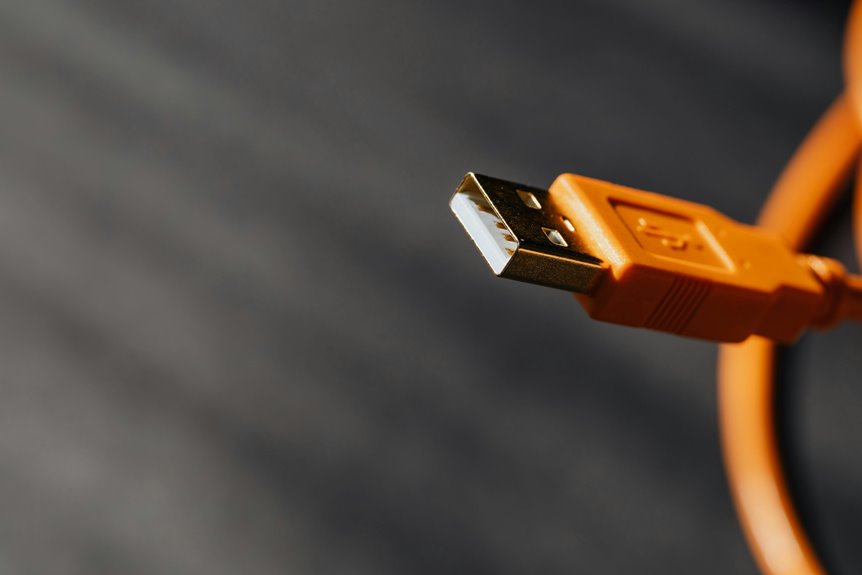
Although the connector is often the most visible part of the system, it also determines how power, speed, and compatibility line up across the link. Whenever you choose USB ports, you’re really matching connector pin layouts, cable shielding quality, and mechanical fit to the device pair.
A well-built cable keeps signal paths stable and limits noise, while a poor one can weaken power delivery and raise errors. You’ll also notice that port shape and keying guide insertion, so you connect confidently without forcing the plug.
In mixed setups, the link follows the least capable component, so your gear works only as well as the weakest connector, cable, or port. That’s why careful selection helps you stay in sync with the broader USB ecosystem.
USB Versions and Speed Differences
Using only contextually relevant alternative words for the specified terms, the modified text is:
When you compare USB versions, the headline difference is transfer rate, and the gap between generations can be dramatic: USB 1.0 moves data at 1.5 Mbps, USB 1.1 at 12 Mbps, USB 2.0 at 480 Mbps, USB 3.0 at 5 Gbps, and USB 3.1 at 10 Gbps.
This version evolution reflects a steady push for higher bandwidth and lower transfer latency across your devices.
In a bandwidth comparison, USB 2.0 is 40 times faster than USB 1.1, while USB 3.0 delivers another major jump for storage, video, and high-volume peripherals.
When you connect mixed versions, the link negotiates to the slowest common speed, so your actual throughput might drop.
That’s why matching the right standard keeps your setup efficient, predictable, and in sync.
USB Power Delivery and Charging
You can use USB Power Delivery to negotiate voltage and current adaptively, which lets a single USB-C link supply anything from low-power accessories to high-wattage devices.
Fast-charging protocols build on this negotiation layer to increase charge rates while keeping thermal and electrical limits controlled.
In practice, you need to match the charger, cable, and device capabilities to achieve the highest safe power level.
Power Delivery Standards
Power delivery has become a defining capability of modern USB, not just an auxiliary function. You rely on standardized power rules to keep devices within safe operating limits while maximizing usable energy. USB power budgets and negotiation let your host, peripheral, and charger agree on voltage and current before sustained delivery begins, reducing thermal stress and connector wear.
With USB C wattage and cable ratings, you can match the cable to the load, since poorly rated assemblies limit current and could undermine performance. You’ll see that higher-wattage USB-C systems support laptops, tablets, and docks through a shared interface, which helps your setup stay cleaner and more interoperable. Precise compliance matters, because the standard defines what you can draw, what you can source, and what your cable can safely carry.
Fast Charging Protocols
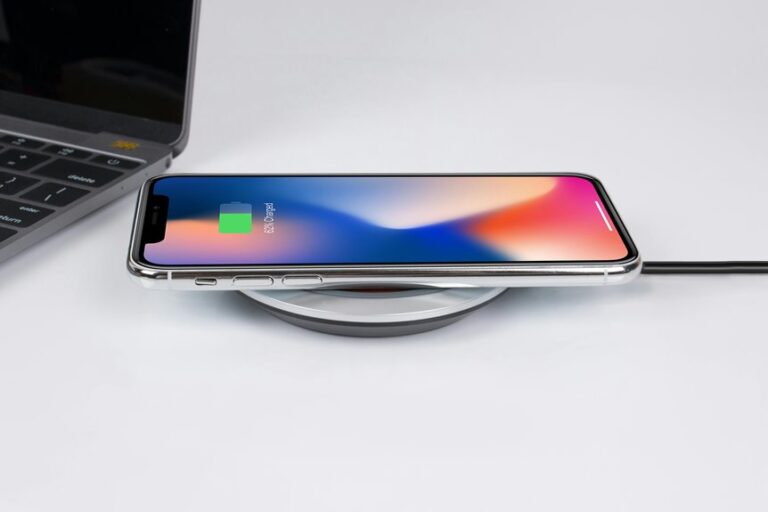
Fast charging builds on USB power delivery using negotiated voltage and current profiles instead of fixed, one-size-fits-all charging. You and your device exchange capabilities, then select the safest, most efficient mode for the cable, charger, and battery chemistry. This protocol lets you reach higher wattages through adaptive charging methods that adjust output as temperature, state of charge, and load change.
You benefit from battery protection features that limit excessive current, control heat, and reduce long-term capacity loss. USB Power Delivery also supports backward compatibility, so you can connect within a common ecosystem without sacrificing reliability. Whenever you choose certified hardware, you gain predictable performance, tighter thermal management, and faster top-off times. That consistency helps you stay in control and connected.
Everyday USB Devices and Use Cases
In everyday use, USB connects a wide range of devices, from keyboards and mice to printers, scanners, external drives, webcams, and displays, through a single standardized interface.
You rely on USB in office peripherals to streamline input, output, and storage, while USB in home entertainment links consoles, media players, sound interfaces, and capture devices with predictable compatibility.
Upon you plug in a peripheral, your system identifies it, loads the needed driver, and starts data exchange with minimal setup.
You can move files, extend your workspace, and power low-demand devices through the same cable family.
Because USB supports common connectors and versioned performance tiers, you fit devices into a cohesive workflow without fragmenting your setup or sacrificing technical control.
Common USB Problems and Fixes
When USB devices misbehave, you can usually trace the issue to a few predictable causes: an incompatible version mismatch, a damaged cable or connector, insufficient power delivery, or a missing driver. You should verify device recognition in your system manager, then reseat the plug and inspect the port for bent contacts or debris.
If the peripheral still drops offline, test another cable to improve connection stability and rule out intermittent wiring faults. For bus-powered devices, connect through a powered hub or direct port so voltage stays within spec. You can also restart the host to force driver reloading and clear stale enumeration states. Whenever multiple devices share one hub, disconnect extras and isolate the faulty unit. This methodical sequence usually restores normal communication quickly.
How to Choose the Right USB Version
Choosing the right USB version means matching speed, power, and compatibility to the device chain you actually need. You should start with device compatibility, because a faster port won’t help provided your peripheral tops out at USB 2.0. Then weigh workload: storage, video, and docks benefit from USB 3.2 or USB4, while keyboards and mice don’t.
For future proofing, pick USB-C and the newest version your host and cable both support.
- Check the slowest device in the chain.
- Verify cable rating and connector type.
- Match power delivery to charging demands.
- Choose USB4 provided you need tunneling for displays or PCIe.
This approach keeps your setup efficient, aligned, and ready to belong in a modern USB ecosystem.
Frequently Asked Questions
What Does USB Stand For?
USB stands for Universal Serial Bus. It is a standard connection used to transfer data and supply power between devices such as computers, phones, and peripherals.
Who Develops USB Standards?
USB standards are developed by the USB Implementers Forum, or USB IF, through its governance process and input from member companies. This group creates the technical rules that define how USB devices connect, communicate, and work together across brands.
Why Do USB Speeds Differ Between Versions?
You see different USB speeds because each version uses its own signaling method, number of lanes, and encoding scheme. Bus power limits and cable quality can also reduce throughput. When you connect mixed devices, the slowest link sets the maximum speed.
How Many Lanes Does USB Type-C Use?
USB Type C typically uses four lanes, with two for transmitting data and two for receiving it. In alternate mode, those lanes can carry different signals. This setup supports faster data transfer and works across many devices.
What Is USB4 Protocol Tunneling?
USB4 protocol tunneling carries USB 3.2, PCIe traffic, and DisplayPort streams over a single physical link, allowing efficient bandwidth sharing while preserving device compatibility and high performance.