You use Wi‑Fi every day, and billions of devices now rely on it to stay online. This wireless system moves data with radio waves between your device and a router or access point, using IEEE 802.11 standards across 2.4, 5, and 6 GHz bands. Its speed, coverage, and security depend on setup, placement, and protocol choice, and the next shift in Wi‑Fi will change what you expect from connectivity.
What Is WiFi Technology?
Wi-Fi technology is a family of wireless networking standards, defined via IEEE 802.11, that lets devices connect and exchange data over radio waves instead of cables. You use it to join local networks without physical links, so your phone, laptop, and smart gear can work together smoothly.
Its wifi origins trace back to IEEE efforts to standardize wireless networking for reliable interoperability across brands. Each revision sets bands, channels, range, and throughput limits, so you can expect consistent behavior from certified devices.
The system supports shared access in homes, offices, and public spaces, helping you stay included in the same digital space. Wi-Fi isn’t a single product; it’s a protocol family that coordinates radio communication for everyday connectivity.
How WiFi Connects Devices
You first scan for nearby Wi-Fi networks, then your device identifies the router’s signal and requests access. The router authenticates your device, assigns an IP address, and establishes the link. After that, your data moves as packets through the router and on to the wider network.
Device Discovery Process
Device discovery begins once a Wi-Fi-enabled device scans the available radio channels for nearby access points broadcasting a network name. During signal scanning, you compare signal frames, record signal strength, and confirm network visibility across 2.4 GHz, 5 GHz, or 6 GHz bands.
Your adapter listens passively, then might send a probe request to reveal compatible networks more quickly. Each response tells you the network’s identifier, supported standards, and basic capability set. You can then judge which access point fits your device and location best.
This process lets you locate a trusted space, connect with confidence, and stay within a familiar wireless community. Clear discovery depends on compatible IEEE 802.11 protocols, accurate channel tuning, and low interference, so your device can recognize the right network efficiently.
Router Signal Exchange
Once your adapter finds a matching access point, it sends an authentication request and starts a signal exchange with the router. You then complete signal handshakes that confirm identity, compatibility, and network membership.
The router checks your credentials, assigns association status, and opens a controlled path for your device. Through this router relay, the access point and router coordinate timing, channel use, and link quality so your connection stays stable.
When encryption is enabled, both sides negotiate security parameters before joining the network. You’re now part of a trusted wireless group, ready for the next stage of communication.
These steps happen quickly, but each one matters because they confirm that your device belongs on the network and can communicate reliably with the infrastructure.
Data Transmission Path
After your connection is authorized, data starts moving as binary packets across the Wi-Fi link. Your device’s adapter converts bits into radio signals through signal encoding, then sends them to the access point over 2.4, 5, or 6 GHz channels.
The access point reads each frame, checks headers, and performs packet routing toward the router or local destination.
Provided you’re reaching the internet, the router forwards those packets through wired uplinks and back again on the return path.
Each step uses TCP/IP rules, so your messages stay ordered, addressed, and error-checked.
You belong to the network once your packets arrive cleanly, and the system keeps the exchange secure with encryption while it tracks timing, retries, and bandwidth for every device on the link.
What Makes Up a WiFi Network
At its core, a WiFi network is built from three main elements: a wireless router or access point, wireless adapters in connected devices, and the radio signals that carry data between them.
You rely on these network hardware roles to create a stable link, route traffic, and keep your devices part of the same local network.
The router manages access, while your adapter sends and receives packets.
Together, the wireless signal components move information through the air as encoded data.
For you, this means your phone, laptop, and tablet can join a shared environment, exchange data, and reach the internet without cables.
Once each component works correctly, you get dependable coverage, consistent connectivity, and seamless participation in your WiFi network.
WiFi Standards and How They Compare
WiFi networks work because devices and routers follow shared IEEE 802.11 standards, which define how wireless communication happens across different versions. You benefit because each revision raises throughput, lowers latency, and improves device support without changing the basic connection process. Wi-Fi 4, 5, 6, and 7 differ in efficiency, spatial streams, and scheduling, so you can match performance to your needs.
wifi certification updates help you identify approved gear, while interoperability testing methods confirm that mixed brands connect reliably.
- You gain smoother joins with certified devices.
- You compare generations via speed and efficiency.
- You trust mixed vendors at such time standards align.
These standards keep your network predictable, secure, and compatible, so you can stay connected with confidence.
WiFi Frequency Bands Explained
Whenever you connect to a wireless network, the router sends data over one of three frequency bands: 2.4 GHz, 5 GHz, or 6 GHz.
You choose the band that best fits your device and network goals. The 2.4 GHz advantages include broader compatibility and support for older devices, while 5 GHz usually offers more channels for faster communication in busy homes or offices. If you use Wi-Fi 6E or newer gear, 6 GHz capacity gives you extra bandwidth for more concurrent connections and less channel contention.
You should match band selection to your traffic needs, device support, and local wireless environment. Together, these bands help you stay connected with your network community through reliable, standards-based wireless communication.
How WiFi Range and Coverage Work
Range depends on how well your router, access point, and client device can move radio waves through the environment. You get stronger coverage when you reduce signal attenuation from walls, furniture, metal, and distance.
Your WiFi footprint shrinks as frequency rises, so 5 GHz and 6 GHz usually cover less space than 2.4 GHz. Good coverage planning places access points where their cells overlap just enough to keep you connected as you move.
- In a small room, one router might be enough.
- In larger homes or offices, add access points for steady coverage.
- In public spaces, overlapping cells help your devices stay in the network.
You belong on the network when placement, band choice, and device sensitivity work together.
Common WiFi Problems and How to Fix Them
Whenever your connection drops, slows down, or won’t authenticate, the cause is usually a signal, configuration, or interference problem. You should check your router’s status lights, then move closer to the access point to see whether signal interference is the issue.
Thick walls, microwaves, and neighboring networks can trigger intermittent disconnections, so you might need a clearer channel or a better band. Whenever devices fail to join, verify the password, security mode, and device compatibility with your Wi-Fi standard.
Restart your router and adapter to clear temporary faults. Update firmware and drivers to fix known bugs. Whenever only one device fails, reset its network settings and reconnect.
These steps help you stay connected and keep your network reliable.
How to Set Up a WiFi Network
To set up a WiFi network, you initially connect your router’s WAN port to your internet source, then power on the router and confirm it can reach the internet through the modem, fiber line, or satellite link.
Next, log in to the admin panel, set your network name and password, and save the changes. Use a network setup checklist so you don’t miss DHCP, security, or firmware updates. Follow an equipment placement guide that keeps the router raised, central, and away from metal or thick walls.
- Check the status lights before you connect devices.
- Join one device initially, then test speed and reach.
- Add access points only when coverage feels weak.
When you finish, you’ll give everyone in your space a stable, secure connection.
How to Choose the Right WiFi Setup
Start when mapping your coverage needs, including floor area, wall density, and the number of devices you’ll support.
Then compare router options by Wi‑Fi standard, band support, throughput, and whether you need one router or multiple access points.
Choose the setup that matches your range and capacity requirements without overprovisioning.
Assess Coverage Needs
Evaluating your coverage needs starts with matching your space, device count, and usage patterns to the right Wi-Fi setup. You should measure square footage, wall density, and floor layout, then map dead zones before you buy. A simple site survey planning step helps you identify where signals weaken, while signal heatmapping shows how far coverage really reaches.
- In a small apartment, one strong access point perhaps feel seamless.
- In a multi-room home, you’ll need overlapping coverage to stay connected.
- In busy shared spaces, more devices mean more demand on every channel.
Check where you stream, game, or work, because those habits shape coverage needs. As soon as you understand your environment, you’ll choose a setup that feels reliable, familiar, and ready for everyone in your space.
Compare Router Options
Once you know your coverage needs, compare router options while checking Wi-Fi standard support, band availability, antenna design, and throughput.
You’ll usually choose among router hardware types such as single-unit routers, mesh systems, and router-plus-access point setups.
Match the design to your home size and device count, then verify 802.11 compatibility so your clients connect cleanly.
Dual-band units fit tight budgets, but tri-band or Wi-Fi 6E models give more capacity and less congestion.
Focus on budget vs performance by checking real-world speeds, WAN port rating, and security features.
Should you want your network to feel reliable and included, pick a router that keeps every room connected without forcing devices to compete for airtime.
Routers, Access Points, and Mesh Systems
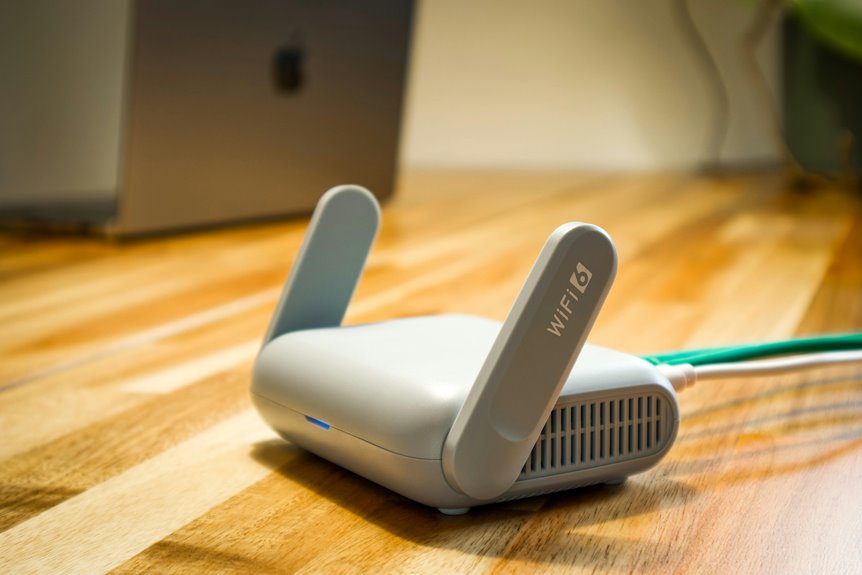
A Wi‑Fi network usually centers on a wireless router, which serves as the gateway to the internet and manages traffic between your local devices and external networks. You can extend that core with access points or a mesh system whenever one unit can’t cover your space well.
- Place access points where signal loss is low and users gather.
- Use mesh backhaul design to keep nodes linked with stable links and balanced throughput.
- Choose a router for simple layouts, APs for wired expansion, and mesh for seamless roaming.
With the right mix, you join a network that fits your rooms, devices, and daily routine. Each option keeps your devices online, but it solves coverage differently. Access points add capacity; mesh nodes share load and reduce dead zones.
WiFi Security Basics for Safe Access
You should use a strong, unique Wi‑Fi password to block unauthorized access and reduce credential-guessing risk.
You should also enable WPA3 or WPA2-AES encryption so your wireless traffic stays protected over the air.
These controls help you secure authentication and keep data confidential on the network.
Strong Password Practices
Strong passwords are a basic Wi-Fi security control because they help block unauthorized access to your wireless network and the devices connected to it. You should treat password complexity as a baseline requirement: use a long passphrase with mixed characters, and avoid reused words or personal details. Good password manager habits help you generate unique credentials and store them safely, so you don’t rely on memory alone.
- Update your Wi-Fi password after shared access ends.
- Keep each network credential unique.
- Share access only with people you trust.
When you protect the login, you protect the group’s connection, privacy, and trust. A solid password won’t stop every threat, but it raises the effort needed to break in, and that matters.
Secure Network Encryption
Even with a strong password, Wi-Fi traffic isn’t fully protected unless you encrypt the connection. You should enable modern encryption protocols, such as WPA3, on your router and every device you trust. Encryption scrambles each packet before it crosses the air, so nearby users can’t read your data or hijack your session. Use secure authentication to verify that only approved devices join your network, and avoid legacy modes that weaken protection.
Whenever you manage a home or shared network, update firmware, create separate guest access, and confirm that every access point matches the same security settings. As you encrypt correctly, you protect messages, logins, and shared files, and you help everyone in your network community connect with confidence.
How WiFi Supports Smart Devices
Wi-Fi lets smart devices connect to local networks without cables, so they can exchange data with routers and access points in real time. You get fast authentication, IP assignment, and packet delivery that keep sensors, speakers, and wearables responsive. With smart home integration, you can link devices into one coordinated system that shares status updates and control signals.
Connected appliance automation lets your thermostat, lights, and locks react to triggers without manual input.
- Your devices send small data packets efficiently.
- You stay synced through secure wireless links.
- You control tasks from one connected environment.
Wi-Fi’s interoperability helps different brands work together, so you feel included in a unified setup.
WiFi in Homes, Offices, and Public Spaces
Once your smart devices are online, Wi‑Fi extends that same connectivity across homes, offices, and public spaces.
In your home, you place the router centrally and use home wifi zoning to separate rooms, limit interference, and keep bandwidth where you need it. In offices, access points expand coverage, support many users, and keep laptops, printers, and phones on the same secure network. In public spaces, you join a hotspot after scanning, authenticating, and accepting the terms. You should follow public hotspot etiquette: verify the network name, avoid sensitive transactions, and share airtime with others. Wi‑Fi gives you consistent access, but performance still depends on placement, band selection, and congestion.
Future WiFi Trends and Technology
You’re moving into Wi‑Fi 7, which raises throughput, lowers latency, and improves frequency band use through wider channels and more efficient modulation.
You’ll also see AI-driven network optimization tune channel selection, traffic routing, and interference mitigation in real time.
Together, these changes should give you faster, more stable wireless performance across dense device environments.
Wi-Fi 7 Advancements
As wireless demand grows, Wi‑Fi 7 pushes performance forward with wider channels, lower latency, and higher throughput across compatible 2.4 GHz, 5 GHz, and 6 GHz bands. You gain multi link efficiency using several links at once, so your devices can keep data moving with less contention. That means improved latency for gaming, calls, and file transfers, especially once your network feels crowded.
- You’ll notice smoother streaming in busy homes.
- You can join a faster, more responsive Wi‑Fi community.
- You’ll keep devices connected with stronger channel use.
Wi‑Fi 7 also improves spectral use through 320 MHz channels and precise modulation, helping your access point serve more traffic without wasting airtime.
AI-Driven Network Optimization
AI-driven network optimization uses real-time telemetry from routers and access points to adjust channels, bands, power levels, and traffic priorities automatically.
You get a steadier link because the system learns your usage patterns and predicts congestion before it hits.
With predictive traffic balancing, it can shift video, gaming, and voice traffic across 2.4 GHz, 5 GHz, and 6 GHz bands for lower latency and fewer retries.
Automated anomaly detection flags interference, rogue devices, and failing radios fast, so you’re not left troubleshooting alone.
You also gain tighter coordination between mesh nodes and access points, which keeps coverage consistent as demand changes.
In a well-managed Wi-Fi environment, you’re part of a network that adapts with you, providing reliable performance without constant manual tuning.
Frequently Asked Questions
What Is the Difference Between a Wireless Router and an Access Point?
A wireless router directs traffic between your devices and the internet, while an access point expands Wi Fi coverage. Router placement affects signal strength, and a guest network keeps visitor devices separate.
How Does DHCP Assign an IP Address on Wifi?
DHCP gives your device an IP address by leasing one from the router’s pool after your WiFi connection starts. Your device sends a request, the router replies with an acknowledgment, and the lease is renewed before it expires so your connection stays active.
Why Do Wifi Devices Use Different Frequency Bands?
Different WiFi bands separate traffic so nearby devices do not clash, let equipment connect on the band it supports, and let you choose between longer reach and faster data rates. Lower frequencies travel farther through walls and obstacles, while higher frequencies move more data but cover a shorter distance.
How Do Wifi Packets Travel Through Routers to the Internet?
Your device sends WiFi packets to the router. The router reads the destination address, routes each packet to the WAN connection, and passes it to your ISP. Reply packets come back through the same route.
What Role Do Wireless Adapters Play in Device Connectivity?
Wireless adapters let a device join a Wi Fi or Bluetooth network by turning digital data into radio signals and receiving them back. They also manage the link between the device and the network, support secure authentication, and help maintain stable and fast communication.