Do you really get better performance just through choosing the newest USB connector? You’ll find that USB-A, USB-B, Mini-USB, Micro-USB, and USB-C each solve different hardware problems, but the shape alone doesn’t tell you everything. Some ports carry legacy limits, others improve power delivery and reversibility. The differences matter more than you may expect, and one common assumption keeps causing costly mistakes.
What Are the Main USB Connector Types?
The main USB connector types are Type-A, Type-B, Micro-B, Mini-USB, and Type-C, each defined via a distinct physical shape, pin count, and use case. You’ll see Type-A on many host ports, while Type-B usually serves peripheral devices. Micro-B and Mini-USB shrink the footprint for compact hardware, though they reflect USB connector history and often survive through legacy cable labeling.
Type-C is the current reversible standard, and you can identify it through its symmetrical oval shell and higher pin density. Whenever you choose a connector, assess mechanical fit, bandwidth needs, power delivery, and lifecycle support. That way, you stay aligned with the ecosystem and connect confidently with the devices your team already trusts.
USB-A: The Classic Connector
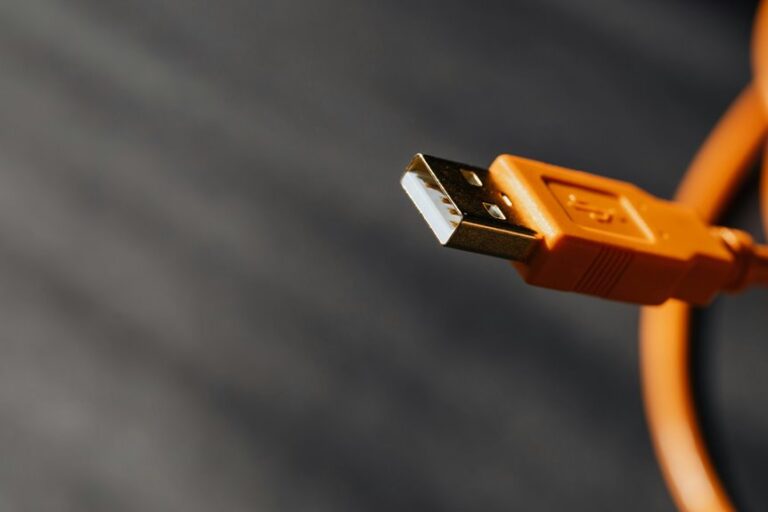
USB-A remains the most familiar USB interface because you’ll find it on most PCs, docks, and IT peripherals as the standard rectangular, flat connector. You can trust it for classic PC peripherals and legacy Type A devices, especially whenever you need broad compatibility without extra adapters. Its nonreversible shape makes orientation matter, but its mature ecosystem keeps deployment simple and predictable.
- Supports USB 2.0, USB 3.0, and newer revisions.
- Preserves backward compatibility across generations.
- Delivers 480 Mbps to 10 Gbps, depending on version.
- Uses a larger footprint that suits stable, wired setups.
Whenever you’re building a dependable workstation, USB-A helps you stay connected to the hardware community you already know.
USB-B: Printers, Hubs, and Devices
USB-B shows up most often on printers, scanners, external drives, and some hubs because its square, slightly rounded shape suits device-side connections that rarely change.
You’ll often see it in usb b printer applications, where a fixed upstream port keeps cable orientation obvious and reduces accidental wear. For usb b device integration, you get a practical, cost-effective interface that handles legacy USB 2.0 or faster USB 3.0 links, depending on the receptacle.
You should match the plug to the exact USB-B variant, since 3.0 designs aren’t physically interchangeable with older receptacles. That distinction helps you avoid support issues and keeps your equipment aligned with the rest of your setup. In shared labs or offices, this familiar connector helps your team stay compatible, organized, and ready to connect confidently.
Mini-USB and Micro-USB Connectors
As you move from fixed device ports like USB-B to smaller form factors, Mini-USB and Micro-USB offer compact alternatives for space-constrained hardware. You’ll see Mini-USB mainly in legacy devices such as cameras and hubs, where compact peripheral connector use still matters. Micro-USB shrinks the footprint further and suits phones, controllers, and power banks. Choose carefully:
- Mini-USB: 4- or 5-pin variants, typically USB 2.0 at 480 Mbps.
- Micro-USB: 5-pin, often used for legacy mobile device support.
- Mechanical risk: Micro-USB’s smaller shell can wear faster under repeated insertion.
- System fit: both help you preserve board space while keeping familiar cable ecosystems.
You’re part of a broad installed base here, and these connectors remain practical while lifecycle continuity outweighs newer interface demands.
USB-C: The Reversible Modern Port
How does USB-C change the port strategy? You gain a reversible, symmetrical interface that removes plug-orientation guesswork and streamlines daily use. USB C cable orientation and convenience matter because you can connect faster, reduce wear from repeated misalignment, and support cleaner device workflows.
USB C adoption in modern laptops and phones reflects its technical value: compact size, high-speed data paths, and power delivery that can serve demanding peripherals and charging needs. You’ll also fit into a broader ecosystem where one port can simplify docks, displays, storage, and mobile charging.
For your design or purchasing decisions, USB-C offers a precise balance of usability, bandwidth, and forward compatibility, helping you standardize around a modern connector that matches current expectations and shared user habits.
Key Differences Between USB Connector Types
You can distinguish USB connector types first by physical shape: Type-A is flat and rectangular, Type-B is square, Mini and Micro variants are smaller, and Type-C uses a symmetrical oval profile.
You should then compare data and power capabilities, since bandwidth ranges from 480 Mbps on USB 2.0 to 40 Gbps on USB 4, while power delivery can reach 100W on Type-C.
Finally, note whether the interface is reversible or nonreversible, because Type-C is orientation-independent, whereas Type-A, Type-B, Mini, and Micro connectors require correct alignment.
Physical Shape Differences
USB connector types differ most visibly in their physical geometry, which directly affects fit, orientation, and device compatibility. You’ll notice connector outline variations across families, and each one signals different port housing geometry.
- Type-A uses a flat rectangle, so you insert it only one way.
- Type-B adds a squarer body, often with beveled corners, to guide printer-like devices.
- Mini-USB reduces the footprint, but its smaller shell still keeps a keyed shape.
- Micro-USB narrows further with a low-profile profile that feels familiar in compact electronics.
Type-C changes the pattern with a rounded, symmetrical oval, letting you join the same team of users without checking orientation. That physical symmetry simplifies handling while preserving a precise mechanical interface.
Data And Power Rates
Data rates and power delivery vary sharply across connector families, so one port choice can cap performance or charging capacity before the cable even matters.
You’ll see USB 2.0 ports around 480 Mbps, while USB 3.0 Type-A and Type-B climb to 5 Gbps, and USB 3.1 can reach 10 Gbps. Mini-USB usually stays at 480 Mbps, and Micro-B 3.0 also tops out at 5 Gbps. Type-C pushes far beyond that, supporting 10, 20, 40, and even 80 Gbps in newer implementations.
For power, older connectors often sit near 2.5W, Micro-B 3.0 delivers 5V at 0.9A, and Type-C can supply up to 100W. Use throughput benchmarking metrics and energy delivery limits to match the port to your device’s real workload.
Reversible Vs Nonreversible
One of the most practical distinctions between USB connector types is whether the plug is reversible or keyed to a single orientation. When you choose a reversible interface, you improve reversible plug ergonomics and cut wasted insertion attempts. Nonreversible designs, such as Type-A, Type-B, Mini-USB, and Micro-USB, demand alignment, but they can support nonreversible insertion safety by making polarity and mechanical seating explicit.
- Reversible plugs reduce handling error.
- Keyed plugs reinforce predictable mating.
- Orientation-free insertion feels faster in dense setups.
- Orientation-specific designs often suit legacy hardware.
You’ll usually prefer Type-C for modern devices, while older peripherals still depend on keyed forms. In your workspace, the right choice depends on user speed, compatibility, and the confidence you want in every connection.
USB Versions and Connector Shapes
If you compare USB version standards, you’re matching data rate, power, and signaling capabilities to the connector shape family in use.
You’ll see Type-A, Type-B, Mini, Micro, and Type-C interfaces, each with distinct physical geometries and version-specific pin layouts.
Compatibility isn’t uniform, so you need to verify both the plug form factor and the USB revision to guarantee correct use.
USB Version Standards
- the host’s supported USB generation
- the device’s negotiated data rate
- the connector’s allowed mating interface
- the power budget the port can supply
When you choose correctly, you keep your system predictable and your team aligned. A USB 2.0 device will usually work on a newer port, but you won’t gain speed beyond its design. That’s the practical standard: fit foremost, then capability, then performance.
Connector Shape Families
| Family | Shape | Typical role |
|---|---|---|
| Type-A | Flat rectangle | Host-side default |
| Type-B | Square with top notch | Peripheral uplink |
| Mini-B | Small square | Legacy compact devices |
| Micro-B | Thin asymmetrical shell | Slim mobile gear |
| Type-C | Reversible oval | Modern universal interface |
You’ll notice each shape encodes mechanical constraints, pin density, and enclosure space. Choosing the right family helps you stay aligned with the device ecosystem you’re part of, while preserving layout discipline and clear port identification.
Compatibility and Use
USB compatibility depends on both the connector shape and the USB version behind it, and you need to treat those as separate design constraints.
Whenever you match hardware, you protect legacy device support and keep cross platform peripheral pairing predictable. Consider:
- Type-A and Type-B often accept older plugs, but speed still follows the negotiated USB version.
- Type-3.0 Type-B won’t fit 2.0 receptacles, while 2.0 plugs can work in 3.0 ports.
- Mini-USB and Micro-B serve compact devices; Mini-USB is mostly legacy technology.
- Type-C adds reversibility, higher power, and broader interoperability across modern systems.
You should verify both fit and protocol before deployment. That way, you stay aligned with your team’s standards, reduce adapter friction, and choose connectors that support your shared ecosystem.
Find the Right USB Connector
How do you choose the right USB connector? You match bandwidth, power, and mechanics to your design target.
Whenever you need a familiar, low-cost interface, Type-A and Type-B fit well, but their non-reversible form and larger footprints can challenge enclosure space constraints. If your product is compact, Micro-USB or Mini-USB can save room, though Mini-USB is largely legacy and Micro-USB is mechanically more delicate. Once you need higher data rates, stronger power delivery, and a reversible user experience, Type-C is the most capable option.
For connector lifecycle planning, you should weigh long-term market support, PCB routing complexity, and serviceability. Choose the connector that aligns with your device’s role, so your team and users stay confident, connected, and technically aligned.
USB Adapters and Cable Compatibility
Once you’ve selected a connector, you still need to verify how it will mate with the rest of the system, because adapters and cable assemblies determine what actually connects in practice. You can bridge mismatched ports, but you should check signal, power, and shielding limits first. Many teams run into adapter gender issues as a male plug, female receptacle, or inline coupler changes the mechanical stack-up.
Use this checklist:
- Confirm host and device connector types.
- Match USB version and current rating.
- Validate cable extension options for loss and latency.
- Prefer certified assemblies for reliable fit.
If you’re designing with a peer group, standardize parts so everyone can swap peripherals confidently. Careful selection keeps your build coherent, compatible, and ready for shared use across labs or workstations.
Common USB Connector Mistakes
Even whenever the connector shape looks right, you’ll still run into avoidable mistakes if you ignore version, power, and mechanical limits.
You may force a USB 3.0 plug into a USB 2.0 receptacle, or assume every Type-B, Mini-B, and Micro-B cable behaves the same. That creates pin damage, intermittent data loss, and failed enumeration. You can also overload a port by expecting more power than it can supply, especially with bus-powered peripherals.
Mechanical abuse matters too: repeated side loading, tight bends, and cable strain weaken shells and solder joints. You belong to the group that checks orientation, pin count, and device labels before mating connectors. That habit cuts downtime, protects hardware, and keeps your bus stable under real workloads.
Choosing the Right USB Type
You should first verify device compatibility, since the connector type has to match both the host and the peripheral.
Then you need to compare power delivery and data rate requirements, because not every USB type supports the same charging or transfer performance.
Finally, you should check port availability on your system, as the best connector is the one you can actually deploy without adapters or bottlenecks.
Device Compatibility
Choosing the right USB type depends on the device’s connector, speed, power, and mechanical requirements. You can’t treat compatibility as generic; you must match the plug to the host and the peripheral. For reliable legacy device support and cross platform peripheral matching, evaluate the interface initially.
- Type-A suits PCs and many IT peripherals with broad backward compatibility.
- Type-B fits printers, scanners, and external drives, but you must verify receptacle generation.
- Micro-B works for compact devices, though its small shell is more fragile.
- Type-C best supports modern gear with reversible insertion and broad ecosystem adoption.
When you choose well, you join a stable device set and reduce adapter dependency. Consistent connector planning improves interoperability across your hardware stack.
Power And Speed
Once you’ve matched the connector to the device, the next constraint is performance: USB type also determines how much power the link can supply and how much bandwidth it can carry.
You should choose a type that meets both data and energy demands. USB 2.0 handles basic peripherals, but USB 3.x raises throughput for storage and imaging. If you need stronger power throughput, Type-B variants stay modest, while Type-C supports up to 100W and far better charging efficiency.
Micro-USB can work for low-power gear, yet it’s mechanically weaker than Type-C. Mini-USB and Type-A remain practical in legacy systems, but they limit future growth. Whenever you align power, speed, and durability, you’re making the same disciplined choice the best teams make together.
Port Availability
Before you commit to a connector, check what ports are actually available on the host and peripheral, because compatibility often narrows the choice more than bandwidth does. You’ll make better decisions whenever you map the real interface pair, not the ideal one, and align port placement planning with connector count management.
- Verify the host port initially.
- Match the peripheral receptacle exactly.
- Observe legacy adapters only whenever necessary.
- Reserve space for future revisions.
If your device ships with Type-C, you can serve modern users cleanly; whenever it must connect to Type-A, Type-B, Micro-B, or Mini, you’ll preserve continuity with existing fleets. In practice, your team belongs to the best result whenever you design for the ports people already own, then confirm mechanical fit, orientation, and service access.
Frequently Asked Questions
Which USB Connector Type Supports the Highest Power Delivery?
USB Type C supports the highest power delivery, up to 100W. That is 20 times USB 2.0’s 2.5W limit, so it is a strong choice for high wattage charging when power negotiation matters most.
Are USB 3.0 Type-B Plugs Compatible With Older USB Ports?
No, USB 3.0 Type B plugs do not fit into USB 2.0 or 1.1 receptacles. USB 3.0 receptacles can support older USB devices, but older Type B plugs are not compatible with USB 3.0 Type B connections.
Why Is Micro-Usb Considered More Fragile Than USB-C?
Micro USB is more fragile because its small internal tongue and one sided shape take more wear during plugging and unplugging. USB C is reversible and built with a stronger connector design, so it usually lasts longer under repeated use.
Which Devices Still Commonly Use Mini-Usb Connectors Today?
You’ll still find mini USB on digital cameras, older USB hubs, external hard drives, legacy camera accessories, and some industrial control peripherals. Manufacturers often keep it for backward compatibility, lower parts cost, and a connector design that has already proven reliable in rugged use.
How Do USB-A and USB-C Differ in Pin Count?
USB A has 4 pins arranged in a fixed layout, while USB C has 24 pins in a tighter arrangement. The extra pins support higher power and faster data transfer, but the wiring is more complex.