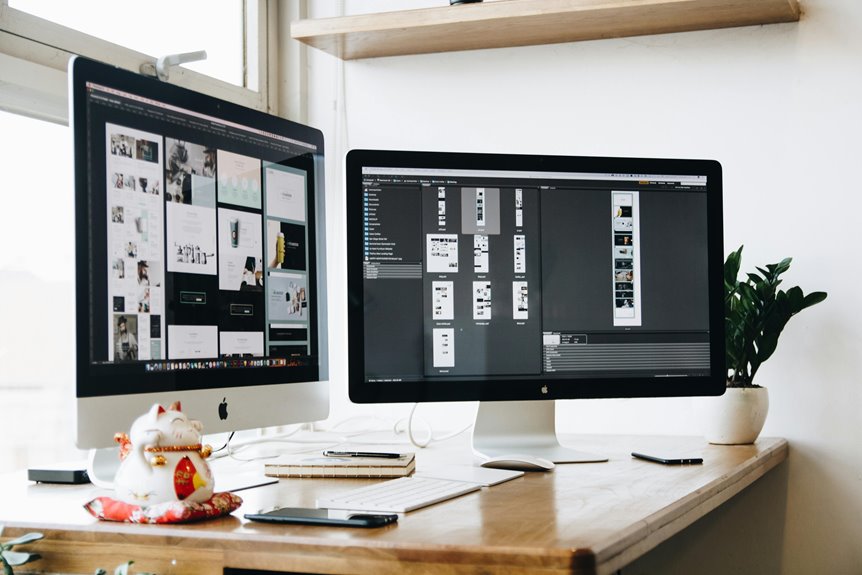
If you use a dual screen setup, you can keep one screen on your main task and the other on supporting work, which cuts down on constant switching and clutter. You’ll likely move faster, stay more organized, and make fewer mistakes whenever your workspace fits the way you work. The real question is how to set it up so both screens actually help instead of getting in your way.
What Is a Dual Screen Setup?
A dual screen setup uses two monitors connected to the same computer so you can view more than one window at once. That’s the core of the definition basics: one system, two displays, shared control.
You’ll usually need these setup components: a computer with a compatible video card or built-in ports, two monitors, and the right cables. Some setups use a dock or adapter, but the goal stays the same: extend your workspace.
You can place the screens side by side or stack them, depending on your desk and habits. This arrangement lets you keep related apps visible together, so you feel more settled and in sync with your work.
If you’re joining a dual-monitor crowd, you’re simply adding room to see and organize.
Why a Dual Screen Setup Boosts Productivity
A dual screen setup increases productivity because you can switch tasks faster without constantly minimizing and reopening windows.
It also gives you better workflow visibility, so you can track multiple apps, documents, or data sources at once.
With both screens in view, you spend less time hunting for information and more time getting work done.
Faster Task Switching
With a dual screen setup, you spend less time hunting for windows and more time working because two monitors let you keep multiple applications visible at once. You cut down on window management, so you can move from research to writing, or from email to data entry, without breaking your app focus.
That speed matters whenever you’re part of a team that values momentum, because fewer clicks mean fewer interruptions and less cognitive reset. You also avoid the drag of minimizing, resizing, and reopening tools, which keeps your pace steady.
In practice, faster task switching helps you stay engaged, finish edits sooner, and respond quickly whenever priorities change. You work more like a coordinated pro, not someone constantly chasing the next tab.
Better Workflow Visibility
When you add a second monitor, your workflow becomes easier to see and manage because you can keep more information visible at once. You get stronger workflow clarity once your email, source files, and task list stay open side by side instead of buried behind windows. That screen visibility helps you compare details faster, catch gaps sooner, and stay oriented while moving through complex work.
You won’t waste energy hunting for tabs or resizing panels, so your attention stays on the job. In a dual screen setup, you can keep one space for focus and another for reference, which makes you feel more in control and more connected to your work. That practical balance supports quicker decisions, fewer mistakes, and a smoother daily rhythm.
Best Dual Screen Setup for Everyday Work
For everyday work, the best dual screen setup keeps your main task in front of you and your supporting information beside it, so you can compare, copy, and switch less often. You’ll work faster when one display handles active editing and the other holds email, chat, research, or reference files.
That split supports daily ergonomics by reducing constant motion and helping you stay settled. It also improves workspace comfort because your eyes and hands can follow a steadier rhythm. Keep both screens at the same height and brightness so your focus stays balanced.
If you handle long documents, give one monitor the role of reading space. You’ll feel more in control, less frustrated, and better connected to your workgroup’s pace, which matters every day.
How to Arrange Two Screens Efficiently
How should you arrange two screens for the best results?
Place your main monitor directly in front of you and the secondary one beside it, angled inward so your head turns less.
Keep top edges aligned, and match height and distance to protect ergonomic alignment.
Use screen positioning that supports the tasks you do most: put your primary workflow on the center display, then reserve the second for reference, chat, or comparison work.
Provided that one screen is taller, use it for long documents or code.
Keep both within easy reach of your eyes, and avoid a gap that forces repeated scanning.
Whenever the layout feels natural, you’ll work faster, stay focused, and feel like your setup truly fits your team’s rhythm.
Must-Have Dual Screen Accessories
To get the most from a dual-screen setup, you’ll want monitor mounts that free desk space and let you position each display at the right height and angle.
You’ll also need solid cable management to keep cords organized, reduce clutter, and make troubleshooting easier.
Together, these accessories help you build a cleaner, more efficient workspace that supports faster, smoother work.
Monitor Mounts
Monitor mounts can make a dual-screen setup far more effective by freeing desk space, improving screen alignment, and reducing neck strain.
Whenever you choose ergonomic mounting, you gain adjustable positioning that lets each display sit at the right height, angle, and distance for your workflow. That means you can keep both screens in view without constant head turns or awkward posture.
For many users, this setup feels more controlled and professional, and that sense of control supports confidence during long work sessions. A stable mount also helps you share your space with other peripherals while keeping your screens where you need them.
Whenever you want a cleaner, more efficient dual-monitor experience, mounts are a practical upgrade that fits right into your productivity setup.
Cable Management
Alongside the screens themselves, cable management is a must-have accessory for any dual-monitor setup because it keeps your workspace organized, safe, and easier to use. You’ll feel more in control once wires don’t distract you or break your flow. Good desk cable routing also supports faster cleaning and smoother upgrades. Use clips, sleeves, and trays to guide power and video lines neatly. Under desk wire concealment hides clutter and protects connections from pulls.
| Tool | Best use | Benefit |
|---|---|---|
| Cable clips | Route leads | Prevent tangles |
| Sleeve | Bundle cords | Reduce visual noise |
| Tray | Under desk wire concealment | Clear floor space |
| Labels | Identify cables | Speed changes |
Once your setup looks intentional, you belong in a space built for focus, calm, and better work.
Common Dual Screen Setup Mistakes
Even a well-intended dual screen setup can underperform whenever you place the monitors at mismatched heights, ignore display alignment, or force yourself to turn your neck and eyes constantly. You also lose gains whenever you crowd the desk, block airflow, or sit too far from one screen and too close to the other.
Poor desk ergonomics can make your shared workspace feel awkward, not supportive. Skipping display calibration may leave one panel brighter, warmer, or less sharp, so your work looks inconsistent.
Whenever you let bezels split key information, you’ll slow down and miss details. Check height, angle, distance, and color settings together.
Whenever your setup feels balanced, you belong in a cleaner workflow, and your screens start helping each other instead of competing.
Smart Ways to Use Two Screens at Work
Once your dual setup is balanced and comfortable, you can put both screens to work in ways that actually improve output.
You’ll fit into the group that gets more done through assigning each monitor a role.
- Keep your active task on one screen and reference material on the other for faster decisions.
- Use cross app organization to park email, chat, and files where you can check them without breaking focus.
- During screen based collaboration, share one display in calls while you edit on the other.
This setup cuts window switching, lowers errors, and speeds comparisons. You can also keep long documents in portrait view and spreadsheets side by side.
With a clear system, your workflow feels smoother, more confident, and more connected.
Frequently Asked Questions
What Productivity Gains Can Dual Monitors Realistically Provide?
You can typically expect productivity gains of about 10% to 50%, with many users seeing improvements in the 18% to 42% range. Dual monitors reduce app switching, keep more windows visible at once, and help you complete multi app tasks faster with fewer mistakes and less hassle.
Do Dual Screens Reduce Errors in Detailed Work?
Yes. Dual screens can reduce errors in detailed work by keeping more information visible at once. Research shows improved task accuracy and fewer mistakes because users switch less often and compare data more easily.
Is a Dual Monitor Setup Worth the Extra Cost?
Yes. If you weigh the cost carefully, a dual monitor setup can pay off through quicker work and fewer mistakes. Buy during a sale, and the extra screen may prove worth the price.
How Do Dual Monitors Affect User Comfort and Satisfaction?
Dual monitors often improve comfort and satisfaction by making it easier to keep important tools visible, reduce constant window switching, and tailor the setup to your workflow. This can lower eye strain, reduce frustration, and make work feel smoother and more natural.
Can One Monitor Be Portrait and the Other Landscape?
Yes, one monitor can be set to portrait and the other to landscape through your display rotation settings. This setup gives you more vertical space for reading long pages and keeps your primary screen wide for work.